Run Job With Options
The Run Job '<Job name>' with options item opens the Run Job - with options window, where you choose how one run of the Job is started.
The window has these settings:
- Job: the Job to run. The selected Job is filled in
- With Conditions: when checked, the Job's Condition Set is applied as on a scheduled run. When unchecked, which is the default, the Server still checks the Job's Condition Set, so its conditions run, but it does not apply the set's action. The log then shows "Skipping Condition check because the Job was run manually." The Condition Sets of the Job's Tasks are applied either way. See Job - Conditions
- Raise Trigger events: when checked, the Job raises Trigger events for this run, so that Jobs triggered by it can start. Unchecked by default
- Variables: the Job Variables for this run. You can add, delete or change values
- Update Job Variables: when checked, the values you set here are saved to the Job Variables. When unchecked, they are used for this run only. Unchecked by default
- Tasks: From first Task (default) or From Task: with a Task, and To last Task (default) or To Task: with a Task
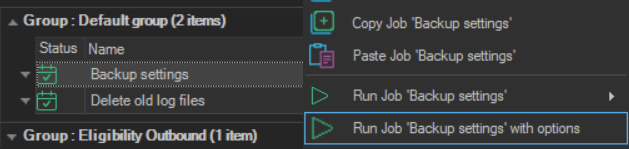
- Right-click the Job in the Server/Group/Job/Task grid.
- Click
Run Job '<Job name>' with options. - Set the options.
- Click Run.
If the Job does not start, a message shows the reason. Running a Job requires the Execute permission for the Job.