Job Folders
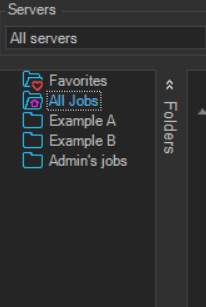
Job folders were introduced in version 8.3.5. With Job folders you can create a folder structure which you can reference Jobs to. When you click on that Job folder only the the Jobs, that belongs to that folder, will be filtered in the main grid.
Job folders are located in the left pane of the main window. You can right click in that window to create new folders. You can right click on a folder create a sub folder. Right click to Delete or Rename a folder.
In the right Job pane you can either right click on Add to folder and select a Job folder to add to. Once added you will have a selection mark next to the folder name in the popup menu. You can also drag one Job from the right pane into a Job folder in the left pane.
Adding Jobs to a folder
There are two ways to add Jobs to a folder, depending on whether you right click a single Job or a Job group in the main grid.
To add a single Job, right click the Job in the right Job pane and choose Add to folder, then select a Job folder. Once added, a selection mark is shown next to the folder name in the popup menu, so you can see at a glance which folders the Job already belongs to. You can also drag a single Job from the right pane into a Job folder in the left pane.
To add a whole group at once, right click the Job group header and choose Add to folder, then select a Job folder. Every Job in that group is added to the folder in one step. The group popup menu does not display a selection mark, because a group can contain many Jobs that each belong to different folders.
Removing Jobs from a folder
To remove a single Job from a folder, right click the Job and choose Add to folder. The folders the Job already belongs to are shown with a selection mark. Click a marked folder to remove the Job from it. Because the Favorites folder cannot be deleted, this is also how you remove a Job from Favorites.
To remove all Jobs in a group from a folder, first right click the group header and choose Select all Jobs. Then right click one of the selected Jobs, choose Add to folder, and click the marked folder. The action applies to every selected Job, so the entire group is removed in a single step.