Trial time
This page explains how the VisualCron trial works, where to see the days left, what happens when the trial ends, and how to extend it.
How the trial works
You are able to use all VisualCron functions for free for a limited period (30 days).
You can see the remaining trial days in these places:
- The Trial Information group on the Server tab
- About -> About -> About VisualCron
From three days before the trial ends, the Client shows the Trial period ending soon window once a day.
When the trial ends
When the trial ends, the Server stops running Jobs, and you can no longer manage the Server with the Client, except to activate it or extend the trial. Activate a license before the trial ends to keep Jobs running.
When you connect after the trial has ended, the Client shows the Trial period has ended window. Select the Server, and click Activate License to open the Activation window (see License and activation). If you close the window instead, the Client disconnects from the Servers whose trial has ended.
Extend the trial
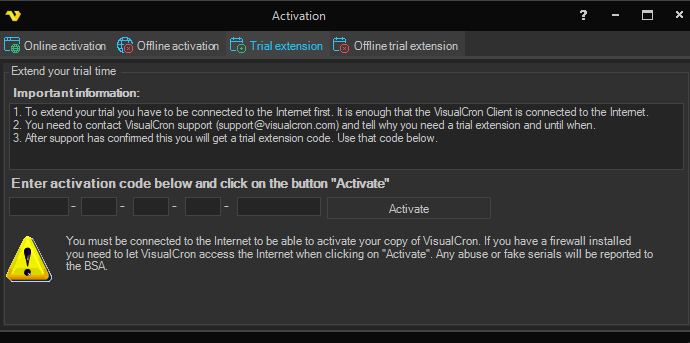
To extend the trial, click Server -> Information -> License -> Activate, and use one of these tabs in the Activation window:
- Trial extension: contact VisualCron support for a trial extension code, enter the code, and click Activate. The computer where the Client runs needs Internet access
- Offline trial extension: send the code shown on the tab to VisualCron as the tab describes (click Copy to clip board to copy it), enter the code you receive, and click Activate. This extends the trial by 30 days from that day. Enter the code on the computer that showed the request code, as soon as you receive it
Trial licenses
Trial licenses are provided exclusively for evaluation purposes. They may not be used to support production jobs, pre‑cutover testing, environment migrations, or any business‑critical workflows.