License and activation
This page explains how to activate a VisualCron Server with an activation code, online or offline. Use it after you buy a license, or when the trial is about to end.
License
You need an activation code to activate VisualCron. An activation code is included in the license. A license can be obtained at the VisualCron web site. The license is per server. When you activate VisualCron, you activate the current server you are connected to. You can use several clients to connect to one server with one license.
For what needs a license, see Licensing overview.
Open the Activation window
To open the Activation window, complete the following steps:
- Connect the Client to the Server you want to activate.
- Click Server -> Information -> License -> Activate.
The Activation window opens. Activate is available only while the Server is not activated.
If the trial has ended, the Client shows the Trial period has ended window when you connect. Select the Server, and click Activate License to open the Activation window. If you close the Trial period has ended window instead, the Client disconnects from the Servers whose trial has ended.
Activate online
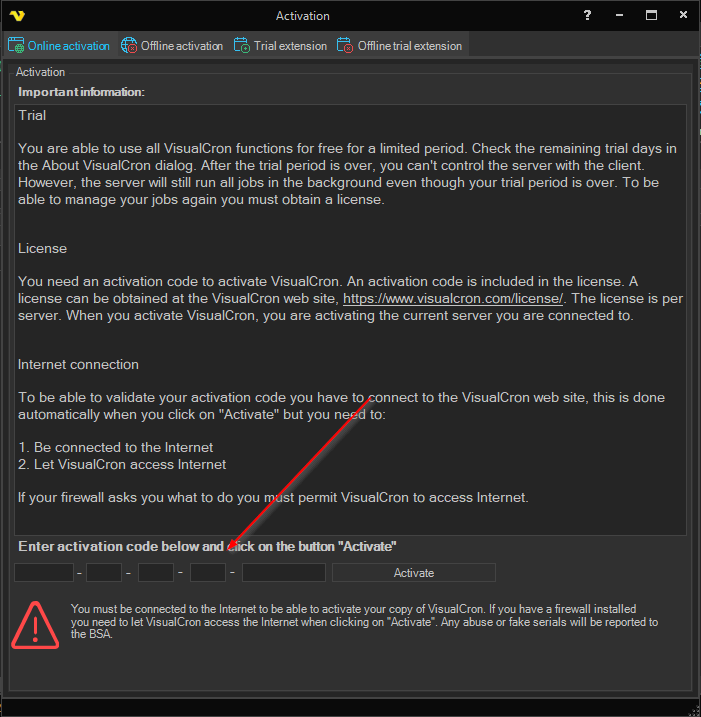
Online activation runs on the computer where the Client runs. That computer needs Internet access to www.visualcron.com on port 443, through the proxy set in the Client settings (see Settings - Client Settings). The Server computer does not need Internet access. If a firewall asks, allow VisualCron to access the Internet.
To activate online, complete the following steps:
- Open the Activation window.
- Click the Online activation tab.
- Enter the activation code in the five fields.
- Click Activate.
If the activation code is on the clipboard, click the first field and the Client fills in all five fields.
When the activation succeeds, the Client shows "Activation succeeded. Thank you for purchasing VisualCron!" and closes the window.
If the activation does not succeed, the Client shows a message and the Server stays in trial:
- The code is already registered on another Server: see Move a license
- The maintenance or subscription does not cover this version: renew it, or install a version that it covers (see Maintenance and subscription)
- The activation code is not valid: check the activation code, and enter it again
- The Client cannot reach the VisualCron website: check that the computer where the Client runs has Internet access, and that its firewall and proxy allow VisualCron. The message says that activation uses port 80, but activation uses port 443
- Any other error: contact VisualCron support
When the trial ends, the Server stops running Jobs. See Trial time.
Activate offline
Use offline activation when no computer running a Client for this Server can reach the VisualCron website. If the computer where the Client runs has Internet access and can connect to the Server over your network, use online activation instead.
To activate offline, complete the following steps:
-
In a Client connected to the Server, open the Activation window.
-
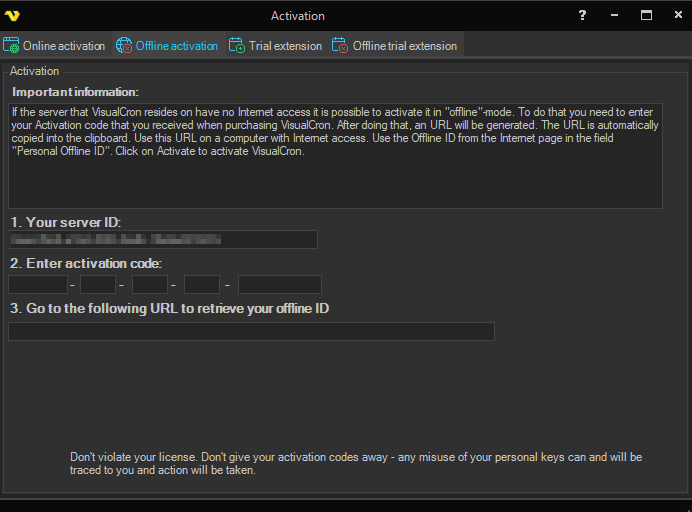
Click the Offline activation tab. The tab shows the Server Id under 1. Your server ID:.
-
Under 2. Enter activation code:, enter the activation code in the five fields. The Client builds the address under 3. Go to the following URL to retrieve your offline ID, and copies it to the clipboard.
warningThe address contains the Server Id and the activation code. Do not share it or post it publicly.
-
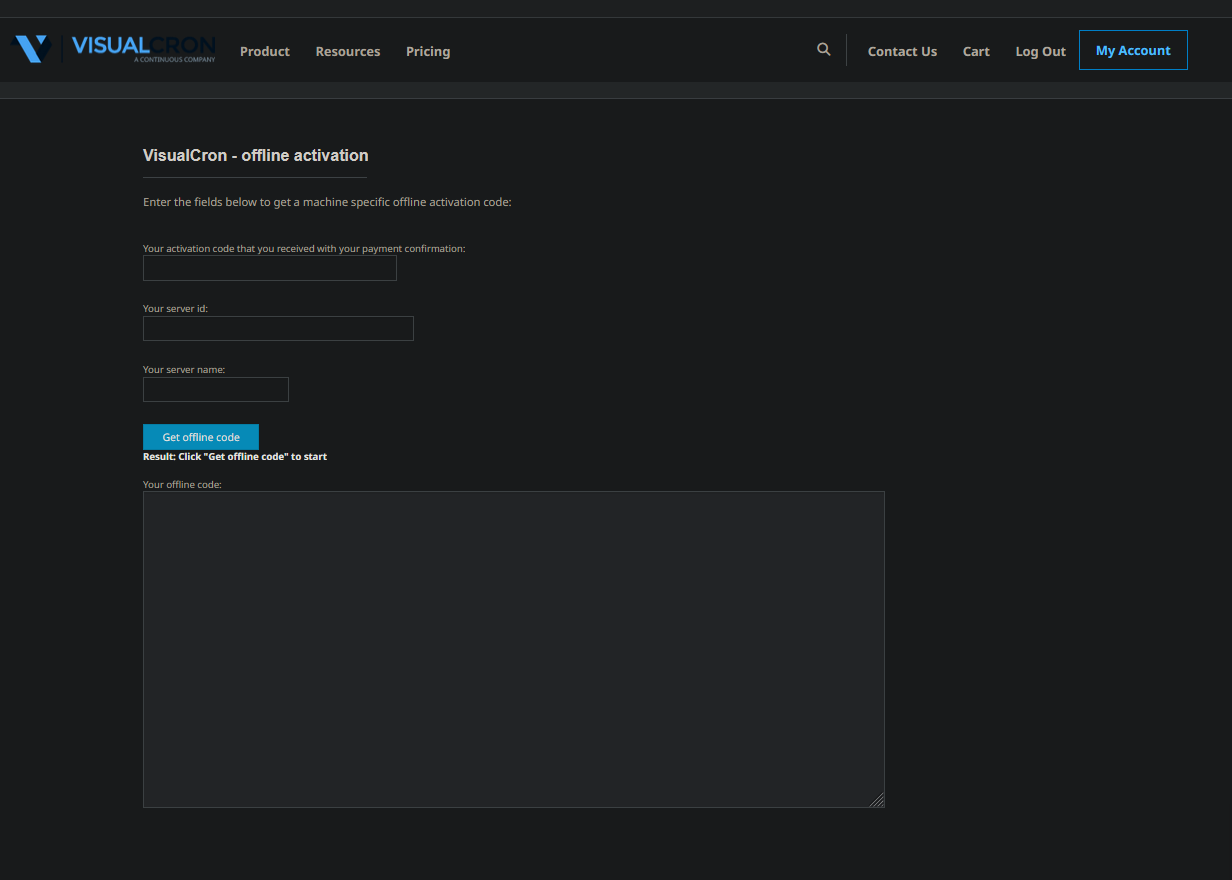
Copy the address to a computer that has Internet access, and open it in a browser.
-
Follow the web page to get your offline code (the Client calls it the offline ID), and copy it.
-
In the Client, paste the offline code into the box below the address.
-
Click Activate.
When the activation succeeds, the Client shows "Activation succeeded. Thank you for purchasing VisualCron!". If the offline code was created for another Server, the Client shows "Activation failed. Please check all your activation codes.". If the offline code is incomplete, it shows "Data error! Please check your offline code.".
Deactivate or move a license
Before you click Deactivate, make sure the computer where the Client runs can reach www.visualcron.com. If it cannot, the Server still returns to trial, but the activation code stays registered as in use, and the Client shows no message. The Trial Information group on the Server tab does not prove that the code was released. If this has happened, contact VisualCron support, or release the code on the My licenses page as described in Move a license.
To move a license to another Server, follow Move a license. It deactivates the license on the old Server with Server -> Information -> License -> Deactivate, and then activates the new Server. Please note that Deactivation / Move a license requires that you have an active Maintenance. For a subscription license, the Client asks for an active subscription instead. If the required maintenance or subscription is not active, the license stays on the Server.