Import/Export - Import Settings
The File -> Import/Export -> Import settings option loads settings into the connected Server from a zip file made with Export settings. You need the Import settings permission.
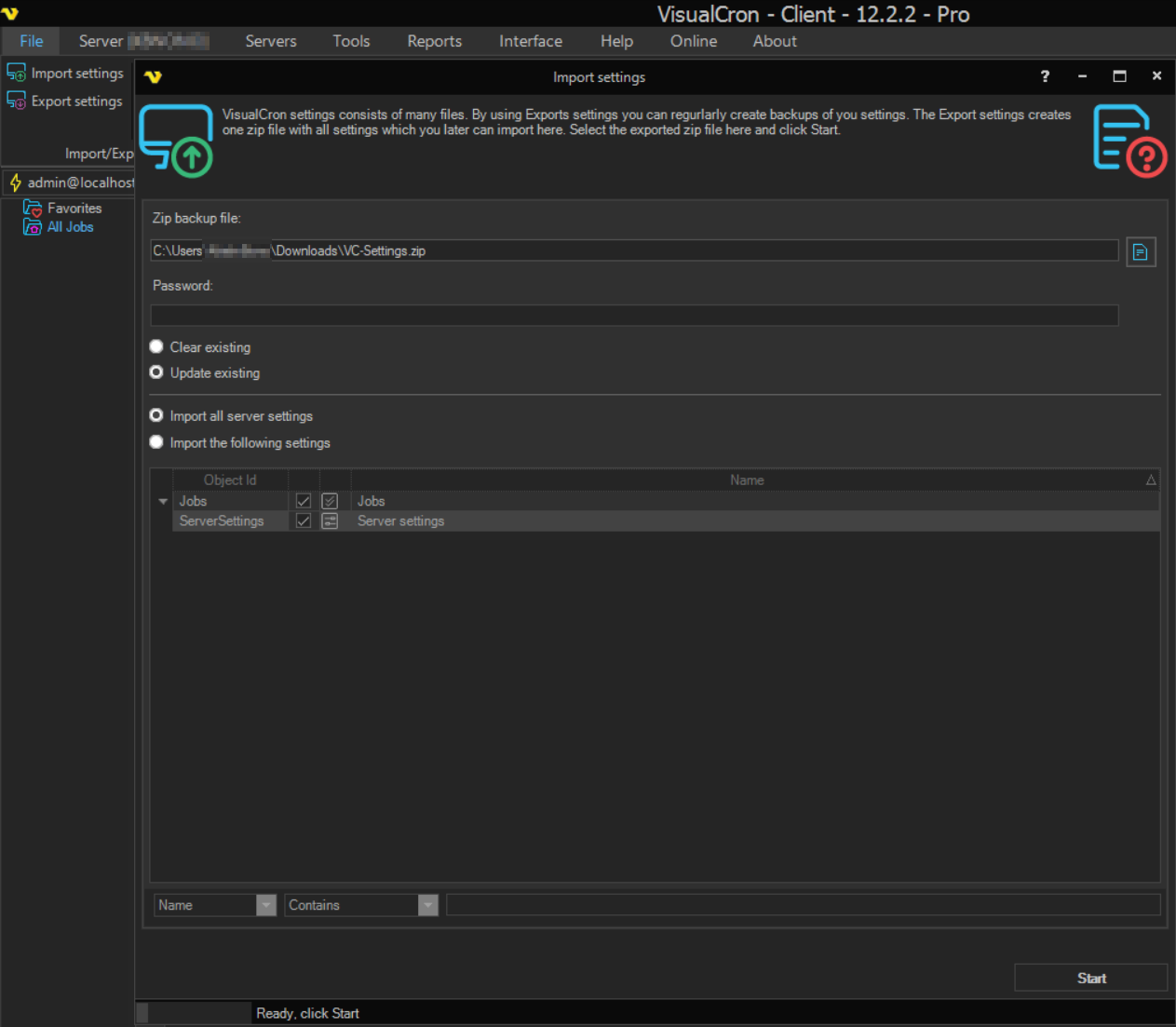
Import settings window
- Zip backup file: the exported zip file. Click the browse button to select it. The Client reads the file as soon as you select it, so enter the Password first. A file exported with Default file path is
VC-Settings.zipin the backup folder on the Server computer - Password: the password the file was exported with, if any. If it is wrong, the Client asks for it again
- Clear existing: removes existing objects before the import; see the warning below
- Update existing: keeps the existing objects. An object in the file that has the same Id as an existing object updates it; other objects are added. Default
- Import all server settings: imports everything in the file. Default
- Import the following settings: imports only the types and objects you check in the list. The list shows what the file contains. You can change the Group of a Job or other grouped object in the list to import it into another group, or a new one
- Start: starts the import
The Client refuses a file that was exported from a Server with a different encryption type or certificate.
With Clear existing and Import all server settings, the Server first removes all existing Certificates, SSH keys, Conditions, Connections, Credentials, Jobs, Notifications, PGP key rings, Time exceptions, User groups, Users, Network drives, Variables, Exit codes, Task repository objects and Server sync settings objects, including types that are not in the file. Managed File Transfer servers and Server settings are not cleared; they are merged or replaced only when the file holds them.
With Import the following settings, a type is cleared only when its whole type row is checked. If you clear any object under a type, that type is not cleared, and the checked objects are added or updated.
Export the current settings first, so that you can restore them.
If Users are cleared and the file contains no users, the Server creates the default admin user with a blank password. Change that password at once.
Troubleshooting
Access denied
When you select the file, this error appears if the Client is not running as administrator or the password is missing.
- Close the Client.
- In the Client installation folder, right-click
VisualCronClient.exe. - Click Run as administrator.
- If the file was exported with a password, enter it in Password.
- Select the file again.
Import keeps failing
If the import keeps failing and you want to replace all settings on the destination Server, copy the settings files directly. The settings folder is set in the Server settings; see Settings - Folders.
These steps replace all settings on the destination Server except its license and its Server settings. Copy the destination settings folder to a safe place first. Both Servers must use the same encryption type and certificate, or the Credentials and passwords cannot be decrypted.
- On the destination Server computer, stop the VisualCron service.
- In the destination settings folder, delete all files except
license.xmlandsettings_server.xml. - Copy all files except
license.xmlandsettings_server.xmlfrom the source settings folder to the destination settings folder. - Start the VisualCron service.