Import/Export - Task Scheduler
The File -> Import/Export -> Task scheduler option imports tasks from the Windows Task Scheduler of a local or remote computer into the connected Server as Jobs. VisualCron uses different Trigger types and Tasks, so some settings cannot be imported, and you may need to update the Jobs after the import; see Limitations and Manual update.
Connect
- Enter the connection details:
- Host name: the host name or IP address of the local or remote computer
- User name: the user name used to authenticate against the remote computer
- Password: the password of that user
- Domain: the domain of that user
- Click Connect.
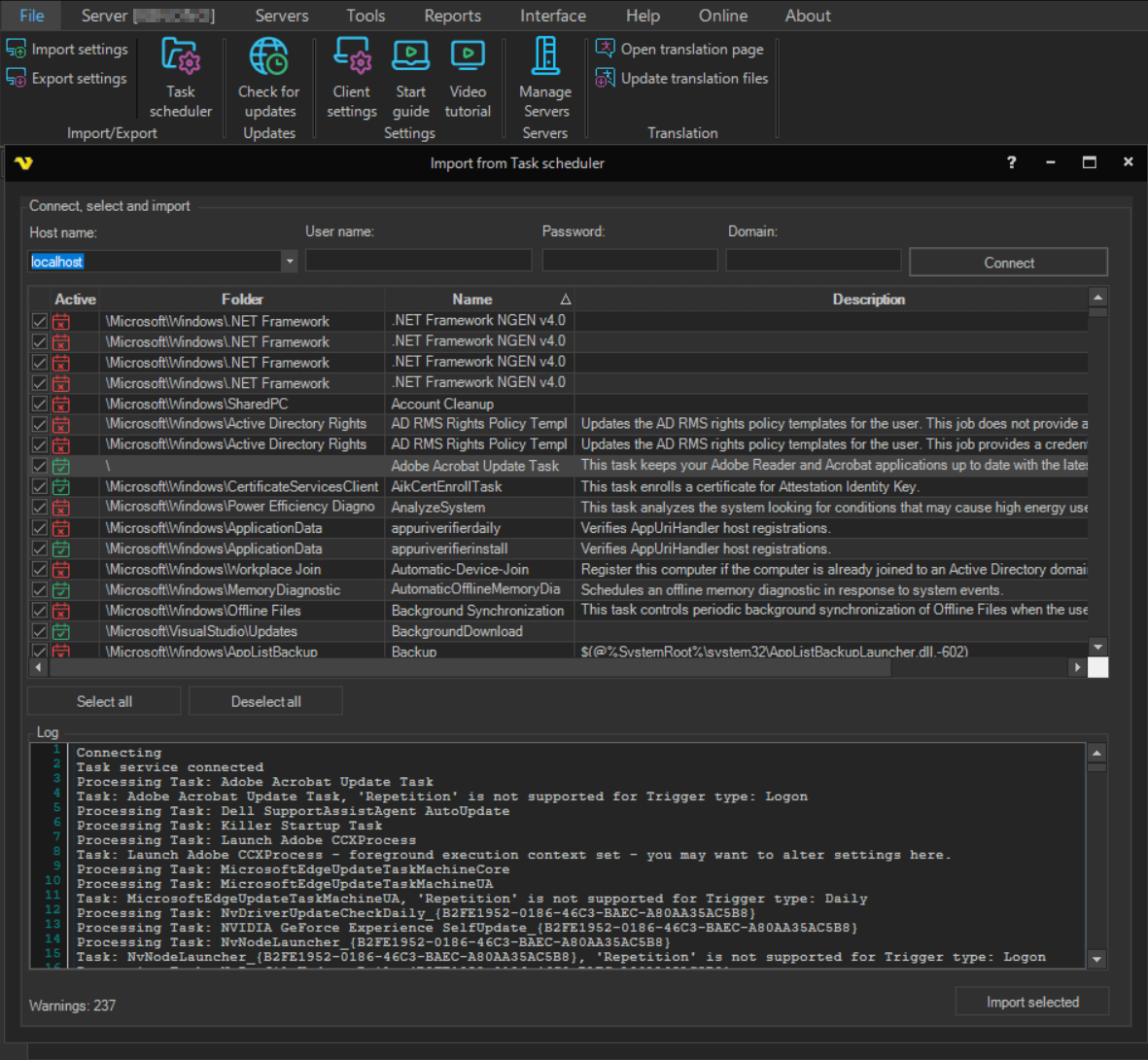
The grid lists all tasks, whether they are active, the folder they are in, their name and description, and any warnings for the import. The actions and Triggers of a task are not shown in the grid, but they are imported.
Import
- Check the tasks you want to import, or click Select all or Deselect all.
- Click Import selected.
The tasks are already converted when you connect, so the import is quick. Each new Job gets the task's folder path as its Job group. The Credentials and Connections created from the scanned tasks are added to the Server with the selected Jobs.
Limitations
Task and action limitations:
- VisualCron does not fall back to background execution when foreground execution fails
- "Execute" actions become Execute Tasks, "Send an e-mail" actions become Email Tasks, and "Display a message" actions become Popup Tasks
Trigger limitations:
- The repetition settings of a Trigger are not imported
- The Trigger types "Custom", "Idle" and "Registration" are not supported and are ignored
- For monthly Triggers, "run on the last day of the month" and specific months are not supported
Warnings
Warnings, mostly about these limitations, are shown in the Warning(s) column for each task, in the log, and as a count under the grid.
Manual update
Some imported Jobs need manual changes. The log lists them. They concern:
- Credentials: the password is not imported. After the import, open the Credentials window and enter the password of each new Credential
- Connections: the SMTP server details of Email Tasks. After the import, open the Connections window and update the SMTP Connection
Execute Tasks may also need changes, because VisualCron does not execute the same way as the Task Scheduler. For example, if a task calls cmd.exe, call the full path of the executable or script in the command line instead, so that VisualCron can capture the exit code and output.