VisualCron Tray Client
This page explains what the VisualCron Tray Client does, how to read its icon, and what its menu and settings do.
The VisualCron Tray Client is a small application that shows a VisualCron icon in the Windows notification area, normally at the lower right of the screen. If you cannot see the icon, click the arrow that shows hidden icons. Right-click the icon to open its menu.
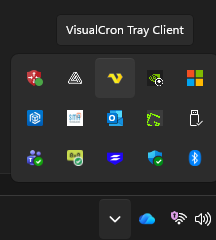
Startup and connection
By default, the Tray Client starts when a user logs on to Windows (see Start Tray Client on startup under Settings). It connects only to the VisualCron Server on the same computer. This lets it control the Server, run Tasks in the foreground and show notifications to the logged-on user.
The icon shows the connection state:
- Yellow VisualCron icon: connected to the Server
- Red VisualCron icon: not connected, for example because the VisualCron service (named "VisualCron" in Windows Services) is stopped, disabled or not installed
While it is not connected, the Tray Client tries to connect again every 30 seconds. After the service starts, the icon can take up to about 30 seconds to turn yellow again.
Menu commands
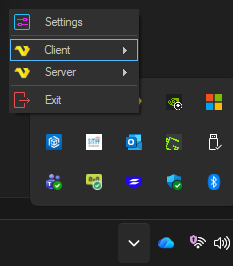
Double-click the Tray Client icon to start the VisualCron Client. Right-click the icon for these commands:
- Settings: opens the Tray Client settings (see Settings)
- Client -> Start: starts the VisualCron Client
- Client -> Open log folder: opens the Client's log folder
- Server: the first line shows the Server status, "Server on", "Server off" or "Not connected"
- Server -> Start and Server -> Stop: switch the Server "On" or "Off" (see Main - Server On/Off); available only while the Tray Client is connected
- Server -> Service: the first line shows the status of the VisualCron service
- Server -> Service -> Start and Stop: start or stop the VisualCron service. If this fails, for example because the Tray Client does not have the rights to control services, no message is shown. The status line keeps the old status, and the error is written to the Tray Client log
- Server -> Open log folder and Server -> Open settings folder: open the Server's log and settings folders
- Exit: closes the Tray Client
Server -> Stop switches the Server "Off" but leaves the service running. Jobs that are already running continue, and Event Triggers with Ignore Server Off (always run) checked still start their Jobs. The "Off" status is kept when the service or the computer restarts. Server -> Service -> Stop stops the VisualCron service, and no Jobs run until it is started again.
Foreground execution
One of the main purposes of the Tray Client is to run Tasks in the logged-on user's desktop session. See foreground execution.
Settings
Right-click the Tray Client icon and select Settings. Click OK to save your changes.
Main tab
Start Tray Client on startup
When checked, the Tray Client starts each time any user logs on to this computer. The installer turns this setting on. The setting applies to all users of the computer, so the Tray Client can show and change it only when it runs with administrator rights. Without them, the checkbox always shows as cleared, even when the Tray Client is set to start at logon, and changes are not saved.
The Client has a setting with the same name in Settings - Client Settings. It controls the same setting for all users.
Server settings folder
The folder where the Server keeps its settings. The Server reads this location when the VisualCron service starts. The field is filled only when the Tray Client runs with administrator rights. Click Open to open the folder, or use Server -> Open settings folder in the Tray Client menu.
Notifications tab
Select which Client events you want popups for. The Tray Client shows a popup when a selected event occurs.
Log tab
Log to file
The setting is saved, but the Tray Client currently writes its log file whether or not it is checked.