VisualCron Web API
The VisualCron Web API lets other programs and scripts work with a VisualCron Server over HTTP. You can list, run and stop Jobs and Tasks, read log entries, and read or set Variables. The Web API has a REST service, which returns text, XML or JSON, and a web service (SOAP). This page is for developers and administrators who integrate VisualCron with other systems. To use the full .NET library instead, see VisualCron API.
Turn on the Web API
The Web API is off by default. To turn it on:
- Go to Server -> Main settings -> Settings and select the Web API tab.
- Select Allow Web API.
- Change the Port of the Unencrypted and Encrypted boxes if you need to. The defaults are "8001" and "8002".
- Click Apply settings.
To check that it works, open http://localhost:<port>/VisualCron/text/Docs in a browser on the Server, with the unencrypted port. The page lists the Web API methods.
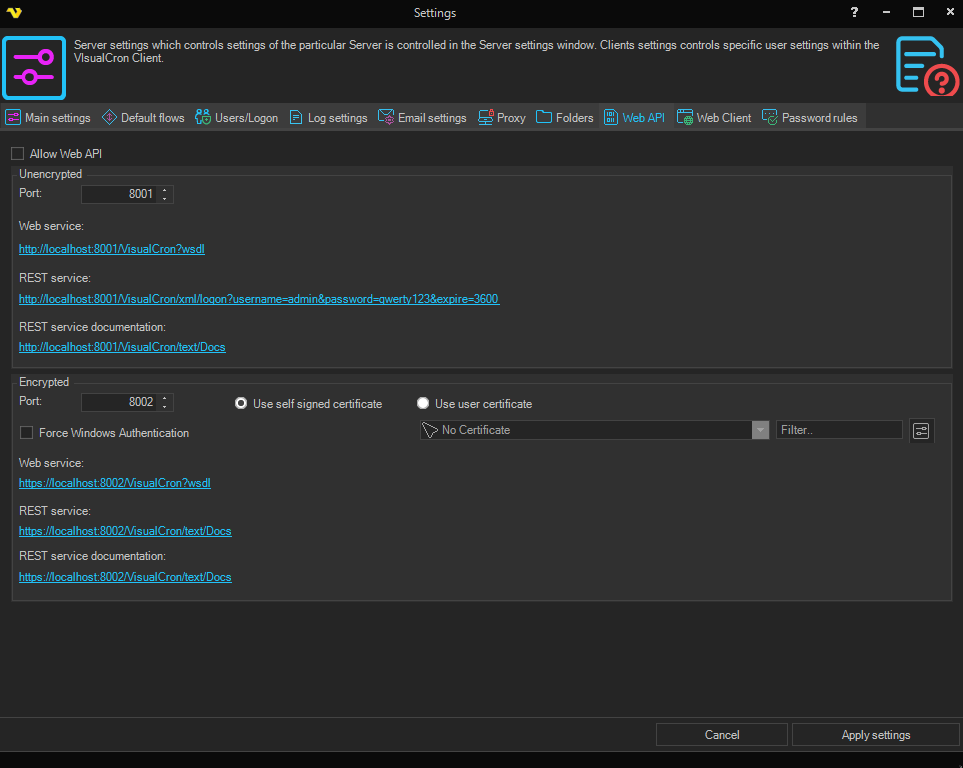
- Allow Web API: when it is checked, the Server opens both Web API ports
- Use self signed certificate: the encrypted port uses a certificate that VisualCron creates for "localhost". It suits calls from the Server itself
- Use user certificate: for calls from other computers, select a certificate from Global - Certificates that has a private key that can be exported, is issued to the Server's name and is trusted by the calling computers. If VisualCron cannot use the selected certificate, the encrypted port uses the self-signed certificate instead, and calls that use the Server's name fail the certificate check
- Force Windows Authentication: the encrypted port accepts only callers that authenticate with a Windows account. The unencrypted port does not use it
For every option on the tab, see Settings - Web API.
VisualCron does not open the Web API ports in Windows Firewall. To call the Web API from other computers, allow its port through Windows Firewall.
Only allow local connections on the Users/Logon tab does not apply to the Web API. While Allow Web API is checked, the Server accepts Web API logons from any computer that can reach the Web API ports. To keep the Web API local, do not allow its ports through the firewall, or clear Allow Web API.
Users and permissions
Each Web API call runs as a VisualCron user. Add the user in the Manage user permissions window first. The Server checks that user's permissions on each call, except as noted in Permissions.
Available methods
When the Web API is on, the Docs page lists every method with its parameters, its return type and the default columns of its text output. The Docs page does not need a logon:
http://localhost:8001/VisualCron/text/Docs
Log on
To get a token, call the logon method with a user name and password:
http://localhost:8001/visualcron/text/logon?username=admin&password=qwerty123
The logon method takes these parameters:
| Parameter | Required | Description |
|---|---|---|
username | Yes | The VisualCron user name |
password | No | The user's password |
expire | No | How long the token stays valid, in seconds. Default "3600" (1 hour); "0" also gives 3600 |
The response holds two values, Result and Token. In text output, the first line is the header row and the second line holds the values:
result,token
OK,<token>
Result is "OK" when the logon succeeds. When the logon fails, Result gives the reason, for example "WrongPassWord" or "NoSuchUser", and no token is returned. In JSON output, Result is a number: "3" means OK, and other numbers give the reason. Check Result before you use the token.
Token lifetime and logoff
Pass the token as token=<token> on each later call, for example:
http://localhost:8001/visualcron/text/job/List?token=<token>
- The token is valid for the
expiretime, counted from the logon. Calls do not extend it - After the token expires, calls return "Permission denied" (see Errors). Log on again to get a new token
- Tokens are also cleared when the VisualCron Server service restarts, and when you change a Web API Port or Allow Web API and apply the settings
- The Server checks the token again when a call ends. If the token expires while a synchronous
Job/RunorTask/Runis in progress, the call returns "Permission denied" even though the Job or Task ran. Log on with anexpirelonger than the longest run you expect
To end the session before the token expires, call logoff:
http://localhost:8001/VisualCron/text/logoff?token=<token>
logoff returns true when the token existed and was removed, and false otherwise. In text output, the value is "True" or "False", after an empty header line.
Log on in each call
A token costs one extra call at the start, and later calls do not log on again. Instead of a token, you can pass username and password on each call, and each call then logs on and runs the method. The Contains methods need a token. For example:
http://localhost:8001/visualcron/text/job/List?username=admin&password=qwerty123
Call a method
A REST call is an HTTP GET request to this address:
http://<server>:<port>/VisualCron/<format>/<method path>?token=<token>&<parameters>
<method path> is the path of the method on the Docs page, for example Job/List or Log/Job/List. On the encrypted port, use "https". The <format> part selects the output:
| Format | Path | Output |
|---|---|---|
| Text | /text/ | Plain text: a header row, then one line per object |
| XML | /xml/ | XML |
| JSON | /json/ | JSON |
The same Job list in each format:
https://localhost:8002/visualcron/text/job/list?token=<token>
https://localhost:8002/visualcron/xml/job/list?token=<token>
https://localhost:8002/visualcron/json/job/list?token=<token>
The object, method and parameter names are the ones on the Docs page. Use the parameter names in the method's address on the Docs page. The method's parameter list can show a different name, for example expireTime for expire, and a parameter with that name is ignored without an error.
- One Job: call
Job/Getwith its Id - Shorter list: add
filterstoJob/List.filters=Contains:<text>,NotContains:<text>,Equal:<text>andNotEqual:<text>match the Job name, and case is ignored. URL-encode<text> - Several filters: separate them with commas. A Job must match all of them. Because commas separate filters and a colon follows the filter name, the text itself cannot contain a comma or a colon
http://localhost:8001/VisualCron/text/Job/Get?id=<job Id>&token=<token>&columns=id,name,runmissed
http://localhost:8001/VisualCron/text/Job/List?filters=Contains:<text>&token=<token>
Text output options
These parameters apply to text output only:
| Parameter | Values | Default | Description |
|---|---|---|---|
includeHeaders | "true" or "false" | "true" | Adds the header row with the column names |
columns | Column names, separated by commas | The method's default columns, listed on the Docs page | The columns to return, in this order. Case is ignored |
fieldSeparator | A decimal character code | "44" (comma) | The character between values |
textQualifier | A decimal character code, or "0" for none | "0" (none) | The character around each value |
lineBreak | A decimal character code | "10" (line feed) | The character between rows |
For example, to separate values with a semicolon (59) and put double quotes (34) around each value:
http://localhost:8001/VisualCron/text/Job/List?token=<token>&fieldSeparator=59&textQualifier=34&lineBreak=10
Run a Job
To run a Job, call Job/Run with the Job's Id. In every call, pass synchronous, checkConditions, updateVariables and raiseTriggerEvents explicitly, each set to true or false, and do not rely on a default for them. With synchronous=true, the call waits for the Job to finish and returns its exit code. With synchronous=false, the call returns when the Job has started. For example, with <base address> standing for http://<server>:<port>/VisualCron/json:
<base address>/Job/Run?token=<token>&id=<job Id>&synchronous=true&checkConditions=true&updateVariables=true&raiseTriggerEvents=true
| Parameter | Required | Default | Description |
|---|---|---|---|
id | Yes | None | The Id of the Job |
synchronous | No | Pass it explicitly | With true, waits for the Job to finish before the call returns |
checkConditions | No | Pass it explicitly | With true, checks the Job's Conditions before the run |
updateVariables | No | Pass it explicitly | Whether the run updates the Job Variables ("Update job variables" on the Docs page) |
raiseTriggerEvents | No | Pass it explicitly | Whether the run raises Trigger events, so that event Triggers can react to it |
runFromTask, runFromTaskId | No | "false", none | With runFromTask=true, starts the run at the Task with this Id |
runToTask, runToTaskId | No | "false", none | With runToTask=true, ends the run at the Task with this Id |
variables | No | None | Job Variables for the run, as <name>=<value> pairs separated by |. A value cannot contain "=" or "|" |
In every Task/Run call, pass checkConditions, synchronous and raiseEventTriggers explicitly in the same way. In Task/Run, the Trigger events parameter is raiseEventTriggers.
The result holds JobStartedResult, ExitCode and ExitCodeResult. In text output, ask for them with columns=JobStartedResult,ExitCode,ExitCodeResult. In text and XML output, JobStartedResult and ExitCodeResult are names. In JSON output, they are numbers. In XML output, ExitCodeResult is in the R element.
- Started and succeeded:
JobStartedResultis "Started" ("1" in JSON) andExitCodeResultis "Success" ("1") - Ran and failed:
ExitCodeResultis "Failure" ("2"), andExitCodeholds the Job's exit code - Queued:
JobStartedResultis "Queued" ("3"). The Job runs later - Not started: any other
JobStartedResult, for example "NotStarted" ("0") or "NotStartedBecauseItWasAlreadyRunning" ("2") - Unknown Id: if no Job has that Id, the result is empty (
{}in JSON output), not an error
With synchronous=false, the call returns before the Job ends, so ExitCode and ExitCodeResult do not give the Job's result. Check the result in the Job's log.
Permissions
Each method checks the permission of the logged-on user. Where a method has its own row, that row applies:
| Methods | Permission the user needs |
|---|---|
Get, GetByName, List | Read on the object type, for example Read on Jobs for Job/List. User and UserGroup use Users, JobVariable, VariableValue and JobVariableValue use Variables, Connection uses Connections, ConditionSet uses Conditions, ExitCodeCollection uses Exit codes, and TimeExceptionCollection uses Time exception collections |
Job/Run | Execute on the Job |
Task/Run | Execute on Tasks |
Activate, DeActivate | Edit on the object type |
Remove | Delete on the object type |
Job/Stop, Task/Stop | Delete on Processes |
Job/Processes, Task/Processes | Read on Processes |
Task/Output, Task/OutputHistoric | Read on Tasks |
Trigger/List | Read on Jobs |
Trigger/Get, Trigger/Activate, Trigger/DeActivate | Edit on Jobs |
Log/General/List, Log/Job/List, Log/Task/List, Log/Audit/List | Read on Log |
Variable/Set, JobVariable/Set | Read on Variables, plus Edit to change a Variable or Add to create one |
License/Activate, License/Deactivate | Execute on License |
Contains | A valid token only |
Job/List returns every Job when the user has Read on Jobs.
A Job started with Job/Run is not tied to the user, so the Server does not check that user's permissions on the Credentials the Job uses. A Task started with Task/Run is tied to the user, and the Server checks Read and Execute on each Credential the Task uses, for that user (see Main - User Permissions). To control which Jobs a Web API user can run, use Execute on the Jobs.
Trigger/Remove is listed on the Docs page but returns an error. Remove Triggers in the Client.
Errors
- "Permission denied" message: the call was refused. The message names the method, for example
Permission denied. Method: job.run., and comes in the format of the call - Message that ends with "User:" and a user name: the token is valid, but that user lacks the permission. Logging on again does not help
- Message that ends with "Token:" and the token you passed: the token is unknown or has expired. Log on again
- Message that ends with "Token:" and nothing after it: the call had no token, for example because it passed
usernameandpassword. The user name or password was not accepted, or the user lacks the permission - Cause not clear: "Permission denied" can mean an expired token, a wrong user name or password, or a missing permission. Log on again once. If the call is still refused, check the user's permissions
- "Permission denied" after
Job/RunorTask/Run: the Job or Task may have run although the call was refused (see Token lifetime and logoff). Check the Job's result in the log before you run it again - A failed
logon: aResultother than "OK" (see Log on) - Other errors: an HTTP error response instead of a result
To check whether an object exists, call its Contains method with a token, for example Job/Contains?id=<job Id>&token=<token>. It returns true or false ("True" or "False" in text output).
2. Web service/SOAP
It is also possible to communicate with VisualCron through the web service API. The wsdl URL can be found in the Web API tab in Server settings.
There is the following example in the API folder (sample TestClient project):
                 var binding = new BasicHttpBinding()
                 {
                         MaxBufferPoolSize = int.MaxValue,
                         MaxReceivedMessageSize = int.MaxValue,
                         ReaderQuotas =
                                 new XmlDictionaryReaderQuotas()
                                 {
                                         MaxArrayLength = int.MaxValue,
                                         MaxStringContentLength = int.MaxValue,
                                         MaxNameTableCharCount = int.MaxValue
                                 },
                         Security = new BasicHttpSecurity()
                         {
                                 Mode = BasicHttpSecurityMode.TransportCredentialOnly,
                                 Transport = new HttpTransportSecurity()
                                 {
                                         ClientCredentialType = HttpClientCredentialType.Basic
                                 }
                         }
                 };

                 var client = new WebServiceClient(binding, new EndpointAddress("http://localhost:8001/VisualCron"));
                 //or just:
                 //
                 //var client = new WebServiceClient();
                 //
                 //but better setup binding

                 if (client.ChannelFactory.Credentials != null)
                 {
                         //set Credentials
                         client.ChannelFactory.Credentials.UserName.UserName = txtUserName.Text;
                         client.ChannelFactory.Credentials.UserName.Password = txtPassWord.Text;
                 }
                 try
                 {
                         //just call methods
                         var jobs = client.Job_List();

                         foreach (var job in jobs)
                         {
                                 Console.WriteLine(job.Name);
                         }
                 }
                 catch
                 {

                 }