Task Manager
Within the VisualCron client, the Task Manager works similar to how the Windows Task Manager functions. It provides visibility into system processes, running VisualCron jobs, VisualCron internal threads, and Windows services on the connected server.
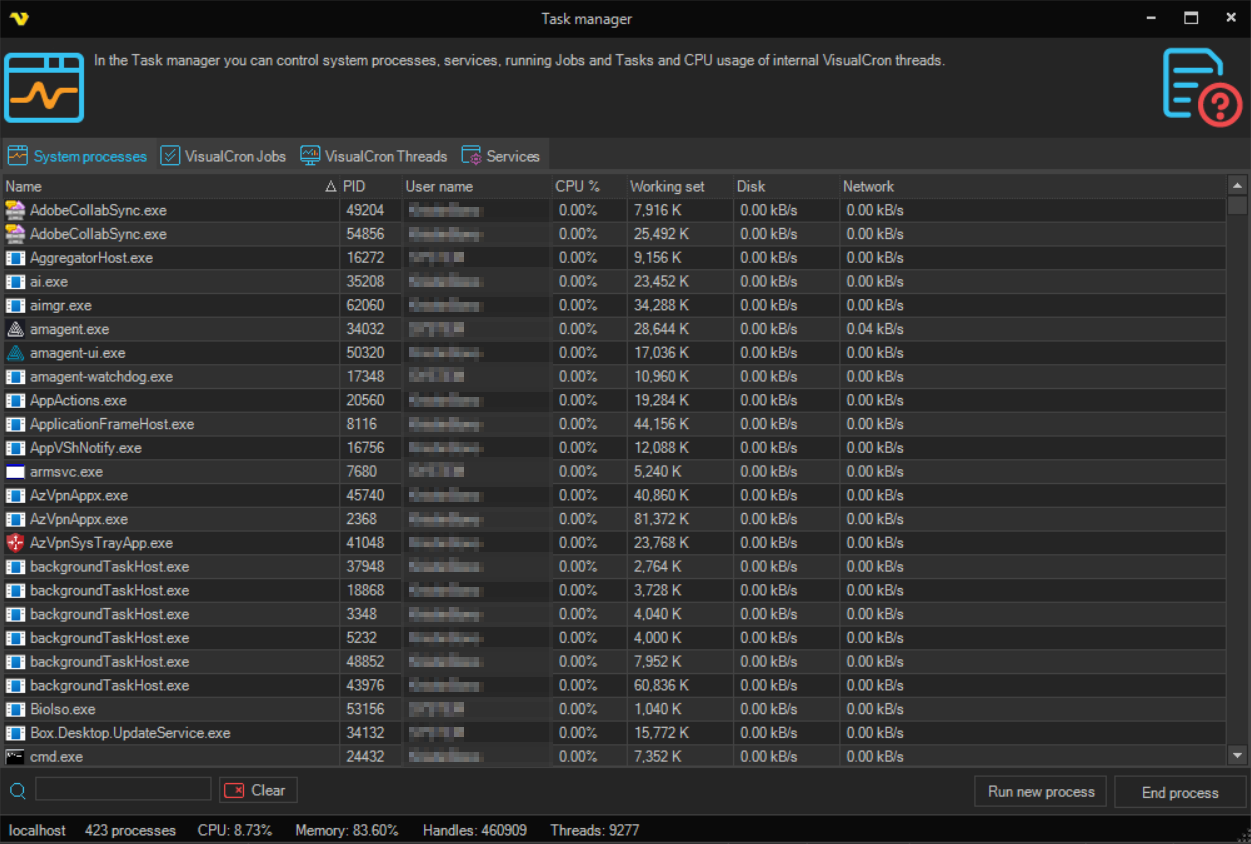
The Task Manager contains four tabs: System processes, VisualCron Jobs, VisualCron Threads, and Services.
Search
A search field at the bottom of the window filters the active tab's grid. Type to filter by name or PID. Click Clear to reset the filter.
System processes tab
Displays all processes currently running on the server. The grid shows the following columns: Name, PID, UserName, CPU, Working set (memory in KB), Disk (KB/s), and Network (KB/s). Columns can be toggled on or off by right-clicking the column header area.
Right-clicking a process in the grid opens a context menu with the following actions:
- End process — terminates the selected process
- End process tree — terminates the selected process and all its child processes
- Set priority — changes the CPU scheduling priority for the process. Available options: Realtime, High, Above normal, Normal (default), Below normal, Low
- Set affinity — opens the processor affinity dialog to control which CPU cores are allowed to run the process
- Open file location — opens the folder containing the process executable
- Properties — shows the Windows file properties dialog for the process executable
- Go to service(s) — switches to the Services tab and highlights the service associated with the selected process
The context menu is disabled for protected system processes (such as System, csrss, lsass, and similar).
Buttons at the bottom of the window:
- Run new process — opens a dialog to launch a new process on the server
- End process — terminates the selected process
VisualCron Jobs tab
Displays currently running VisualCron jobs and their associated tasks or triggers, along with real-time CPU usage. The grid is hierarchical; the structure depends on the configured view style. Columns shown at each level include Name, Description, CPU time, and CPU %. Process-level rows also show Started and Runtime.
A filter dropdown appears at the bottom of the window on this tab, allowing the search to be scoped to Job, Task, or Trigger entries.
Buttons at the bottom of the window:
- Start new job — opens a dialog to start a job by name on the server
- Stop — stops the selected running job process
VisualCron Threads tab
Displays internal VisualCron threads — individual execution units for jobs, tasks, and triggers currently being processed by the VisualCron server. The grid shows the following columns: Started, Id, Thread name, Job name, Task/Trigger Name/Description, CPU time, and CPU %.
The search filters by Thread name, Job name, and Task/Trigger name simultaneously.
No action buttons are shown at the bottom of the window on this tab.
Services tab
Displays Windows services running on the server. The grid shows the following columns: Name, PID, Description, Status, Startup Type, and Log On As.
Right-clicking a service in the grid opens a context menu with the following actions:
- Start — starts the selected service (enabled only when the service is stopped)
- Stop — stops the selected service (enabled only when the service is running)
- Restart — restarts the selected service (enabled only when the service is running)
- Go to process — switches to the System processes tab and highlights the process associated with the selected service
The search filters by service Name, Description, and PID simultaneously.
Buttons at the bottom of the window change based on the selected service state:
- Start service — starts the selected service (shown when service is stopped)
- Stop service — stops the selected service (shown when service is running)
- Restart service — restarts the selected service