Schedule - Calendar
The main menu Tools > Schedule > Calendar option presents an overview of scheduled Jobs. This way you can, for example, plan your Tasks (so they don't run at the exact same time).
Tools > Schedule > Calendar
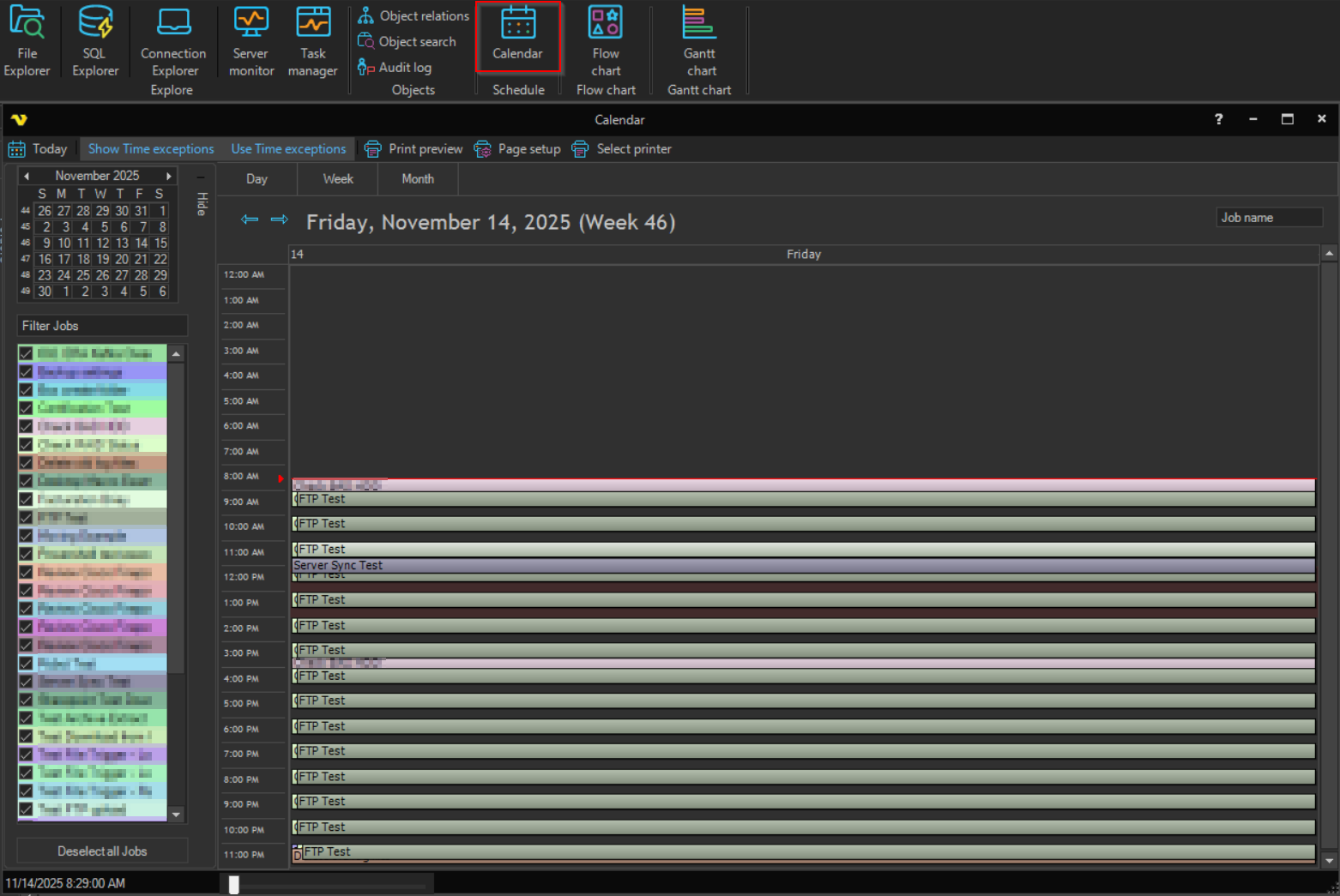
View
You can switch between Day, Week and Month views. The Today button returns the view to the current date, and a mini calendar lets you navigate to a specific date. A zoom slider in the status bar adjusts the detail of the view.
Time exceptions
The Show Time exceptions and Use Time exceptions options control whether time exceptions are displayed and taken into account in the schedule.
Jobs
A list of Jobs is shown to the side, with a filter field to narrow it down. Check or uncheck a Job to show or hide it in the calendar, and use the Select all Jobs / Deselect all Jobs button to toggle them all at once. Right click a Job to Open Job or Hide Job. Hover over a scheduled item to see its name, start and end time and duration.
The Print preview, Page setup and Select printer options let you print the calendar.
Permission
To block a user from viewing the Job report you need to disable the Jobs Read property in User permissions > Groups.