Objects - Object Search
The main menu Tools > Objects > Object search option performs a search for a string within all internal objects of VisualCron. All properties that match this string will be listed in the result grid. Encrypted strings may not be found unless you choose to include them.
Tools > Objects > Object search tab
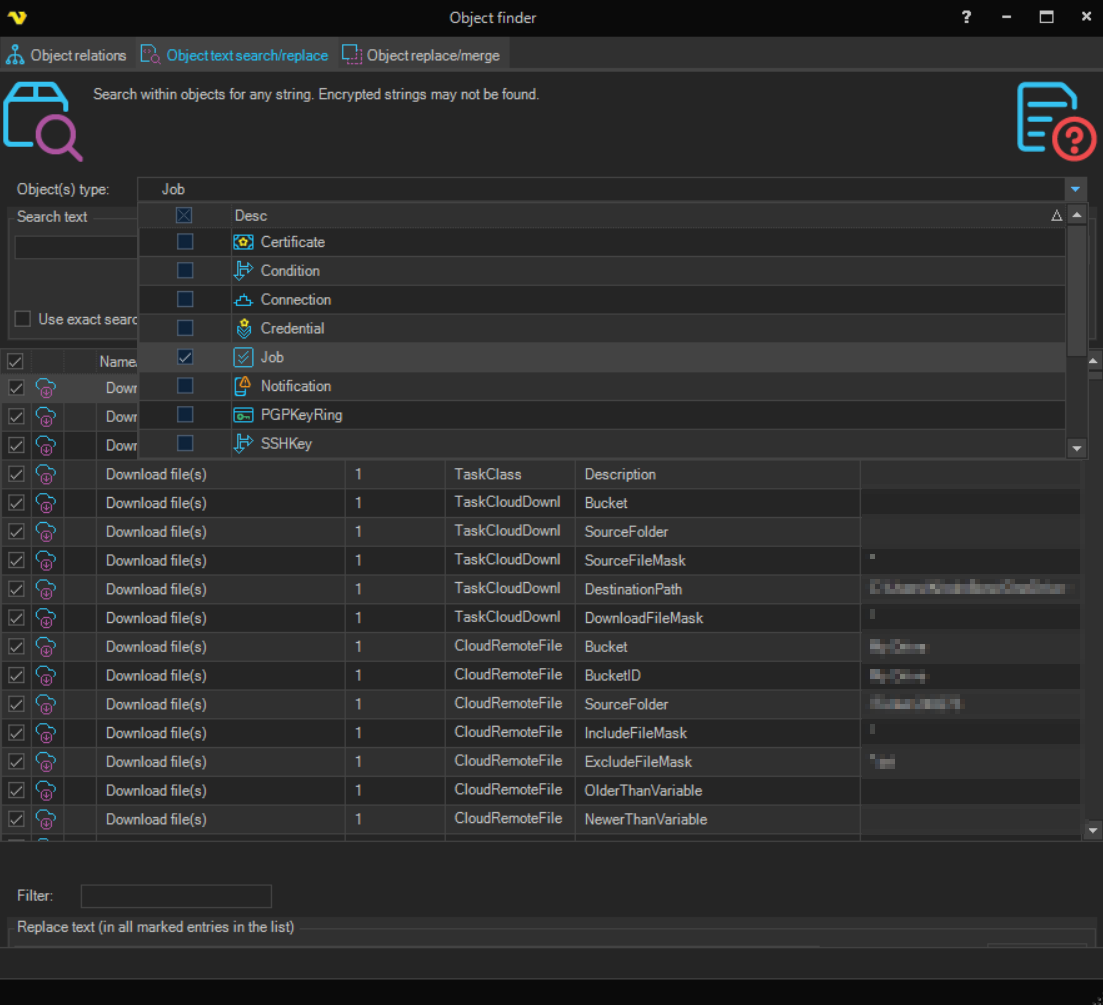
Search string
Enter the text string to search for and click Search (or press Enter).
Object types
Select which object types the search should cover. The following types can be included, and all are selected by default:
- Jobs
- Tasks
- Conditions
- Notifications
- Connections
- Variables
Use exact search
Check if you want an exact search and not on wild cards around the Search text.
Search encrypted values
Some values are encrypted in VisualCron. Searching these takes longer time. It is possible to optionally exclude these values.
Search result
The search result grid shows the object Name/Description, the internal Class in VisualCron, the Property Name of the object in the class and the Property Value which is the string it was matched to. You can double click on a row to open and edit the object.
Replace
Enter the text that you want to replace with. Clicking Replace will replace all selected values from Search. A good example can be found below:
Current String Value = This is a test
We want to update "This is a test" to "This is a test example". To do that, we need to input the whole new string
New String Value = This is a test example
This will convert every "This is a test" to "This is a test example".