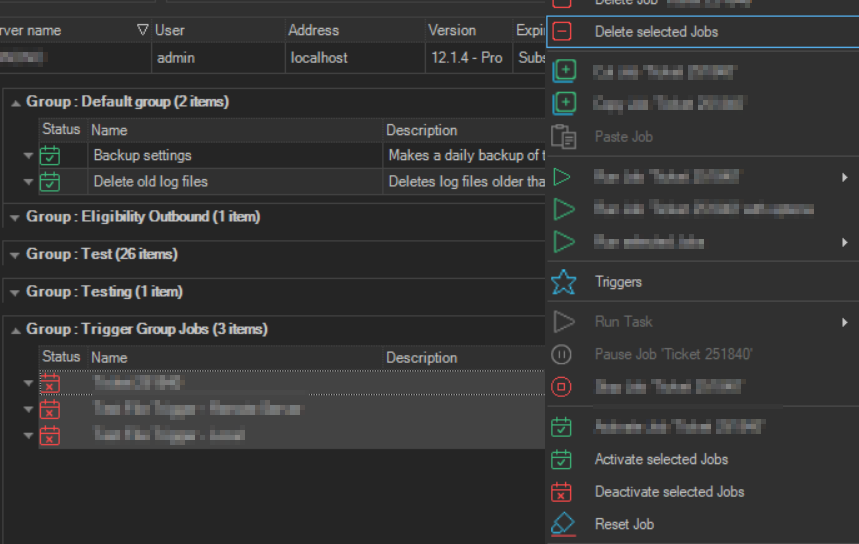
Delete Selected Jobs
The Delete selected Jobs item deletes all the Jobs that are selected in the Server/Group/Job/Task grid.
After you confirm, the selected Jobs are deleted from the Server at once. Right-clicking a group heading changes the selection to the Jobs of that group, so Delete selected Jobs on a group heading's menu deletes Jobs of that group, not the Jobs you selected before. Check the count in the confirmation before you click Ok.
- Select two or more Jobs.
- Right-click one of the selected Jobs.
- Click Delete selected Jobs.
- Click Ok in the confirmation window, which shows how many Jobs will be deleted.
On a Job's right-click menu, the item is available only when more than one Job is selected. Pressing Delete with several Jobs selected also deletes them, after the same confirmation. Each Job is deleted only if you have the Delete permission for it. The Delete Job button on the toolbar deletes only one Job; see Delete Job.
For Tasks, the same item is Delete selected Tasks.