Activate/Deactivate Job
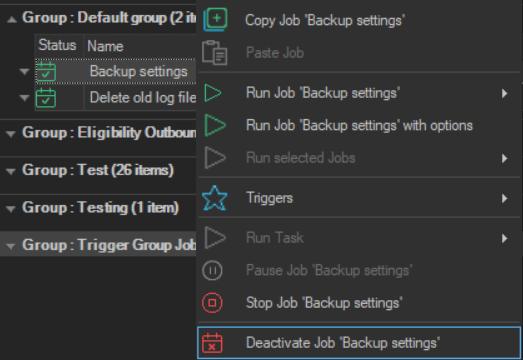
The activate and deactivate items in the right-click menu turn a Job or a Task on or off. The Triggers of an inactive Job do not start it.
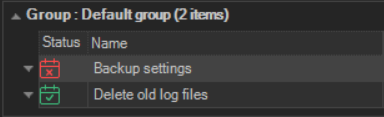
The Status column in the Server/Group/Job/Task grid shows a green check icon for an active Job and a red cross icon for an inactive Job. Any grid column, including Status, can be hidden; see Set columns.
To change the state of one Job:
- Right-click the Job in the Server/Group/Job/Task grid.
- Click
Deactivate Job '<Job name>'for an active Job, orActivate Job '<Job name>'for an inactive Job.
To change the state of several Jobs, select them, right-click one of them and click Activate selected Jobs or Deactivate selected Jobs. The same two items are in the right-click menu of a group heading, where they act on the Jobs of that group; right-clicking the heading changes the selection.
For a Task, right-click the Task and click Deactivate Task '<Task name>' or Activate Task '<Task name>'. With several Tasks selected, use Activate selected Tasks or Deactivate selected Tasks.
Changing the state of a Job requires the Edit permission for Jobs.
An inactive Job can still be started manually with Run Job.