Global - Credentials
Credentials are centrally stored in VisualCron for re-usage. Credentials might be needed in some of the following cases:
- Your Execute Task requires to run as a certain user to access certain rights
- You need to run an SQL with a trusted connection
- You need to do some kind of authentication against a web server
- Other permission request
Normally, all Tasks are launched from the VisualCron Server which runs as a service with LOCALSYSTEM account. That account may not have access to your network drives, certain folders etc. - that is why you need to use a Credential some times.
Credentials are encrypted when stored.
The Manage credentials window can be reached either from the main menu Server > Global objects > Credentials option.
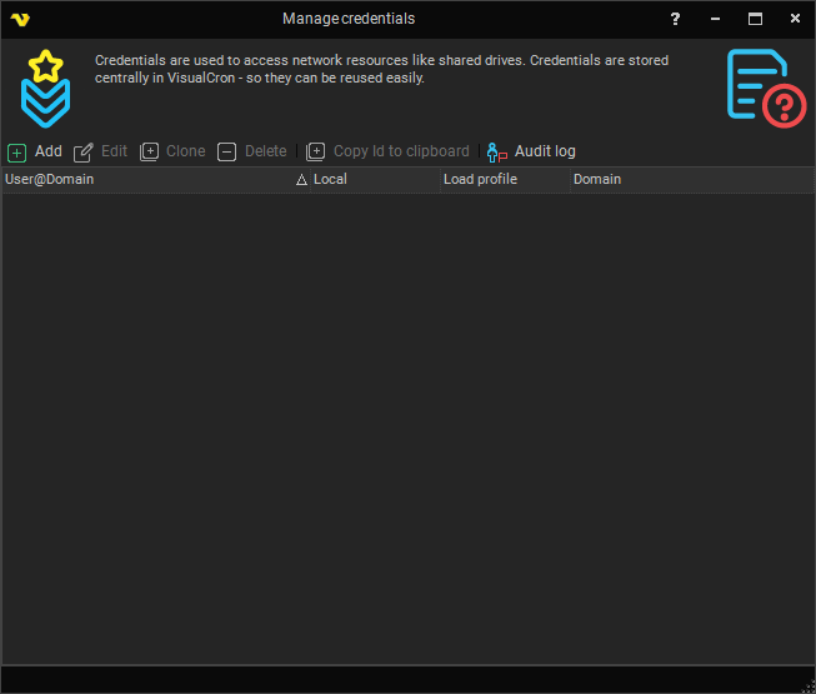
The Manage Credentials window displays the configured credentials in a grid with the following columns:
- User@Domain - the credential's username combined with its domain
- Local - whether the credential is configured for a local logon
- Load profile - whether the credential loads the user profile during logon
- Domain - the domain or computer name the credential logs on to
The toolbar above the grid provides the following buttons:
- Add - create a new credential
- Edit - edit the selected credential
- Clone - create a copy of the selected credential. The copy gets its own identifier, so changing it afterwards does not affect the original
- Delete - delete the selected credential. If the credential is referenced elsewhere, the confirmation message tells you how many objects use it
- Copy Id to clipboard - copy the internal credential identifier (GUID) to the clipboard
- Audit log - open the Audit log for credentials
Right-clicking a credential opens a context menu that includes the toolbar commands plus the additional options Versions (view version history), Object relations (see which Jobs, Tasks, Triggers, or other objects reference this credential), Export (export the selected credentials), and Send to connection (copy the credential to another VisualCron Server you are connected to).
In the grid you can also press Delete to remove the selected credential, and Ctrl+A to select every row, which is useful before exporting.
Deleting a Credential does not update the Jobs, Tasks and Triggers that were using it. They keep a reference to an identifier that no longer exists, and the Credential dropdown in those objects falls back to showing No Credential, which looks exactly the same as never having selected one. Nothing points out which objects were affected.
What happens next depends on whether the object is saved again:
- If the Task runs before anyone opens it, the deleted identifier is still stored and the Task fails immediately. The Task result reads Impersonation failed in task (Credential not found) and the Task is stopped
- If you open the Task and save it, the empty selection is written back and the reference is gone for good. The Task then runs with no Credential at all. That is not reported anywhere, so it usually surfaces later as an access denied error instead
Use Object relations to see what depends on a Credential before deleting it, and re-select a Credential in each of those objects afterwards.
Editing a Credential
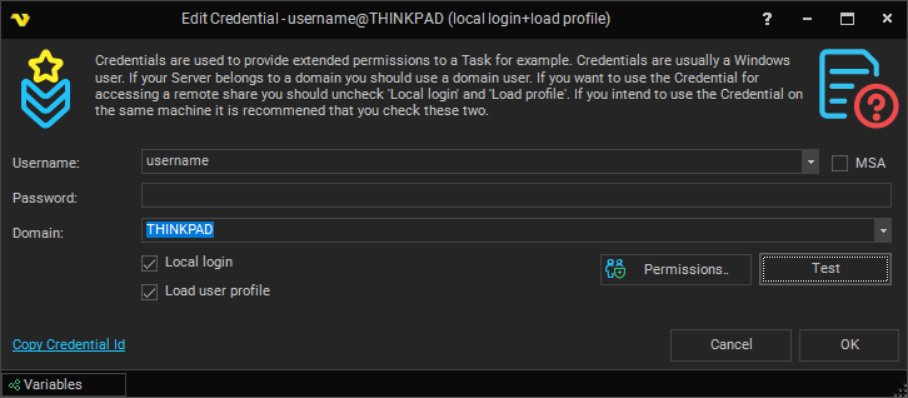
The window title shows the user, the domain and a summary of the logon options, for example Edit Credential - username@THINKPAD (local login+load profile). The summary is updated while you edit, so it is a quick way to confirm what the Credential will do before saving it.
Username
Username for the user you want to logon. The field is an editable dropdown populated with users from the Server. When MSA is checked, the dropdown is repopulated with available (g)MSA accounts instead.
MSA
When checked, the credential is treated as a Managed Service Account (MSA) or Group Managed Service Account (gMSA). The Username dropdown switches to listing the available MSA accounts and the password is supplied automatically by Active Directory at runtime, so the Password field is no longer used. See the (g)MSA accounts section below for setup prerequisites.
Password
Password for the user you want to logon. The field is masked with asterisks.
For a Credential that has already been saved, the field shows a fixed placeholder instead of the stored password. The stored password itself is never sent back to the Client. Leave the field untouched to keep the existing password.
Clearing the Password field counts as a change, and saves an empty password. If you only intended to edit another field, leave the Password field alone.
Domain
The field also accepts VisualCron variables. Click Variables in the bottom left corner of the window to look up the available variables. The variable is resolved when you click OK, and the resolved value is what gets stored.
Local login and Load user profile
These two checkboxes decide how the logon is performed. They are described in the next section.
Test
Validates the credential against the Server immediately, without saving.
The test only runs when both Local login and Load user profile are checked. With any other combination VisualCron tells you that a test can only be performed on Credentials using Local login and Load profile, and no test is carried out. A Credential meant for reaching a network resource therefore cannot be verified from this window. It is first exercised when a Task actually uses the resource.
On success the result reports whether the logon succeeded, whether the profile was loaded, whether a local logon was used, and which user was impersonated. On failure the same values are listed together with the error returned by Windows.
When you test a saved Credential without retyping the password, the stored password is used.
Permissions
Opens a permissions dialog where group-level permissions can be overridden for this credential individually.
Copy Credential Id
The link in the bottom left corner copies the internal identifier (GUID) of the Credential to the clipboard. This is the value that identifies the Credential in exported settings and when referencing it from the API. The link works once the Credential has been saved.
Variables
Opens the Variables window, for looking up a variable to use in the Domain field.
Local login and Load user profile
These two options are responsible for most Credentials that "do not work", so it is worth setting them deliberately. The same guidance is shown in the text at the top of the window.
Local login
This tells VisualCron to perform a local logon. Check it when the account exists on the same machine as the VisualCron Server and you want to run something as that user. This checkbox should be unchecked if you are using Credentials to gain access to a network drive (using a user/domain on another server as Credential).
Load user profile
This is used on local accounts that are on the same server as VisualCron is installed. This option is only available if Local login is checked, and unchecking Local login clears it automatically.
When checked, VisualCron logs on and then loads the user profile in the "HKEY_USERS" registry key, returning once the profile is loaded. This is what makes the user's own environment variables and "HKEY_CURRENT_USER" registry settings available to the Task.
When not checked, VisualCron logs on but uses the specified credentials on the network only. The new process uses the same token as the caller, while the system creates a new logon session and uses the specified credentials as the default credentials. This is useful in inter-domain scenarios where there is no trust relationship. Windows does not validate the credentials in this case, so the logon appears to succeed and only fails later, when the network resource is actually needed.
Loading the profile is noticeably slower and uses more resources on the Server, so only enable it when the Task really needs the user's own environment.
Only two combinations are useful:
| What you need the Credential for | Local login | Load user profile |
|---|---|---|
| Reaching a network share, or another resource on a remote server | Unchecked | Unchecked (not available) |
| Running something as a specific user on the VisualCron Server machine | Checked | Checked |
To reach a network resource from a local account, the profile has to be loaded, so check both options in that case.
If you check Local login and leave Load user profile unchecked, VisualCron warns when saving that the combination will probably give you undesired results. Uncheck Local login if you want to access a network resource, or check Load user profile if you want to run something as a certain user.
When a Credential is used to reach a network resource, address the resource with a UNC path such as \\server\folder\yourfile.bat. A mapped drive letter such as Y:\yourfile.bat does not work, because drive mappings belong to a single user and the VisualCron Server does not see the drives mapped by your own account. If you really need drive letters, map them with Network drives instead.
Examples
- Copying files to a protected network share - create a Credential for a domain user, or for a user that exists on the remote server, with Local login and Load user profile unchecked. Select it in the Copy Files Task and address the destination with a UNC path
- Running a program as a specific user - create a Credential for that user with Local login and Load user profile both checked, then select it in the Execute Task. Loading the profile is what makes the user's environment variables available to the program
- Running an SQL query with a trusted connection - create a Credential for a Windows user that has access to the database, with Local login and Load user profile both checked, and select it in the SQL Task. The SQL Connection has to use Windows authentication, otherwise VisualCron warns that the Credential is not going to be used. Leaving Load user profile unchecked also produces a warning, because the Task is likely to fail authenticating
- Unlocking the desktop for a Task that needs the screen - a Robot or Desktop macro Task needs an active desktop. Create a Credential for the user that normally logs on to that machine, with Local login and Load user profile both checked, then select it for Logon/Unlock using Credential in Execution Context
- Using a service account without storing a password - check MSA and pick the account from the Username dropdown. The Password field is not used, because the password is retrieved from Active Directory at runtime
Execution and impersonation options
Two additional groups of settings appear in the window when Extended debugging is enabled for the Server, under Server settings > Log.
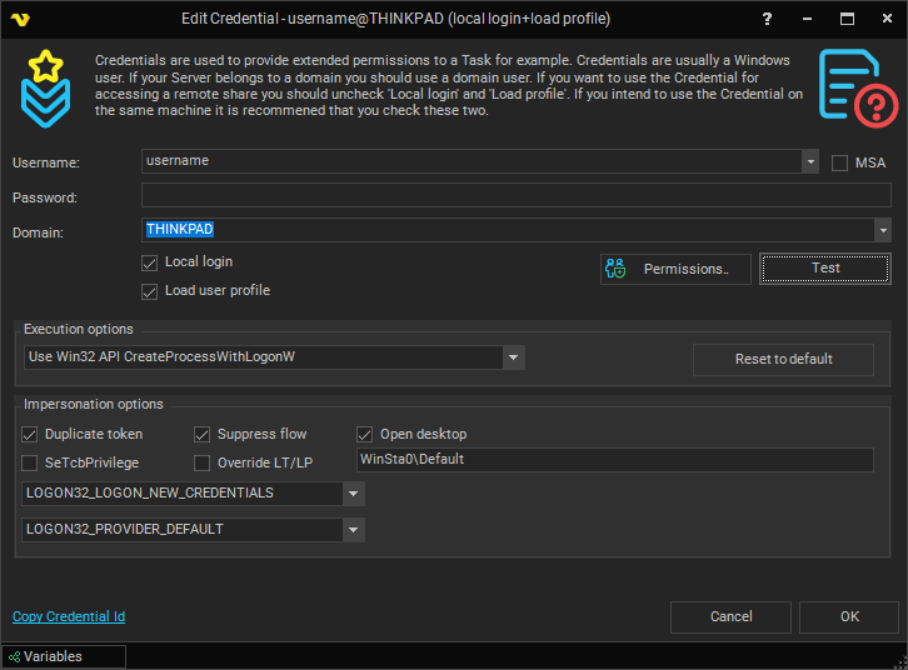
These options exist for fine-tuning a logon that fails, normally together with VisualCron support. The defaults work in almost every environment. Click Reset to default to return to them.
Execution options
The dropdown selects which underlying Windows mechanism is used when starting a process as the user. The three choices are named after what they do:
- Use Win32 API CreateProcessWithLogonW - the default
- Use managed API
- Use Win32 API CreateProcessAsUserW
Changing this also sets a matching logon type. Use Win32 API CreateProcessWithLogonW sets the logon type to LOGON32_LOGON_NEW_CREDENTIALS and Use Win32 API CreateProcessAsUserW sets it to LOGON32_LOGON_BATCH. Use managed API leaves the logon type as it is.
Reset to default restores every option in both groups to the values listed further down.
Impersonation options
The first dropdown is the Windows logon type:
- LOGON32_LOGON_INTERACTIVE
- LOGON32_LOGON_NETWORK
- LOGON32_LOGON_BATCH
- LOGON32_LOGON_SERVICE
- LOGON32_LOGON_UNLOCK
- LOGON32_LOGON_NETWORK_CLEARTEXT
- LOGON32_LOGON_NEW_CREDENTIALS
The second dropdown is the Windows logon provider:
- LOGON32_PROVIDER_DEFAULT
- LOGON32_PROVIDER_WINNT35
- LOGON32_PROVIDER_WINNT40
- LOGON32_PROVIDER_WINNT50
The checkboxes are:
- Duplicate token - duplicate the access token for the impersonated session
- Suppress flow - stop the impersonated identity from being inherited by child threads during impersonation
- SeTcbPrivilege - enable the SeTcb ("act as part of the operating system") privilege when impersonating
- Override LT/LP - use the logon type and logon provider selected above instead of the ones VisualCron would pick itself
- Open desktop - open the user's desktop on logon. When checked, the field next to it becomes editable for specifying the desktop name/path
The two dropdowns are only applied when Override LT/LP is checked. When it is unchecked, VisualCron chooses the logon type and provider itself, based on the operating system and on whether Local login is set, and the selected values are ignored.
The defaults are:
| Option | Default |
|---|---|
| Local login | Checked |
| Load user profile | Checked |
| Execution options | Use Win32 API CreateProcessWithLogonW |
| Logon type | LOGON32_LOGON_NEW_CREDENTIALS |
| Logon provider | LOGON32_PROVIDER_DEFAULT |
| Duplicate token | Checked |
| Suppress flow | Checked |
| SeTcbPrivilege | Unchecked |
| Override LT/LP | Unchecked |
| Open desktop | Checked |
| Desktop path | WinSta0\Default |
(g)MSA accounts
For setting up a (g)MSA account please refer screenshot below for valid settings in AD environment and check some of the prerequisites below:
- Run the following Powershell command
Get-ADServiceAccount -Identity <gMSA-account> -Properties PrincipalsAllowedToRetrieveManagedPasswordto check if VisualCron Server host can retrieve gMSA account password. Update gMSA account if not. - Check is VisualCron Server service is running under account that has "Act as part of the operating system" privilege.
- Check both AD domain controller and VisualCron server host to have the following security option enabled:
Group policy editor - Computer Configuration -> Windows Settings -> Security Settings -> Local policies -> Security options -> Network security: Configure encryption types allowed for Kerberos
<select all, at least one that fits your company security polices should be enabled>
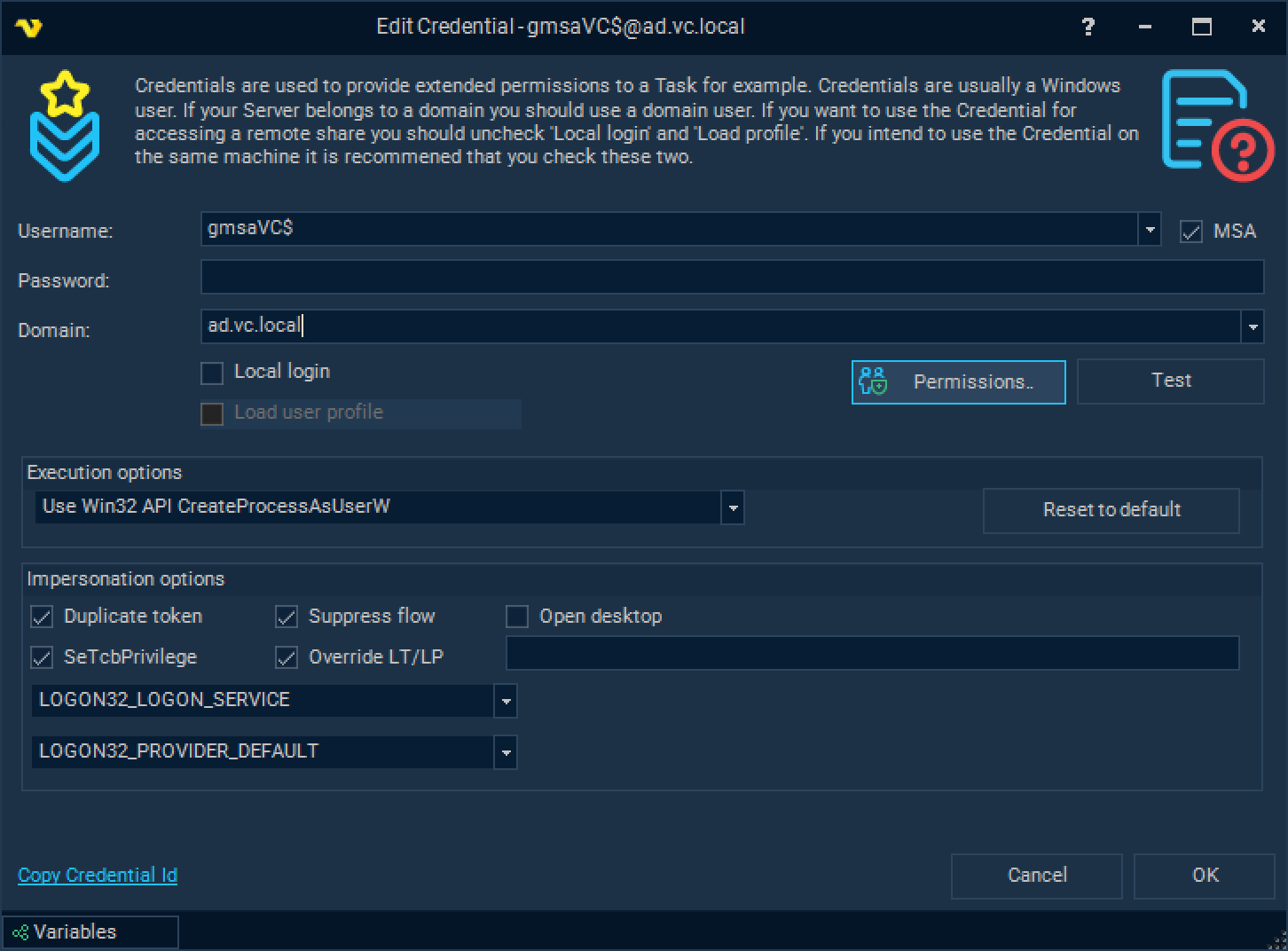
Using and selecting a Credential
When you open the window, your current user name is written along with the name of your current computer/domain. Click on Add to create a centrally stored Credential. After adding the Credential it is available in all places where you can use Credentials. In those places you need to select the Credential you want to use like this:
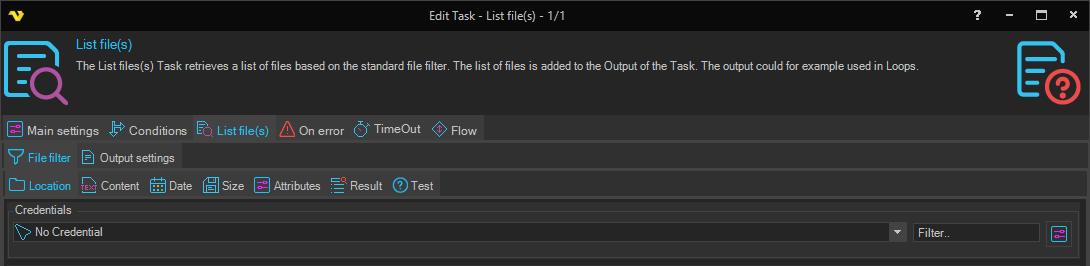
A Credential is listed by its user and domain, so creating one Credential per purpose and per account keeps the lists readable. Use Object relations in the Manage Credentials window at any time to see everything that depends on a given Credential.
Troubleshooting
A Task using a Credential fails with access denied
- Check the combination of Local login and Load user profile against the table above. Reaching a remote resource needs both unchecked, running as a local user needs both checked
- Check that the resource is addressed with a UNC path and not a mapped drive letter
- For a local account, open the Credential and use Test to confirm the user name, password and domain are correct
- See also File not found or access denied
A Task fails with "Impersonation failed in task (Credential not found)"
The Credential was deleted while the Task still referenced it. Create the Credential again and select it in the Task.
Note that the Credential dropdown shows No Credential in this situation, so nothing in the Task indicates that a Credential was ever selected. If the Task has already been saved since the Credential was deleted, the reference has been cleared and the Task now runs without a Credential, which shows up as an access denied error rather than this message.
Test reports success but the Task still fails
A logon without the profile is not validated by Windows at the time of the test, so it reports success even when the password is wrong. The failure only appears when the network resource is actually used. Verify the account details directly against the remote server.
An SQL Task warns about the Credential when saving
Either the SQL Connection is not using Windows authentication, in which case the Credential is not used at all, or Load user profile is unchecked, in which case the Task is likely to fail authenticating. See the SQL example above.
Error -1073741502
See Execute Task
Failed to connect to Credential Provider
See the troubleshooting steps in Execution Context.