Information - Log
The Log window shows log events from your Client and from the Server as they happen. It also lets you search the log history the Server keeps in its log database. Use it to follow what the Server is doing, or to find past Job, Task, Notification and transfer events.
To open it, click the main menu Server -> Information -> Log. You need the "Log" permission with "Read" (see Main - User Permissions). The window stays open next to the main window until you close it.
The filters in this window change only what you see. What the Server logs, and how long it keeps the log, is set in Settings - Log Settings.
Server -> Information -> Log
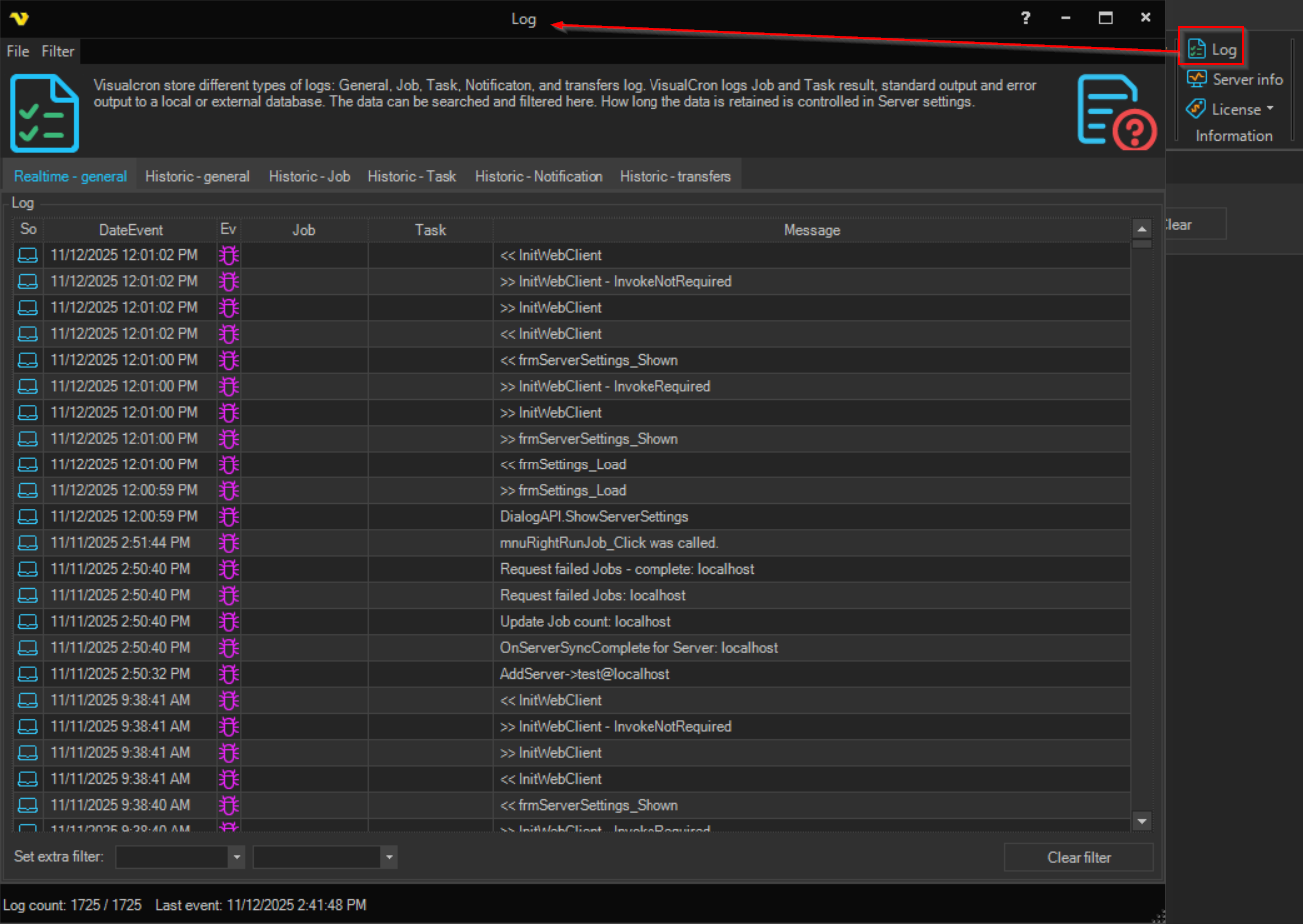
Tabs
- Realtime - general: live events; when the window opens, this tab receives the recent events the Server holds in memory (about the latest 1000) and your Client's own events, then adds new events as they occur
- Historic - general, Historic - Job, Historic - Task, Historic - Notification and Historic - transfers: search the Server's log database; choose the date range (on Historic - Task, Historic - Notification and Historic - transfers, also the Job and Task) and click Get; Filter... adds filters on the columns, and the Historic - Job and Historic - Task tabs also have Export.. and a search in the output text
The Historic tabs show data only when Log to database is on in Settings - Log Settings, and only as far back as the log is kept. Clear memory in Information - Server Info empties the Server's in-memory events, so a Log window opened after that starts with fewer realtime events.
Extra filter
On the Realtime - general tab, Set extra filter: filters the list on one column: "No filter", "Source", "Message", "Event time", "Event type", "Job name", "JobId" or "TaskId". For "Message", "Event time" and "Job name", type the text to look for; for "Source" and "Event type", pick a value from the second list. "JobId" and "TaskId" filter on the Job or Task the Log window was opened for; text typed in the box is not used. Clear filter removes the extra filter.
File menu
- Export: saves the Realtime - general list as an Excel file (.xls); choose a folder, enter a file name and click Save
- Close window: closes the Log window
Filter menu
The Filter menu shows or hides one type of event in the realtime list: Debug, Information, Error or Communication. Click a type to hide it, and click it again to show it. The icon changes to show which types are hidden. Your choices are saved with your Client settings. They change only what this window shows, not what is logged.
Columns
The realtime list has these columns:
- Source: whether the event came from the Server or from your Client
- DateEvent: when the event happened; if you are connected remotely, the Server's time can differ from your computer's time
- EventType: an icon for the type of event, matching one of the types in the Filter menu
- Job: the Job the event belongs to, if any
- Task: the Task the event belongs to, if any
- Message: the description of the event
Status bar
The status bar shows Log count (the number of events shown and the total number of events) and Last event (the time of the most recent event).