Jobs - Failed Jobs
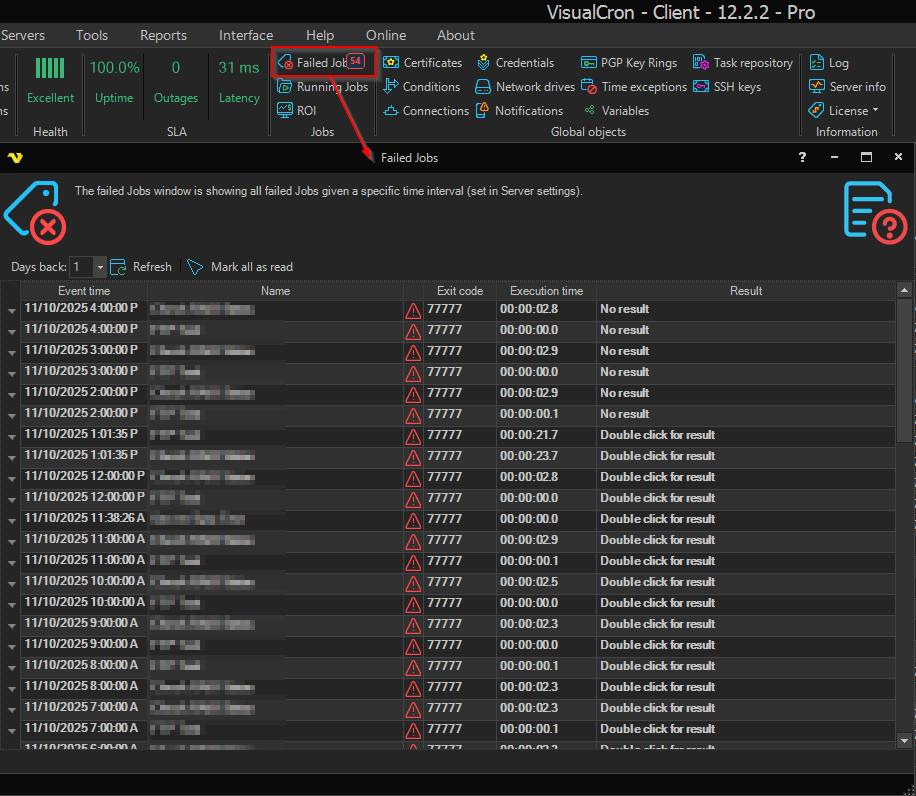
The Failed Jobs window lists the Job runs that failed recently, so you can find and review failures in one place. Each row is one failed run, newest first. Expand a row to see that run's Tasks.
To open it, click the main menu Server -> Jobs -> Failed Jobs. When there are failures you have not looked at yet, the Failed Jobs button shows how many.
Server -> Jobs -> Failed Jobs
Toolbar
- Days back: how many days of failures to list, from "1" to "7"; default "1". This is the same setting as Days to track failed Jobs in Settings - Client Settings. A changed value takes effect when you click Refresh.
- Refresh: clears the list and loads it again from the Job log for the Days back period
- Mark all as read: marks every listed failure as read
Columns
- Event time: when the run started
- Name: the Job
- An icon showing the result
- Exit code: the Job's exit code
- Execution time: how long the run took
- Result: "Double click for result" when the run has a Job result to show, otherwise "No result"; double-click the cell to open the result
The Task rows under a Job show each Task's result, exit code, execution time and output. Double-click an output cell to open that output.
Read and unread failures
Failures you have not looked at yet are shown in bold. Selecting a row marks it as read, and Mark all as read marks them all. The count on the Failed Jobs button is the number of unread failures. The read state is kept by your Client only, and only until you close the Client; after the Client starts again, all listed failures are unread.
Where the failures come from
- When your Client connects, and when you click Refresh, failures are read from the Job log in the Server's log database for the Days back period. They are found only when Log to database is on in Settings - Log Settings, and only as far back as the Job log is kept.
- Failures that happen while your Client is connected are added as they occur, also when Log to database is off. Refresh replaces them with what the Job log holds.
There is no command to clear or delete failed Jobs.