Global - Conditions
Condition sets and the included conditions are "global", which means that once a condition set is defined, it can be selected by one or more Jobs and/or Tasks. However, a Job or a Task can only include one condition set. A condition set is defined either from the main menu Server > Global objects > Conditions dialog or the Add/Edit Job or the Add/Edit Task dialogs.
With conditions, the internal flow of Tasks included in a Job or the Job itself, can be controlled. Conditions are different kinds of "checks" which are evaluated before a Job or a Task is launched. One common condition could be if the previous Task returns an error based on the exit code. The outcome of the condition evaluation results in an action. The action could be to exit the Job because of the previous "failure".
Conditions are also evaluated before Notifications. If a condition check returns false then neither the Job/Task nor the notification is run. Thus the basic Job flow now looks like:
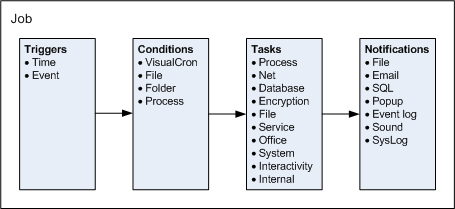
A condition set may include several conditions and these conditions can be of several types. The condition set criteria determine how the results of all included conditions are evaluated. The evaluation of a condition set can only result in one action, which affects the current or following Task or Job.
In the Add/Edit Job or the Add/Edit Task windows, click on the Conditions tab and you will see the currently defined condition set list.
Edit Job > Conditions tab
The condition set list consists of two bands, where the parent row is the condition set and the child rows are the conditions within the condition set.
Use
A condition can, by itself, be active or inactive. Check the Use box to the left of each condition set for each set you want to activate for your Job or Task. If inactive, the condition will be ignored.
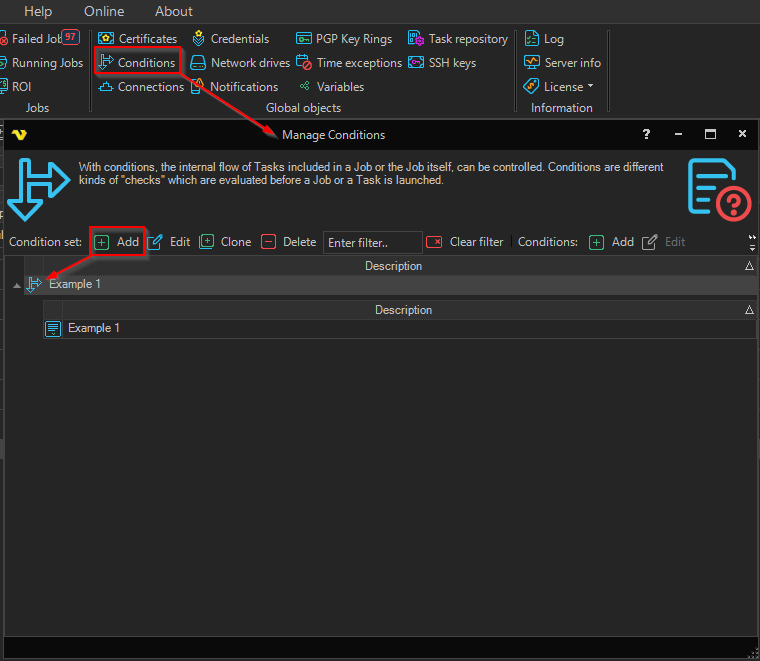
Manage conditions window
Opening Server > Global objects > Conditions displays a hierarchical grid with two bands:
- Condition sets (parent rows) — show the condition set icon and Description
- Conditions (child rows) — show the condition type icon and the condition's Description
Two toolbars are provided. The Condition sets toolbar contains Add, Edit, Clone, Delete, and Clear filter. The Conditions toolbar contains Add, Edit, Clone, Delete, Audit log, and Clear filter. The same commands are available from the right‑click context menu, which also exposes Versions, Object relations, and Export.
Add / Edit condition set
The Add/Edit condition set dialog has three tabs.
Main settings
- Description — a free‑text name shown in the condition set list
- Extended debug logging — when checked, the condition set writes detailed evaluation information to the log. Use this when troubleshooting; leave unchecked in production
Conditions
A list of the individual conditions that make up the set. Buttons above the list let you Add, Edit, Clone, and Delete conditions. When clicking Add, you choose the condition type from the following:
- VisualCron
- File
- Folder
- Process
- Service
- Variable
- .NET
Each condition type has its own editor with the parameters relevant to that check (for example, the Variable condition supports the operators Equal, Not equal, Larger, Larger or equal, Smaller, Smaller or equal).
Actions
The Actions tab contains four independent sections that define what should happen for each possible result of evaluating the condition set:
- On Match All — all conditions evaluated to true
- On Match Any — at least one condition evaluated to true
- On Match None — no conditions evaluated to true
- On Match Error — an error occurred while evaluating the conditions
Each section has the same set of controls:
- Action Type — what the Job/Task should do. Available values are Continue, Next, Retry, Exit, Run Job, and Run Task
- Wait Type — Wait or No Wait, controlling whether VisualCron blocks until the action finishes
- Wait duration — three numeric editors for Hours, Minutes, and Seconds, enabled only when Retry is selected
- Job picker — enabled when Run Job or Run Task is selected
- Task picker — enabled when Run Task is selected, listing the Tasks of the selected Job