Jobs - Running Jobs
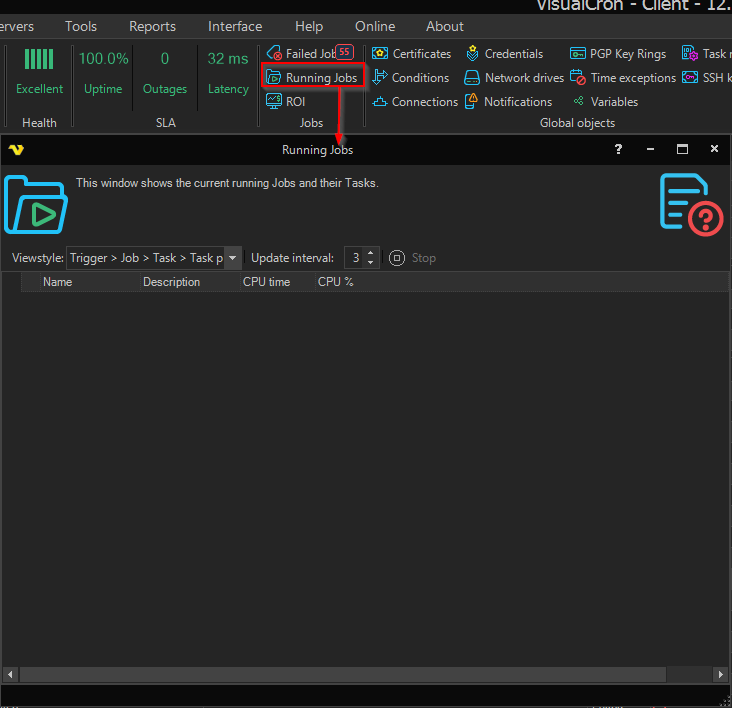
The Running Jobs window shows the Jobs, Tasks and processes the Server is running now, and lets you stop them. It includes work that does not appear in Windows Task Manager, for example a web request.
To open it, click the main menu Server -> Jobs -> Running Jobs. You need the "Processes" permission with "Read" to open the window, and with "Delete" to stop a process (see Main - User Permissions). The same list is on the VisualCron Jobs tab of Task Manager.
Server -> Jobs -> Running Jobs
Job processes and Task processes
When VisualCron runs a Job, it starts a Job process: a temporary working copy of the Job. A Job exists once, but several Job processes can come from it, for example when the same Job runs several times at once. The Job process:
- Keeps track of the Tasks to run
- Checks Conditions
- Sends Notifications
- Updates the Client with the status of each Task
When a Task runs, a Task process is created: a temporary copy of the Task. The Task process:
- Tells the Client when the Task starts and ends
- Performs the action, for example runs a command or sends a POST request to a website
Each Task process has an ID, which is used to control it. A Task exists once, but several Task processes can come from it when several Job processes run at the same time.
Toolbar
- Viewstyle: how the list is arranged; the options are "Trigger > Job > Task > Task process", "Job > Task > Task process", "Job > Triggers", "Task process" and "Job process > Task process" (the default)
- Update interval: how often, in seconds, the Runtime, CPU time and CPU % columns are updated; default "3"
- Stop: stops the selected row (see Stopping processes)
Your Viewstyle and Update interval choices are saved with your Client settings.
Columns
Depending on the row and the view, the list shows:
- Name and Description
- Started and Runtime for Job processes and Task processes
- Windows PID for Task processes, and Job process id in the views that list Task processes under Tasks
- CPU time: the processor time used since the previous update
- CPU %: the share of the whole computer's processor capacity used since the previous update, divided over all logical processors
Right-click a row for Stop and Go to process. Go to process works only when the list is shown in Task Manager; in the Running Jobs window it does nothing. In Task Manager it switches to the System processes tab and selects the Windows process of the selected Task process.
Stopping processes
Select a row and click Stop, or right-click the row and click Stop. The result depends on the row:
- Job: stops all running Job processes of the Job and their Task processes, and removes the Job's queued runs
- Job process: stops that Job process and its Task processes
- Task: stops all Task processes started from that Task
- Task process: stops that single Task process
Stopping a Job, Job process or Task row is recorded in the Objects - Audit Log. Stopping a single Task process is not recorded there.
Stop acts immediately and does not ask for confirmation. Stopping a Job row also removes that Job's queued runs, so they do not run. To stop only the current run and keep the queued runs, stop the Job process row instead.
In the "Trigger > Job > Task > Task process" view, Stop on a Job row does not stop the Job. To stop all runs of a Job, select the Job row in the "Job > Task > Task process" view.