ROI - Return On Investment
The Return On Investment (ROI) window shows how much time and money your Jobs save. Each Job run counts the time the Job saves and the hourly rate that time is worth. For example, a Job that saves 1 hour at a rate of "50" returns 50 each time it runs.
To open it, click the main menu Server -> Jobs -> ROI. Not every edition includes this window.
The window has three tabs: Chart shows the combined ROI of all Jobs over time, Jobs lists the total per Job, and Settings holds the currency and the values new Jobs start with.
How ROI is calculated
- Each Job has its own ROI settings: the time it saves per run and an hourly rate (see the ROI settings in Job - Main Settings)
- When a Job run ends, the Server stores that run's time and rate in the Job log of the log database; ROI is recorded only when Log to database is on in Settings - Log Settings, and it is kept as long as the Job log is kept
- The amount of a run is the time saved, in hours, multiplied by the hourly rate; a run that saves 15 minutes at a rate of "50" returns 12.5
- The time and rate are stored with each run, so changing them later does not change runs that are already recorded
- If Only store successful executions is checked in a Job's ROI settings, a failed run of that Job is recorded with no time and no amount
The Server uses the time and rate stored in each Job. When Use default Job time or Use default Job rate is checked for a Job, the Job takes the default value from the Settings tab at the moment you click OK in its ROI settings. Later changes to the defaults reach that Job only when you open and confirm its ROI settings again, or use Update Jobs. A new Job whose ROI settings are never opened uses a time of 15 minutes and a rate of "50".
Chart tab
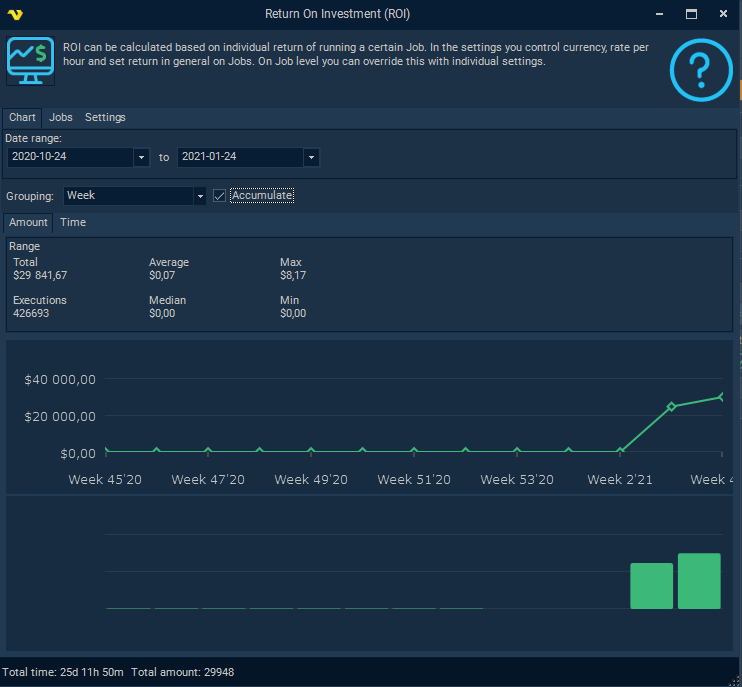
The Chart tab shows the combined ROI of all Jobs for a date range.
- Date range: the period to show; by default the last three months up to today
- Grouping: how runs are grouped on the chart: "None", "Day", "Week", "Month" or "Year"; "Week" is selected when the window opens
- Accumulate: when checked, each point adds to the previous ones, so the chart shows a running total
- Amount and Time: show the chart in money or in time saved
Above the chart, the window shows the total for the range and the statistics Executions, Average, Median, Min and Max. When Grouping is "None", these count and compare single runs. With any other grouping they count and compare the groups: for example, with "Week", Executions is the number of weeks in the range that have runs, and Average is the average per week. The chart counts every logged run, including runs of deleted Jobs and runs with no ROI, so its totals can differ from the Jobs tab.
"Week" groups runs by week number only, so the same week number from different years is combined into one point. Keep the date range under one year when you use "Week".
Server -> Jobs -> ROI -> Chart
Jobs tab
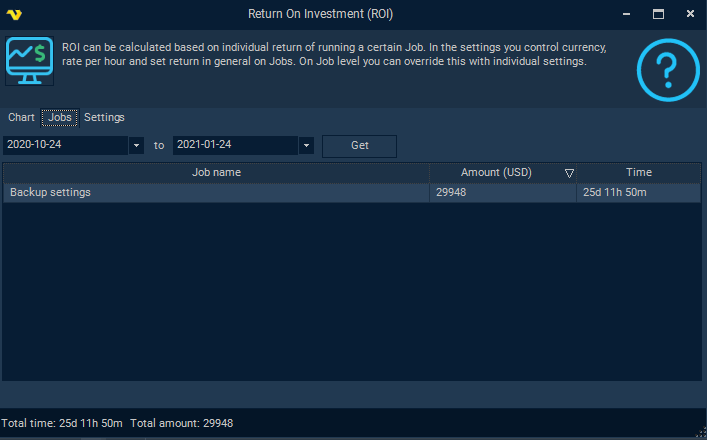
The Jobs tab lists the total ROI per Job for its own date range, by default the last three months up to today. The list loads the first time you open the tab. Click Get to load it again after you change the dates.
- Job name: the Job
- Amount (with the currency): the total amount for the range
- Time: the total time saved for the range
The list is sorted by amount, highest first, and shows only existing Jobs with an amount above zero. The status bar shows Total time and Total amount for the list.
Server -> Jobs -> ROI -> Jobs
Settings tab
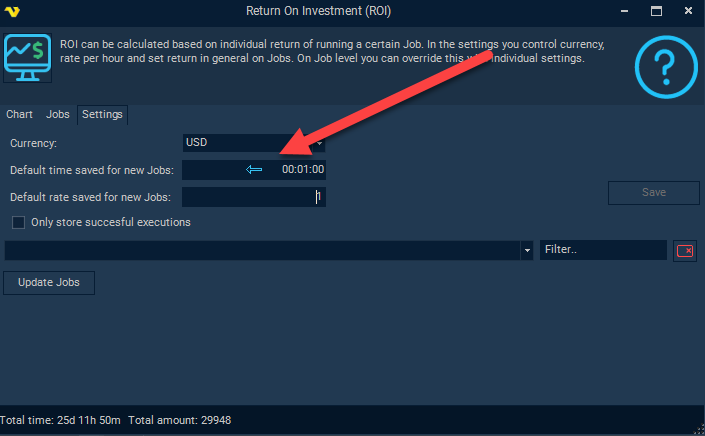
The Settings tab holds the currency and the values that new Jobs start with. A Job takes these values when its ROI settings are confirmed (see the note under How ROI is calculated).
- Currency: the currency the window shows amounts in; default "USD"
- Default time saved for new Jobs: the time a Job saves per run when it uses the default time; default "00:01:00"
- Default rate saved for new Jobs: the hourly rate, as a whole number, when a Job uses the default rate; default "1"
- Only store succesful executions: the starting value of the same option in each new Job; default unchecked; each Job keeps its own setting
Save saves the settings to the Server and closes the window. It is available only after you change a setting. Saving requires the "Server settings" permission with "Edit" (see Main - User Permissions).
Without the "Server settings" permission with "Edit", Save closes the window but the Server does not store the change, and no message is shown.
Update Jobs
Use Update Jobs to give several Jobs the same ROI settings.
- In the Job list below the settings, select the Jobs to update
- Click Update Jobs; the Job ROI settings window opens with the values from this tab, and with Use default Job time and Use default Job rate cleared
- Change the settings if needed, then click OK
The settings are written to every selected Job, and a message confirms when the update is complete. You can cancel while the update runs; Jobs that were already updated keep the new settings.
Update Jobs replaces the ROI settings of every selected Job, including Jobs that had their own time or rate. Check the Job selection before you click OK.
Server -> Jobs -> ROI -> Settings