Settings - Log Settings
In the main menu Server > Main settings > Settings dialog, there are a set of important setting groups/tabs. In this tab, the log settings are managed.
Main > Settings > Log settings > Settings sub tab
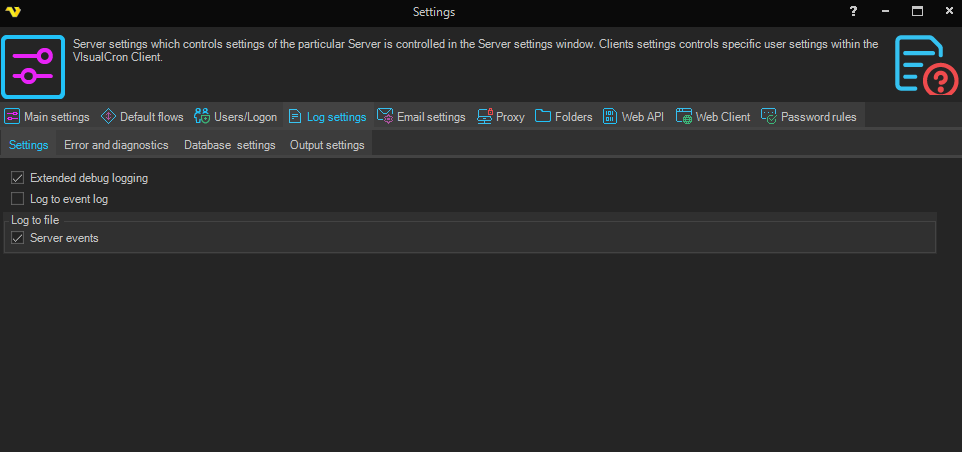
Extended debug logging
If you experience problems the VisualCron support may ask you to turn on extended debugging. When the support process is done you uncheck this option as it leverages the system.
Log to event log
Use Windows event log for logging.
Log to file - Server events
Controls if Server should write events to a file (placed in VisualCron X/log folder). Client event logging to file is configured separately in Client settings.
Log to file
If any option is activated, a log file will be created and entries will be written into the log file. A new log file is created for each day. If no Job has been run during a day (with logging on) - no file will be created. The server/client log file names are "log_serverYYYYMMDD.txt"/"log_remoteYYYYMMDD.txt". By default the log files are located in the "C:\Program Files\VisualCron\log" folder.
Main > Settings > Log settings > Error and diagnostics sub tab
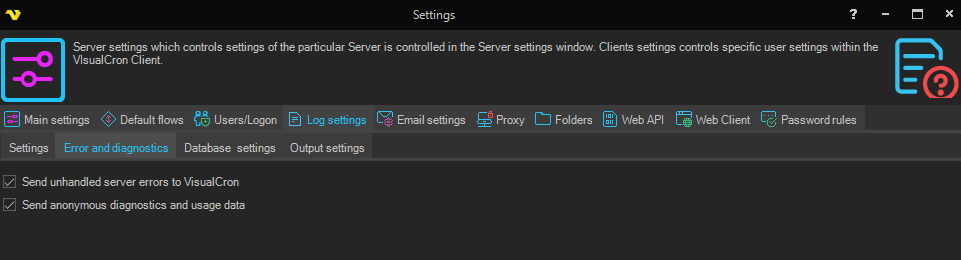
Send unhandled server errors to VisualCron
If you check this all errors are reported back to VisualCron. This way we can get enough information to detect and fix bugs as soon as possible.
Send anonymous diagnostics and usage data
If checked, anonymous diagnostics and usage data is sent to VisualCron to help improve the product.
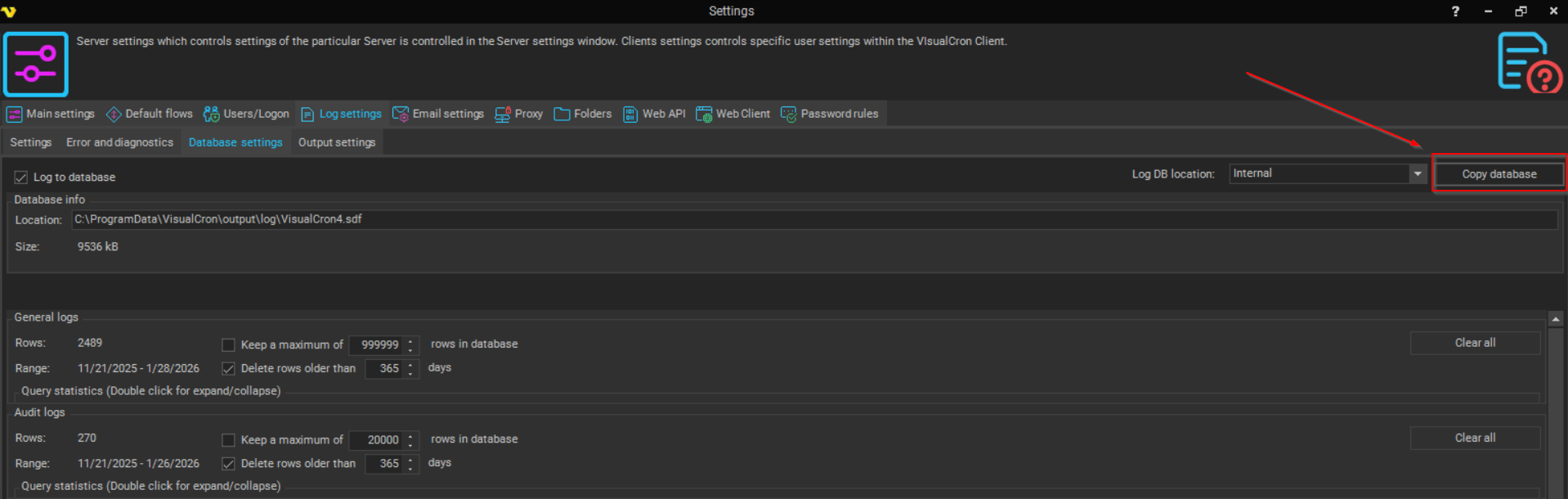
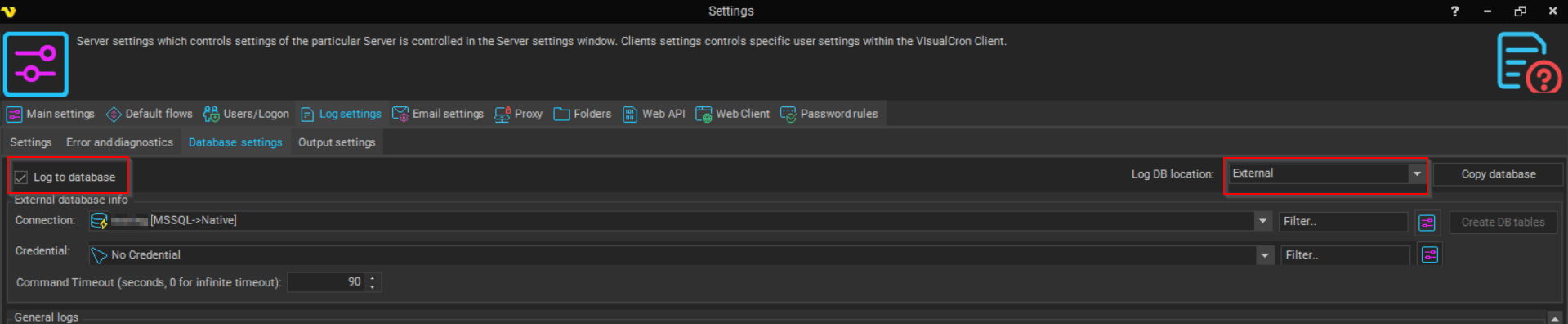
Main > Settings > Log settings > Database settings sub tab

VisualCron uses an internal database to log server events and Job/Task result/output and audit logging. These are stored in separate tables in an internal database. You can control how many and/or how long time this data should be stored in each table. It is possible to store these logs externally.
Log to database
This controls if the internal database should be used or not.
Log DB location
This controls if VisualCron should log to the internal SQL Compact database or any external database.
Location
Only visible when using Internal logging. This shows the location of the internal database (for debugging purposes).
Connection
Only visible when using External logging. Select an existing Connection. If Integrated Authentication is used you need to select a Credential.
Credential
Only visible when using External logging. Select a Credential if Integrated Authentication is used (Windows Auth).
Create DB tables
Creates the External DB tables in the selected Connection. The following tables are created:
- AuditLogs - stores the Audit logs
- DBVersions - controls the version of the database (for upgrades)
- GeneralLogs - stores the General logs
- JobLogs - stores the Job logs
- TaskLogs - stores the Task logs
Size
This shows the current size of the database.
General/Audit/Job/Task Rows
The current number of rows in the current log type
General/Audit/Job/Task Range
The date range of the current stored objects.
General/Audit/Job/Task Keep a maximum of x rows in database
This option controls how many rows to store. If unchecked then unlimited rows will be stored (or limited by number of days in setting below).
General/Audit/Job/Task Delete rows older than x days
This option controls how many days to store. If unchecked then unlimited days will be stored (or limited by number of rows in setting above).
Please note: If the row limit is hit first, this will limit the available date range.
General/Audit/Job/Task Clear all
This option deletes all entries for the current log type.
Reset database completely
If the database has exceeded maximum size you may have to manually delete it to restore. Here are the steps:
- Open the Main > Settings > Folders tab and click on the Output cache folder > Open button.
- Stop the VisualCron service
- In the Explorer window enter the folder "log" and delete the file "VisualCron4.sdf"
- Start the service again
Main > Settings > Log settings > Output settings sub tab
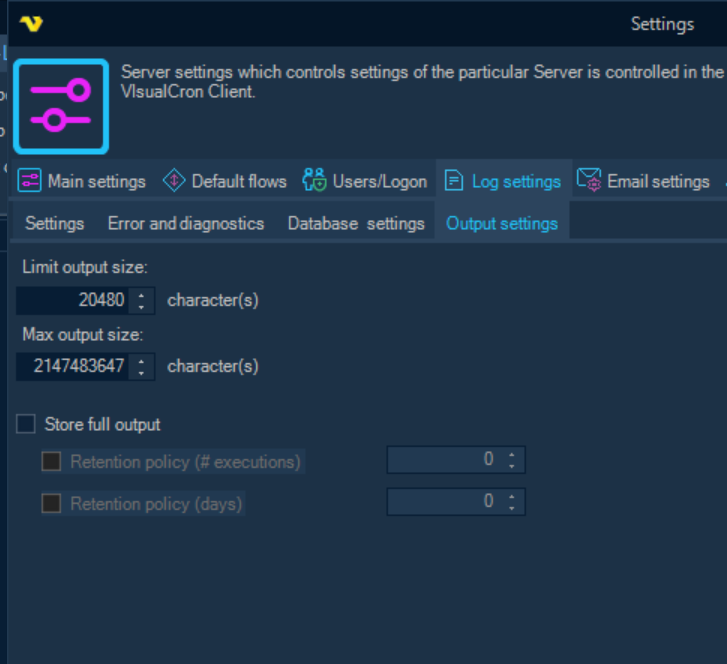
Limit output size
If checked, Task output will be limited in the Task log table to the value you set below. It is recommended to have some kind of limitation so that the database file do not grow to fast which makes it hard to control and connection slow between Client and Server.
Max output size
This is the max output size we store in real time. If a Task has larger output than specified we cap at at this level.
Store full output
By default, Task output stored in the Task log is trimmed to the Limit output size value above, so historic runs only show the trimmed (limited) output. If Store full output is checked, VisualCron also stores the full, untrimmed output (up to the Max output size real-time cap) for each Task execution, so you can view the complete output later from the Task history — not just the latest run. When unchecked, only the limited output is stored (the previous behavior).
Full output is stored in the Task log table (TaskLogs), so how long it is retained is tied to — and capped by — the Task Log DB retention settings on the Database settings sub tab. Full output can never be retained for more executions or days than the Task-logs limits allow. The two options below let you retain full output for a smaller window than the Task-logs limits if you want to save space.
Retention policy (# executions)
If checked, VisualCron keeps full output for the most recent x Task executions and trims the full output from older ones. This count is across all Task executions stored in the Task log (not per Task/Job). This value cannot exceed the Task-logs row limit set on the Database settings sub tab; if you lower the Task-logs row limit below this value, VisualCron will prompt you to reduce it accordingly.
Retention policy (days)
If checked, VisualCron keeps full output for executions from the last x days and trims the full output from older ones. This value cannot exceed the Task-logs day limit set on the Database settings sub tab; if you lower the Task-logs day limit below this value, VisualCron will prompt you to reduce it accordingly.
Please note: Trimming full output only removes the untrimmed copy — the limited output (truncated to the Limit output size value) is still retained under the normal Task-logs retention rules. Cleanup runs on the regular server cleanup interval, so older full output is trimmed on the next cleanup cycle rather than instantly.
Important
VisualCron applies both settings together, but the maximum row limit takes priority over the number of days. If the row limit is reached, older logs will be deleted even if they are within the configured day range.
For example: If you set retention to 15 days but keep the default row limit of 2000, the system may only retain logs for 2 days if the row count exceeds the limit. To ensure logs are kept for the full number of days, increase the maximum row limit accordingly or uncheck the row limit option.
External Database
When setting up an external database, you can copy the information from the VisualCron Internal Database to the External Database. For setting up an External Database, we recommend checking here first: Connection - SQL
Once the connection has been configured, go to Main > Settings > Log Settings > Database Settings and click on Copy Database
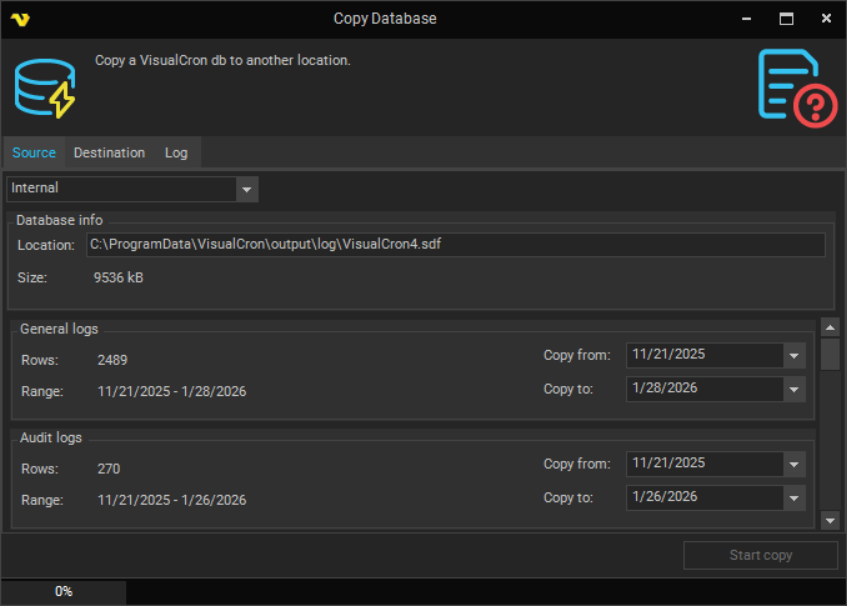
External Database Source
This is the original data source that is getting copied over to the new location.
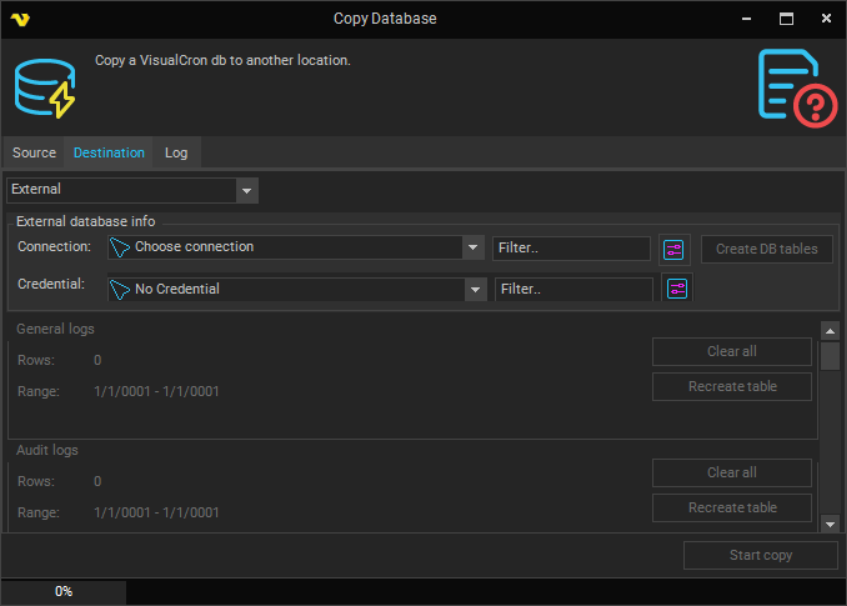
External Database Destination
This is the destination we are trying to copy the original data to. This is where you would select your database connection and the credential associated with it.
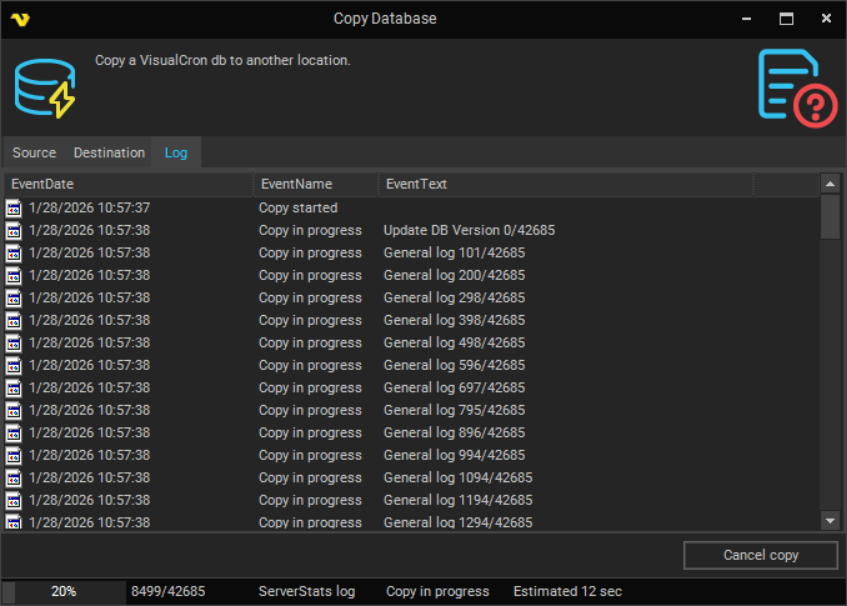
External Database Log
Once the connection has been confirmed, press Start copy and the information will be copied over to the External Database.
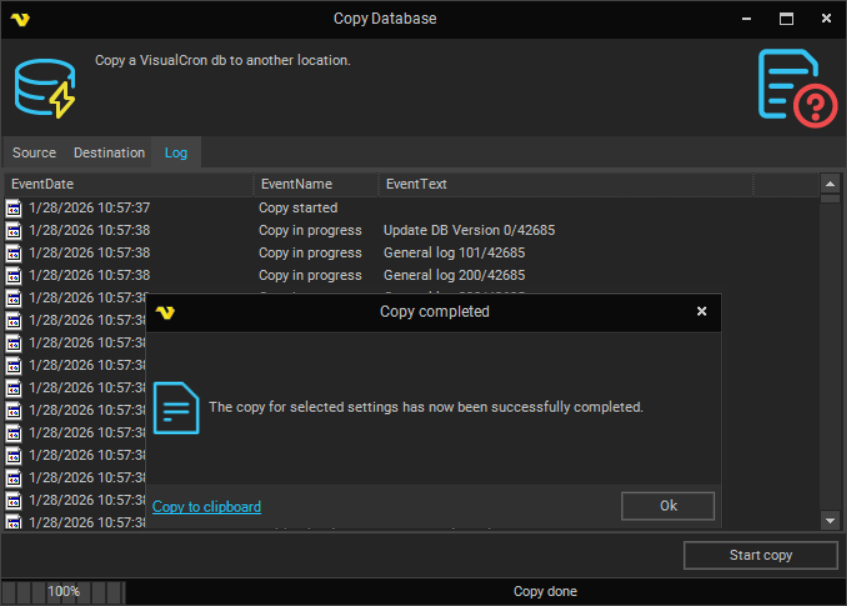
Once the information has been copied over, make sure the setting Log to database has been selected and choose the location to External
Common Questions
We are providing some common questions that get asked when it comes to VisualCron's Internal logging. Just as a reminder, the VisualCron client uses SQLCE compact when logging internally.
Q: How large is the internal storage for VisualCron?
- 4GB
Q: Is all 4GB available for use?
- No, not all of the 4GB is available for storage - this is because the SQLCE compact capability is separate from VisualCron. We recommend taking a look at what SQLCE Compact is: SQL Server Compact.
Q: How does the internal database handle file growth? Is there a mechanism (e.g., auto-shrink, compression, pre-allocation) that might explain why the file size appears unchanged even though new data is being added?
- The routine runs every 12 hours as part of server (this cannot be changed/adapted because of this). What this routine does is that it cleans according to row count and time period set in database settings. For example, if the file size exceeds 3.2 GB, 80% of the data is kept, including the number of days. Otherwise, both are kept. If the file size is still too high, SQLCE compact is run to optimize.
Q: How we can monitor or confirm that new data is actually being stored correctly within the internal .sdf?
- The easiest way is to check the logs within the client. If the new data exists, it is written to the database.
Q: We've had the product for several years and never had issues with logging. The settings have not changed but our environment is only retaining X amount of days instead of X. Is this normal?
- This is normal since the environment has grown over time (more jobs have been added, more connections, etc.) If the settings has not been changed but the environment has, this is why the product is only retaining X amount of days of retention. The settings will need to be configured based off how many days worth of retention is needed or how many rows of data.