Global - SSH Keys
VisualCron can handle SSH keys. These can be stored at the server location and be available for reuse in Tasks like the FTP/FTPS/SFTP/SCP Task and in the SFTP Connection. Instead of pointing to a key file on disk for every connection, VisualCron lets you generate or import the key once and then centrally store it inside VisualCron. The Manage SSH Keys dialog is available in the main menu Server > Global objects > SSH Keys.
SSH keys are used for public key authentication. A key pair consists of a private key, which is kept secret on the client side, and a public key, which is placed on the remote server. Both key types can be stored in VisualCron.
Global > SSH Keys
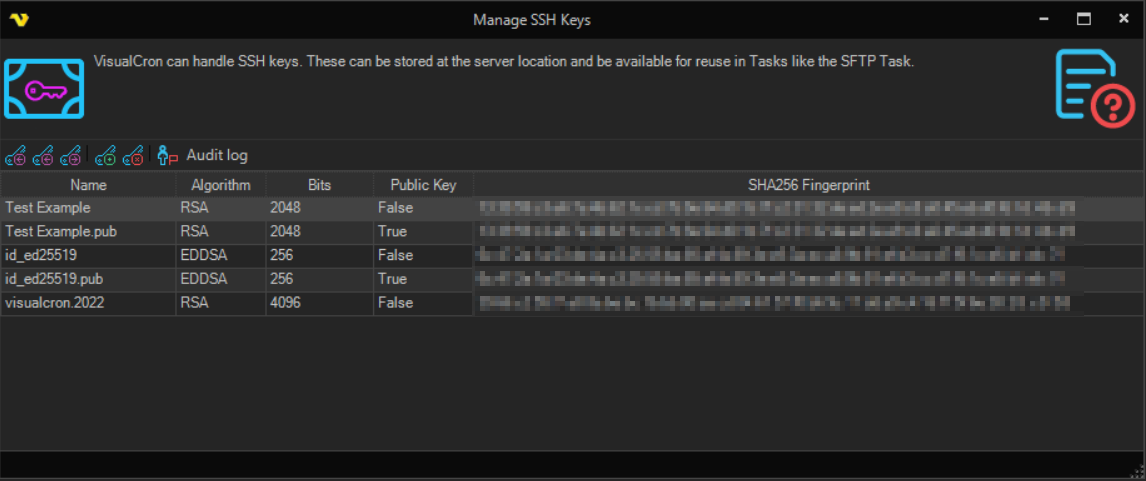
The Manage SSH Keys window lets you view currently stored SSH keys and their properties. The grid shows the following columns:
- Name — the VisualCron friendly name used to identify the key inside VisualCron
- Algorithm — the key algorithm (for example RSA, DSS, ECDSA or EDDSA)
- Bits — the key length in bits
- Public Key — whether the entry is a public key (True) or a private key (False)
- SHA256 Fingerprint — the SHA256 fingerprint of the key, used to verify the key's identity
The toolbar at the top of the window provides the following buttons: Create SSH key pair, Export SSH key, Import public SSH key, Import private SSH key, Delete SSH key, and Audit log.
Right-clicking a row in the grid opens a context menu with the following commands:
- Set name — edit the VisualCron friendly name of the key
- Copy SSH key Id — copy the key's internal identifier to the clipboard
- Change SSH key Id — change the key's internal identifier. If the key is referenced by other objects, VisualCron updates those references as well
- Audit log — open the audit log entries related to this key
- Versions — view the version history of the key
- Object relations — view other VisualCron objects that reference this key
- Export … — open the export dialog for the selected key
Create SSH key pair
To generate a new key pair, click the Create SSH key pair icon. This opens the SSH key pair generation dialog.
Name
Enter the VisualCron name that will be used to identify the key inside VisualCron.
Protocol type
Select the key algorithm. The available options are:
- RSA
- DSS
- ECDSA
- EDDSA
Key length (bits)
Select the key length. The available values update based on the selected protocol type. RSA and DSS offer 2048 or 4096 bits, while ECDSA offers 256 or 384 bits.
Passphrase
Optionally enter a passphrase to protect the private key. Leave it blank to generate a key without a passphrase.
Click Generate to create the key pair. The new key pair appears in the grid once it has been generated on the server.
Import public SSH key
Click the Import public SSH key icon and select a public key file (*.pub). The key is imported and stored in VisualCron under the file name.
Import private SSH key
Click the Import private SSH key icon and select a private key file. VisualCron first attempts to import the key with an empty passphrase. If the private key is protected, you are prompted to enter the passphrase before the import completes.
Export SSH key
Select a key in the grid and click the Export SSH key icon. Private keys are exported with their passphrase, and public keys are exported to a *.pub file. Choose a location to save the exported key file.
Delete SSH key
Select a key in the grid and click the Delete SSH key icon (or press the Delete key). If the key is used by other objects, VisualCron warns you how many objects reference it before you confirm the deletion. Open the Object relations window for more details about where the key is used.