Job Triggers
A Trigger is a part of a Job, the object that starts a Job. One Job can have one or more Triggers. A Trigger can either be based on Time (for example Every minute) or a system event (a file has been created). By default, Triggers are executed in an "OR-matter". This means Triggers do not wait for each other to start the Job. You can create dependencies between one or more Triggers.
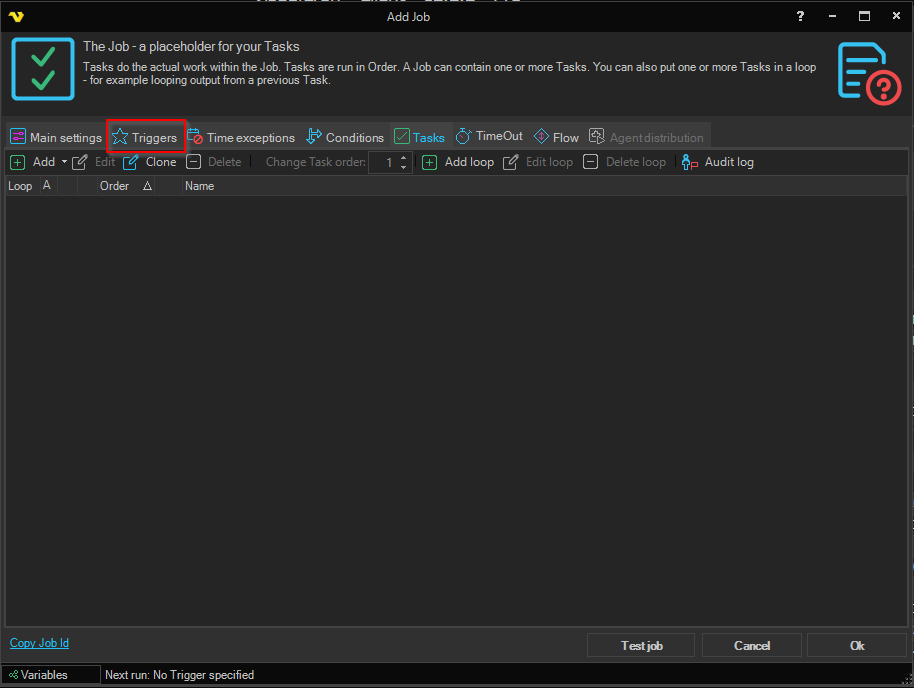
By invoking the Add Job, Clone Job or Edit Job functions, the Triggers tab can be opened.
Job > Triggers tab
Add
By pressing the Add button, the different Time Trigger and Event Trigger options are listed.
Edit
Opens a Trigger for edit. Select a row first.
Delete
Deletes a Trigger. Select a row first.
Dependencies
By default, Triggers are executed in an "OR-matter". This means Triggers do not wait for each other to start the Job. You can create dependencies between one or more Triggers by clicking on Dependencies..
Job > Triggers > Dependency
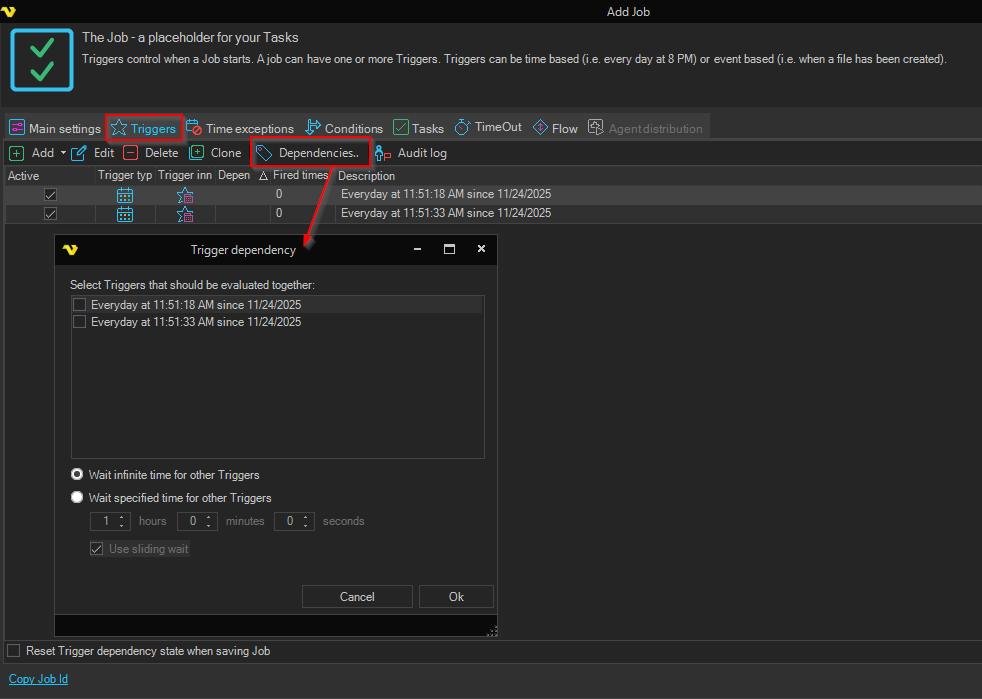
How a Trigger Dependency works
Without a dependency, Triggers work as OR: whichever Trigger fires first starts the Job, and every later fire starts it again.
A dependency changes that to AND. Every Trigger in the dependency must fire before the Job starts even once. Putting a daily Time Trigger and a File Trigger in the same dependency means "run the Job when the file has arrived and the scheduled time has passed", instead of running it twice.
The following rules apply to a dependency:
- All Triggers in the dependency must fire at least once. The Job does not start until each one has fired.
- The order does not matter. The Triggers can fire in any order, and the Job starts as soon as the last outstanding one fires.
- Repeated fires of the same Trigger do not count more than once. If Trigger 1 fires a thousand times and Trigger 2 has never fired, the Job still does not start.
- The count resets after the Job starts. Once all Triggers have fired and the Job has been started, every Trigger in the dependency goes back to zero. All of them must fire again before the Job runs a second time.
- A dependency needs at least two Triggers. Reducing a dependency to a single Trigger removes the dependency.
- A Trigger can only belong to one dependency. Adding a Trigger to a second dependency removes it from the first.
- A Job can have several dependencies. Each dependency is evaluated on its own, and each is shown with its own tag icon in the Dependency column of the Trigger grid.
- Triggers that are not in any dependency keep the default OR behavior. They start the Job on their own, regardless of what the Triggers inside a dependency are waiting for.
- Inactive Triggers are ignored. Clearing the Active checkbox on a Trigger takes it out of the requirement, and the remaining active Triggers in the dependency are enough to start the Job. If every Trigger in a dependency is inactive, the Job is never started by that dependency.
Trigger selection
In the check list box you can select all Triggers that should be in a dependency.
Wait type
For a Job to start all Triggers must fire (if a dependency exist) at least once. The wait type defines how long a Trigger that has already fired stays counted while the dependency waits for the remaining Triggers.
Wait infinite time for other Triggers
VisualCron will never reset state. For example, Trigger 1 might fire 1000 times and the Job will still not start because Trigger 2 has not yet fired. A Trigger that fired days or weeks ago is still counted, so the Job starts as soon as the last outstanding Trigger finally fires.
This is the default.
With infinite wait there is no time limit at all, so a Trigger that fired long ago still counts. If a file arrives on Monday and the matching schedule is not met until Friday, the Job still runs on Friday using that Monday state. Use Wait specified time when the Triggers are only meaningful together inside a limited window.
Wait specified time for other Triggers
After a specified time the state will be reset on all Triggers in the dependency. If you want to use this option then select a time until the state should be reset. The period is entered in hours, minutes and seconds, and defaults to 1 hour.
The wait period starts when the first Trigger in the dependency fires, not when the Job is saved or when the Job last ran. If the remaining Triggers have not fired before the period runs out, the count on every Trigger in the dependency is reset to zero and the dependency starts over from nothing.
Use sliding wait
When using specified time you can use sliding wait. This means the wait period starts over each time a Trigger that has already been counted fires again, which keeps the dependency alive while its Triggers are still active.
For example, with a wait period of 1 hour, a File Trigger that keeps firing every few minutes holds the dependency open while it waits for the other Trigger, instead of the count being discarded one hour after the first file arrived.
This option is only available when Wait specified time for other Triggers is selected. It is greyed out when Wait infinite time for other Triggers is selected, because there is no period to extend.
Example
A Job should import a file, but only once the file has arrived and only after 6 AM. Add two Triggers and put both in a dependency:
- A Time Trigger set to fire daily at 6 AM
- A File Trigger set to fire when the file is created in the import folder
With Wait specified time set to 4 hours:
- The file arrives at 5:15 AM. The File Trigger fires, its Fired times becomes 1, and the 4 hour wait period starts. The Job does not run, because the Time Trigger has not fired.
- At 6 AM the Time Trigger fires. Both Triggers in the dependency have now fired, so the Job starts.
- Both Triggers reset to zero. The Job will not run again until a new file arrives and 6 AM comes round again.
If instead the file never arrives, the Time Trigger fires at 6 AM on its own and the Job waits. At 10 AM the 4 hour period runs out, the Time Trigger's count is reset to zero, and the dependency starts over.
Why a Job with a dependency did not run
If a Job with a dependency is not starting when expected, check the following:
- The Fired times column shows which Triggers are still outstanding. A Trigger showing 0 has not fired since the last reset.
- A Trigger in the dependency may be inactive, or may not be firing at all. Test it on its own by temporarily removing it from the dependency.
- With Wait specified time, the period may be expiring before the slower Trigger fires. Increase the period, or enable Use sliding wait.
- Use Reset Trigger dependency state when saving Job to clear a stale count and start from a known state.
The grid in the Job > Triggers tab
The Trigger grid listing contains all Triggers that belong to the current Job. Each trigger is listed as a row in the Description table under the Add, Edit and Delete buttons. Mouse double-click on any part of the trigger row opens the same window as the Edit button.
The grid has 6 columns:
Active
By default Active. This checkbox indicates/controls if a Trigger should be active or not (if active it is waiting for the time/events).
Clearing this checkbox on a Trigger that is part of a dependency also takes it out of that dependency's requirement, so the remaining active Triggers are enough to start the Job. Trigger type
This icon shows if it is a Time or Event Trigger.
Trigger inner type This icon shows what kind of Time or Event Trigger. For example if the Event Trigger is of inner type File Trigger.
Dependency image
By default, Triggers are executed in an "OR-matter". This means Triggers do not wait for each other to start the Job. You can create dependencies between one or more Triggers. When a Trigger is not in a dependency this column is blank - otherwise, it will have a unique tag icon for each dependency collection.
Fired times of Trigger in dependency
How many times a Trigger has fired. This is only updated for Triggers within a dependency. A Job with dependencies do only fire when all Triggers have been fired once. After that - the fired times is reset.
This column is the quickest way to see what a dependency is still waiting for. A Trigger showing 0 has not fired since the last reset, so it is the one holding the Job back. The count also returns to 0 when a Wait specified time period runs out, or when Reset Trigger dependency state when saving Job is used.
Description
Name/description of the Trigger.
Reset Trigger dependency state when saving Job
This resets the state to zero on all Trigger that has a dependency.
Use it when a dependency has a stale count that you want to clear, for example after testing a Trigger, so the next run starts from a known state. The reset is applied when the Job is saved.
Next run
The Date/time for the next run is shown in the bottom of the Job window.