Connection - SFTP
The SFTP Connection stores connect and logon properties for the SSH File Transfer Protocol (SFTP).
About SFTP
SFTP (SSH File Transfer Protocol, often called Secure File Transfer Protocol) is a protocol that lets you transfer files securely over an SSH connection. SFTP is not compatible with FTP (File Transfer Protocol), which has its own security enhancements such as FTPS. SFTP is built on top of SSH and supports password-based and public key authentication. Public key authentication requires a private key which is configured in the Connection settings. The VisualCron implementation supports SFTP protocol versions 3–5. The default port for SFTP is 22.
Manage Connections > Add > SFTP > Common settings tab
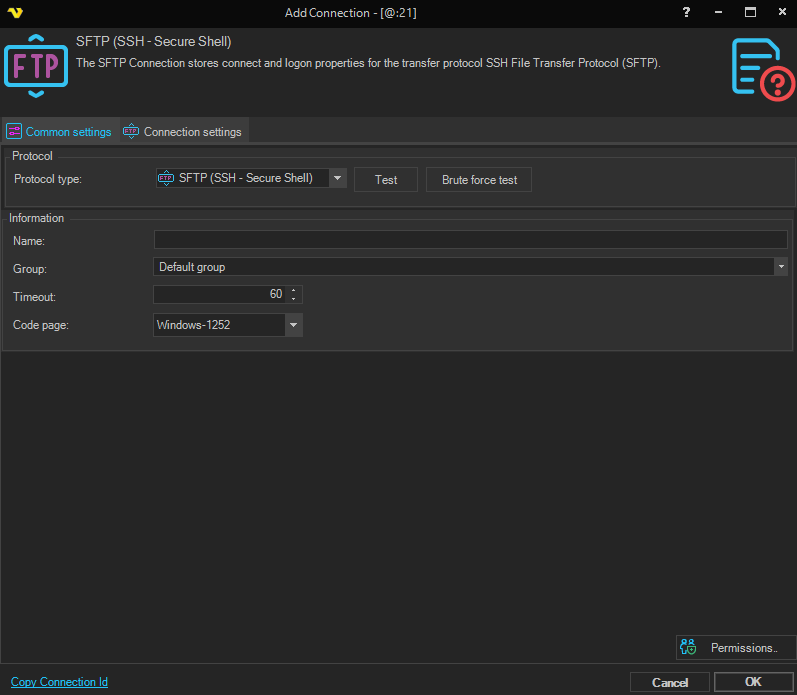
Protocol type
VisualCron is able to connect using regular FTP and FTPS (with implicit and explicit encryption). Regular FTP offer no security and information is not encrypted. VisualCron supports both SSL 3.0 and TLS (SSL 3.1). SSL and TLS are protocols layered above connection protocols (such as TCP/IP) but beneath application protocols (such as FTP) that provide encrypted, authenticated communications between a client and a server.
Brute force test
When using FTP and you are unsure of connection properties you can use the Brute force test tool to test all connection combinations. Note, brute force test option is only available for FTP protocol.
Name
The name of the Connection to uniquely identify it.
Group
The group that the connection is a part of.
Timeout
The connection timeout in seconds. Connection will fail after this time is passed.
Code page
The table of values that describes the desired character set.
Manage Connections > Add > SFTP > Connection settings tab
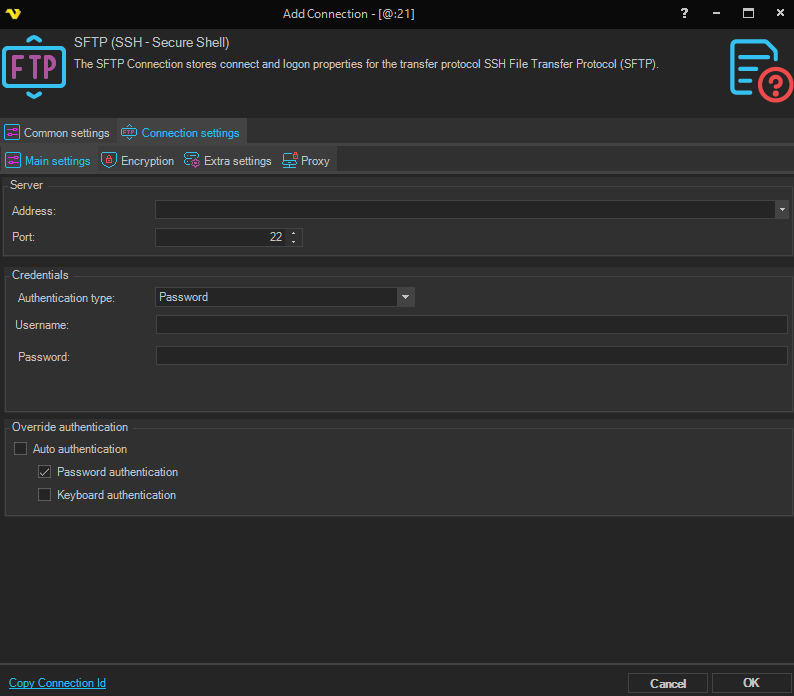
Address
The host address of the SFTP server. Can be a DNS name or IP address.
Port
The remote connection port. The default port for SFTP is 22.
Authentication type
The method used to authenticate with the SFTP server. Available options:
- Password - authenticate using a username and password
- Public key - authenticate using a private key file; the SSH key fields are shown below the password field when this option is selected
Username
The user name for the connection.
Password
The password for the connection. When Authentication type is Public key, this field contains the passphrase for the private key (if the key is passphrase-protected).
Public key vs password authentication
Public key authentication means that you specify the private key and any password for that key. Private keys can be loaded in SSH1, OpenSSH, Binary, Putty, IETF (Putty and IETF use different formats here) formats.
SSH key (Public key authentication only)
Select the private key to use for authentication. Private keys can be in SSH1, OpenSSH, Binary, PuTTY, or IETF format. Click the file icon to browse for the private key file.
Override authentication
By default, VisualCron uses auto authentication which tries both password and keyboard-interactive methods. Some servers do not support auto authentication. Uncheck Auto authentication and select the specific authentication method(s) to use.
- Auto authentication - VisualCron automatically negotiates the authentication method; when checked, the individual method checkboxes below are disabled
- Password authentication - enable password-based authentication; only available when Auto authentication is unchecked
- Keyboard authentication - enable keyboard-interactive authentication; only available when Auto authentication is unchecked
Manage Connections > Add > SFTP > Encryption tab
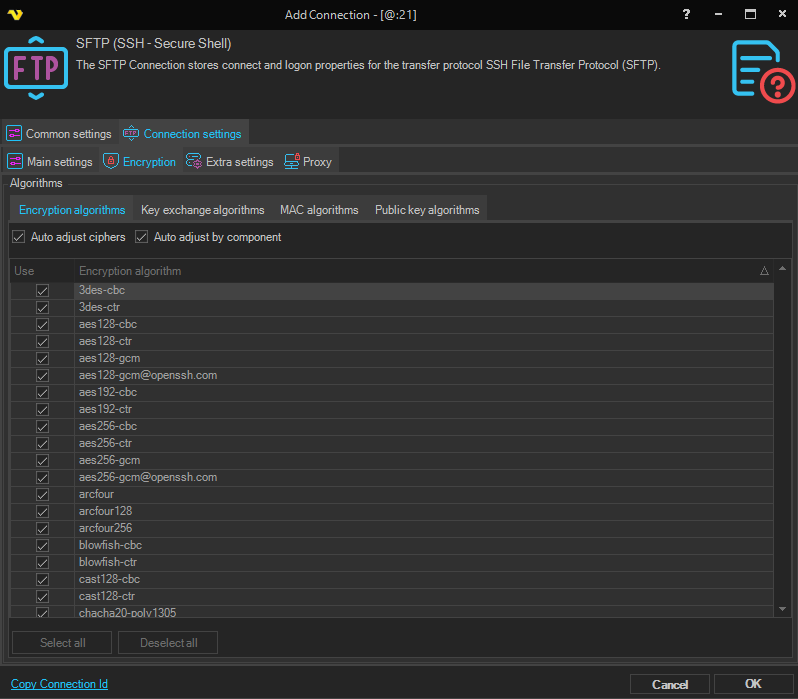
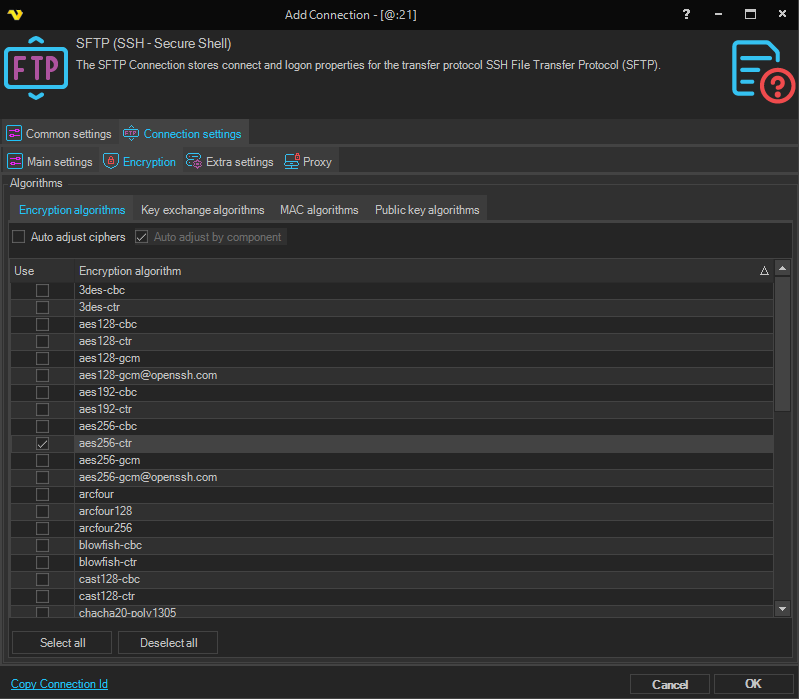
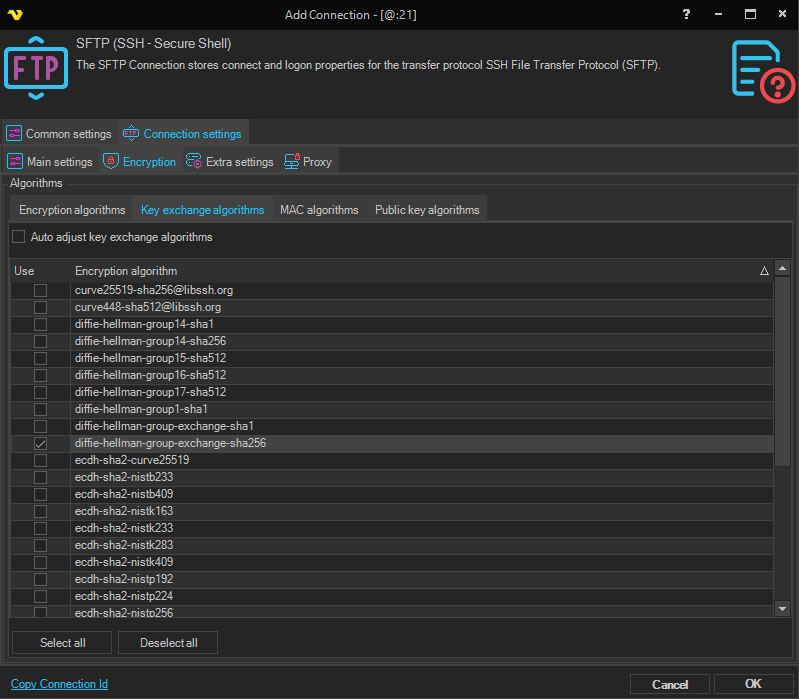
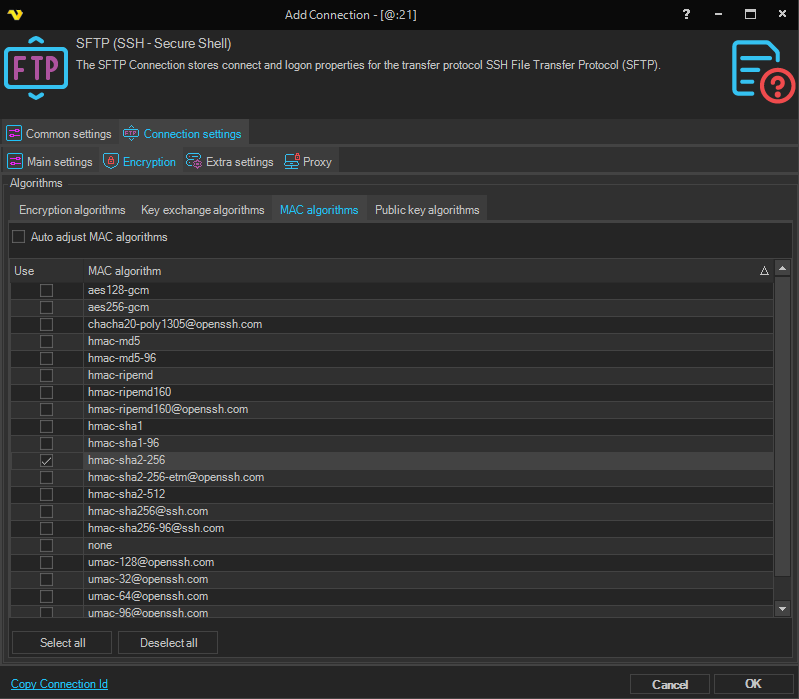
Some SFTP servers require specific encryption settings for communication between client and server. Four types of encryption can be adjusted in VisualCron:
- Encryption algorithm
- Key exchange algorithm
- MAC algorithm
- Public key algorithm
By default, these are auto-negotiated by VisualCron. When Auto adjust ciphers is checked for an algorithm type, VisualCron selects the settings automatically. Uncheck to manually select which algorithms are allowed using the Select all and Deselect all buttons.
In some cases, not all ciphers presented in VisualCron will be used during negotiation because the remote server must explicitly support them. If the server is not configured to allow certain ciphers, it will not choose them during the handshake even if they are enabled in VisualCron. Ensuring the server is configured with matching cipher support is required for a successful connection.
For troubleshooting encryption issues, refer to the Set correct Encryption settings section below.
Manage Connections > Add > SFTP > Extra settings tab
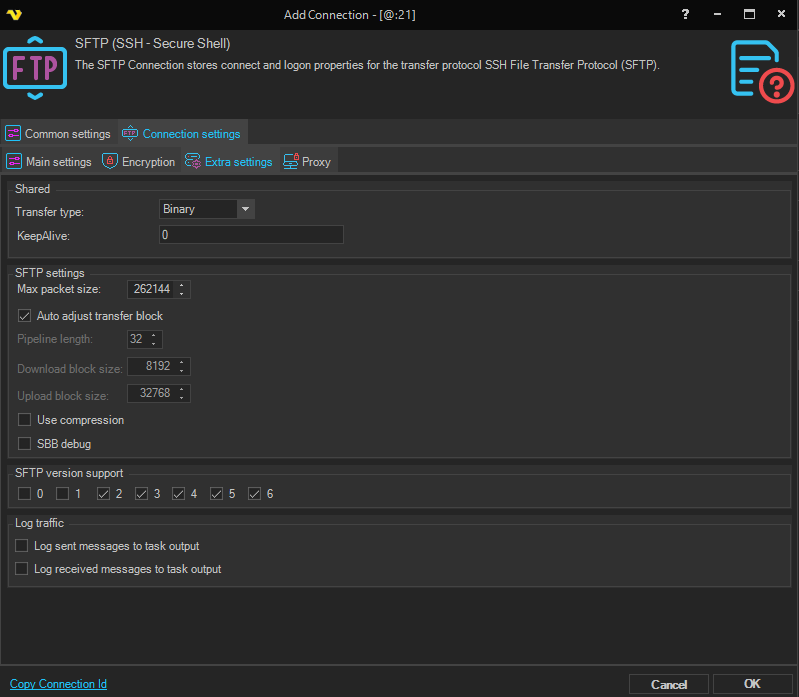
Transfer type
Select whether to transfer files in Binary (default) or ASCII mode.
KeepAlive
The interval (in seconds) for sending keepalive signals to maintain the connection.
Max packet size
Use this property to specify the maximal length of packet in bytes. The default value is 262144, i.e., 256 KBytes.
Auto adjust transfer block
When checked, VisualCron automatically adjusts pipeline length and block sizes for optimal transfer performance. When unchecked, the Download block size, Upload block size, and Pipeline length fields are enabled for manual configuration.
Download block size
The size in bytes of a single download request. If you have download speed problems, try setting to 0 (automatic) or increase up to 2 MB (2097152) for large files. Default: 8192.
Upload block size
The size in bytes of a single upload request. If you have upload speed problems, try setting to 0 (automatic) or increase up to 2 MB (2097152) for large files. Default: 32768.
Pipeline length
The number of upload or download requests sent before waiting for all requests to complete. Higher values increase transfer speed but use more memory and discard more data on error. Default: 32.
Use compression
When checked, enables compression for the SSH connection.
SBB debug
When checked, enables verbose debug logging from the underlying SSH component.
SFTP version support
Some SFTP servers do not support all protocol versions. Check the versions that should be attempted (0–6). For more information, see SSH File Transfer Protocol versions.
Log sent messages to task output
When checked, all messages sent from VisualCron to the SFTP server are logged in the Task output.
Log received messages to task output
When checked, all messages received from the SFTP server are logged in the Task output.
Manage Connections > Add > SFTP > Proxy tab
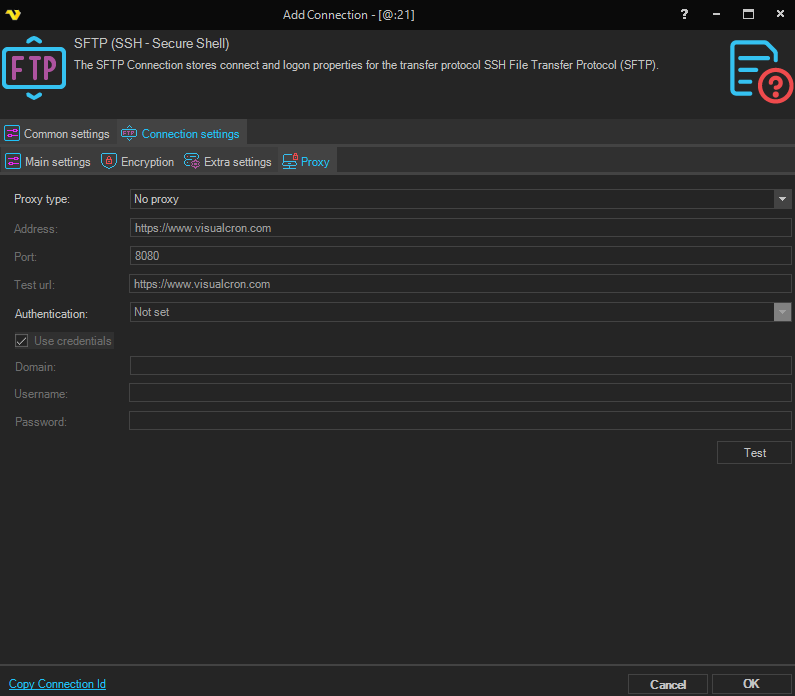
Proxy type
Select the proxy type to be used.
Address
The host name or IP address of the proxy server.
Port
The port of the proxy server.
Use credentials
Enable to provide credentials for authenticating with the proxy server.
Domain
The domain of the proxy server.
Username
The user name to access the proxy server.
Password
The password to access the proxy server.
Troubleshooting
Authentication type codes:
- 2 - public key authentication
- 4 - password authentication
- 16 - keyboard-interactive authentication
Authentication type 16 failed along with error 114
Try unchecking Auto authentication and unchecking Keyboard authentication. The problem could also be that the password or username is wrong.
Authentication type 4 failed along with error 114
Try unchecking Auto authentication and unchecking Password authentication. The problem could also be that the password or username is wrong.
Authentication type 2 failed along with error 114
Public key authentication is failing — the wrong private key may be in use, or the server requires password authentication.
Authentication failed for type 16 and 4 along with error 114
The connection is attempting password authentication but the server requires public key authentication.
SFTP error 6
A pseudo-error indicating that the client has no connection to the server.
SFTP error 7 in combination with error 10058
Try unchecking Auto adjust MAC algorithms in the Encryption tab. See Set correct Encryption settings below.
SFTP error 11 in combination with error 10058
Try these solutions one at a time:
- In the Connection settings tab, uncheck Auto authentication and uncheck Keyboard authentication.
- In the Encryption tab, uncheck Auto adjust ciphers.
SFTP error 96273 / Failed to retrieve file list: SFTP component not connected
Possible causes:
- Wrong key exchange algorithm is in use. See Set correct Encryption settings below.
- Try setting one SFTP version at a time in Extra settings, starting from version 2 through 6.
- Username is empty.
- If the Connection Explorer works but a Task does not, check the Task settings and ensure the correct directory path is used (use the browse button rather than typing paths manually).
SFTP error 96258
Ensure that a private key is selected if public key authentication is required.
SFTP error 102
In the Extra settings tab, set these values:
- Max packet size: 8096
- Pipeline length: 16
- Download block size: 2048
- Upload block size: 2048
SFTP error 103
Wrong key exchange or MAC algorithm is in use. See Set correct Encryption settings below.
SFTP error 10061
Try checking Use compression in the Extra settings tab. Also see Set correct Encryption settings below.
Failed to upload/download full file (only part transferred) / timeout on upload
Try unchecking Auto adjust transfer block in the Extra settings tab. For upload issues, try increasing Upload block size to 65536. You can also try setting Pipeline length to 1.
Other error codes: https://www.secureblackbox.com/kb/help/ref_err_sftperrorcodes.html
Public key errors
- 3329 (0x0D01) - Public key is invalid; usually indicates a problem with the file format
- 3330 (0x0D02) - Private key is invalid; usually indicates a problem with the file format
- 3331 (0x0D03) - Error reading from file
- 3332 (0x0D04) - Error writing to file
- 3333 (0x0D05) - Algorithm is unsupported
- 3334 (0x0D06) - Internal error
- 3335 (0x0D07) - Buffer is too small
- 3336 (0x0D08) - There is no private key
- 3337 (0x0D09) - Wrong password for private key
- 3338 (0x0D0A) - PEM algorithm is unsupported
Set correct Encryption settings
OPTION 1
- Open the Connection Explorer.
- Try to connect to the SFTP connection.
- Copy the log by pressing the button below.
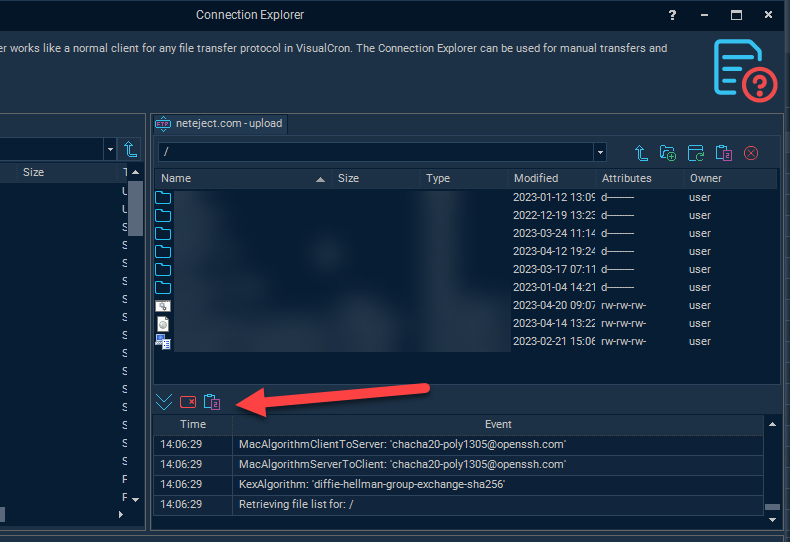
- Paste the content into an email and send it to support@visualcron.com.
OPTION 2 (Legacy)
- Try to first make the connection work using the free tool FileZilla.
- Enable verbose debugging in FileZilla.
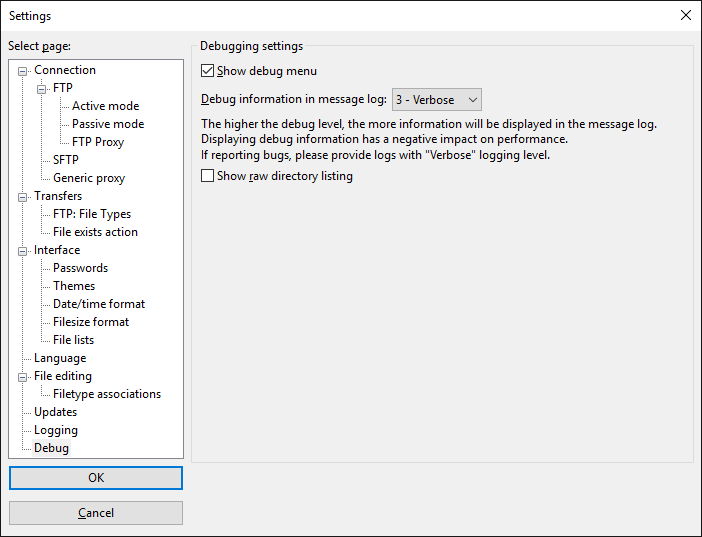
- Analyze the verbose output and look for entries similar to:
Key exchange algorithm
Trace: Doing Diffie-Hellman group exchange
Trace: Doing Diffie-Hellman key exchange with hash SHA-256
Encryption algorithm
Trace: Initialised AES-256 SDCTR client->server encryption
MAC algorithm
Trace: Initialised HMAC-SHA-256 client->server MAC algorithm
- Open the Connection in VisualCron and find the matching settings in the Encryption tab.