Task Net - FTP/FTPS/SFTP/SCP
The FTP/FTPS/SFTP/SCP Task transfers and manages files on a remote server. It runs a list of commands, such as upload, download, rename and delete, over FTP, FTPS, SFTP or SCP. FTPS is FTP with explicit or implicit TLS/SSL encryption. SFTP and SCP run over SSH.
Each command uses a Connection, which holds the server address, the logon and the protocol settings. Connections are stored apart from the Task, so several commands and Tasks can use the same Connection. Use an FTP Connection for FTP and FTPS, an SFTP Connection for SFTP and an SCP Connection for SCP.
The commands of the Task are listed on its FTP/FTPS/SFTP/SCP tab, and they run in the order of the Order column.

On FTP Connections, Auto-accept server certificates is selected by default. While it is selected, the FTPS server certificate is not checked. See Connection - FTP.
On SFTP and SCP Connections, the server host key is never checked; there is no setting for it. See Connection - SFTP and Connection - SCP.
A new FTP or SFTP Connection has the proxy Authentication "Not set" with Use credentials selected. With Proxy type "HTTP Proxy", the Server then sends the user name and password of the FTP or SFTP server to the proxy. To prevent this, set Authentication to "Basic", "Digest" or "NTLM", or clear Use credentials.
The Main settings, Flow, On error, Conditions and TimeOut tabs are the same for every Task; see Job - Tasks.
Check these cases before you run the Task. In each of them, no error is raised, so the Task can succeed although the work was not done as set:
- On FTP and FTPS Connections, Copy/Move with "Do not overwrite if existing" does not skip existing files; see Command - Copy/Move Files
- Delete source file after copy on a Download command also deletes remote files that were skipped or not downloaded; see Command - Download File(s)
- With Resume if transfer failed selected, a file that still fails after the last try is skipped; see Command - Download File(s) and Command - Upload File(s)
- On SCP Connections, a Custom command sends nothing; see Command - Custom Command
- On SCP Connections, the results of the shell commands that Change folder, Create folder, Delete file, Delete folder, Rename file, Rename folder and Copy/Move run on the server are not checked; see Command - Change Folder, Command - Create Folder, Command - Delete Files, Command - Delete Folders, Command - Rename Files, Command - Rename Folder and Command - Copy/Move Files
- On SFTP Connections, Create folder on a folder that already exists stops the remaining commands; see Command - Create Folder
- On FTP and FTPS Connections, a
*or?in the Folder of a Delete folder command deletes every folder in the current folder, with its contents, whatever the pattern; see Command - Delete Folders - On SFTP and SCP Connections, an Upload command with "Overwrite - if destination size is" or an "Append if destination is smaller" option and Resume if transfer failed selected skips a file whose remote copy is the same size or larger, and on SFTP adds the whole local file to the end of a smaller remote copy; see Command - Upload File(s)
- On FTP and FTPS Connections, a Download command with Resume if transfer failed does not try a failed file again when Download file mask is not
*or the file is not in the current folder. The file is skipped, and it is deleted if Delete source file after copy is selected; see Command - Download File(s) - On FTP and FTPS Connections, VisualCron does not check the server's replies to a Custom command; see Command - Custom Command
- A command whose Connection has been deleted is skipped, or runs on the Connection of the command before it. Its "Connection not found" error is not in the list of errors on the On error tab of this Task, so with the default "Only selected errors" it does not fail the Task. To have it fail the Task, select "All errors" on the On error tab, or "All except selected" with only the errors that should not fail the Task selected; see Task - On Error
FTP/FTPS/SFTP/SCP tab
The tab lists the commands of the Task. Use Add, Edit, Clone and Delete on the toolbar to manage them. To move a command, select it and change the number in Change order.
When a command raises an error whose cause is selected on the On error tab, the Task fails and the remaining commands do not run; see Task - On Error. When the cause is not selected there, the error is ignored:
- For most causes, such as "No file(s) found", the command finishes and the next command runs
- For "Unaccepted FTP server reply" and "Unhandled errors", the command stops, the remaining commands do not run, and the Task does not fail
On FTP and FTPS Connections, "Unaccepted FTP server reply" has two exceptions. In Delete file and Change folder commands, it always fails the Task, whatever is set on the On error tab. In an Upload command, it skips only the file concerned, and the command continues with the next file.
Each command can use its own Connection. VisualCron keeps the Connection open from one command to the next when both use the same Connection, so place commands that use the same Connection next to each other.
Add the Task
To add an FTP/FTPS/SFTP/SCP Task:
- On the Main settings tab of the Task window, select the Task type "FTP/FTPS/SFTP/SCP".
- Enter a name for the Task.
- Open the FTP/FTPS/SFTP/SCP tab.
- Click Add. The Add/Edit command window opens.
- Select the Command type.
- Select the Connection.
- Fill in the other tabs of the window, as described on the page for the command type.
- Click OK.
- Repeat steps 4 to 8 for each command.
Add/Edit command: Main settings tab

The Main settings tab of the Add/Edit command window sets the command type and the Connection. The other tabs of the window depend on the command type.
-
Command type: the command to run; the default is "Download"
Each command type has its own page, except "List folders(s)", which is described below:
- "Upload": see Command - Upload File(s)
- "Download": see Command - Download File(s)
- "List file(s)": see Command - List Files
- "List folders(s)": see List folders tab
- "Delete file": see Command - Delete Files
- "Copy/Move file": see Command - Copy/Move Files
- "Delete folder": see Command - Delete Folders
- "Create folder": see Command - Create Folder
- "Change folder": see Command - Change Folder
- "Rename file": see Command - Rename Files
- "Rename folder": see Command - Rename Folder
- "Custom command": see Command - Custom Command
"Custom command" works only with FTP and FTPS Connections. The Add/Edit command window does not accept it with an SFTP Connection. With an SCP Connection it can be saved, but the Server does not send the commands, and the Task continues as if they had been sent. Commands that need a data connection, such as STOR, RETR, NLST and LIST, are not supported.
-
Connection: the Connection to the remote server
Its protocol (FTP, FTPS, SFTP or SCP) decides how the command is run. To add or change Connections, click the button at the end of the Connection row, which opens Manage connections. A command cannot be saved without a Connection.
-
Credential: used only by the "Download" command
Select a Credential when the download Destination folder is on a network share that the VisualCron Server's account cannot write to, and enter the folder as a UNC path, for example
\\<server>\<share>\<folder>. See Global - Credentials.The box is also shown for "Create folder", "Delete file", "Delete folder", "Rename file" and "Rename folder". Those commands work on the remote server and do not use it. For "Upload", set the Credential for the source folder on the File filter tab instead; see Command - Upload File(s).
List folders tab
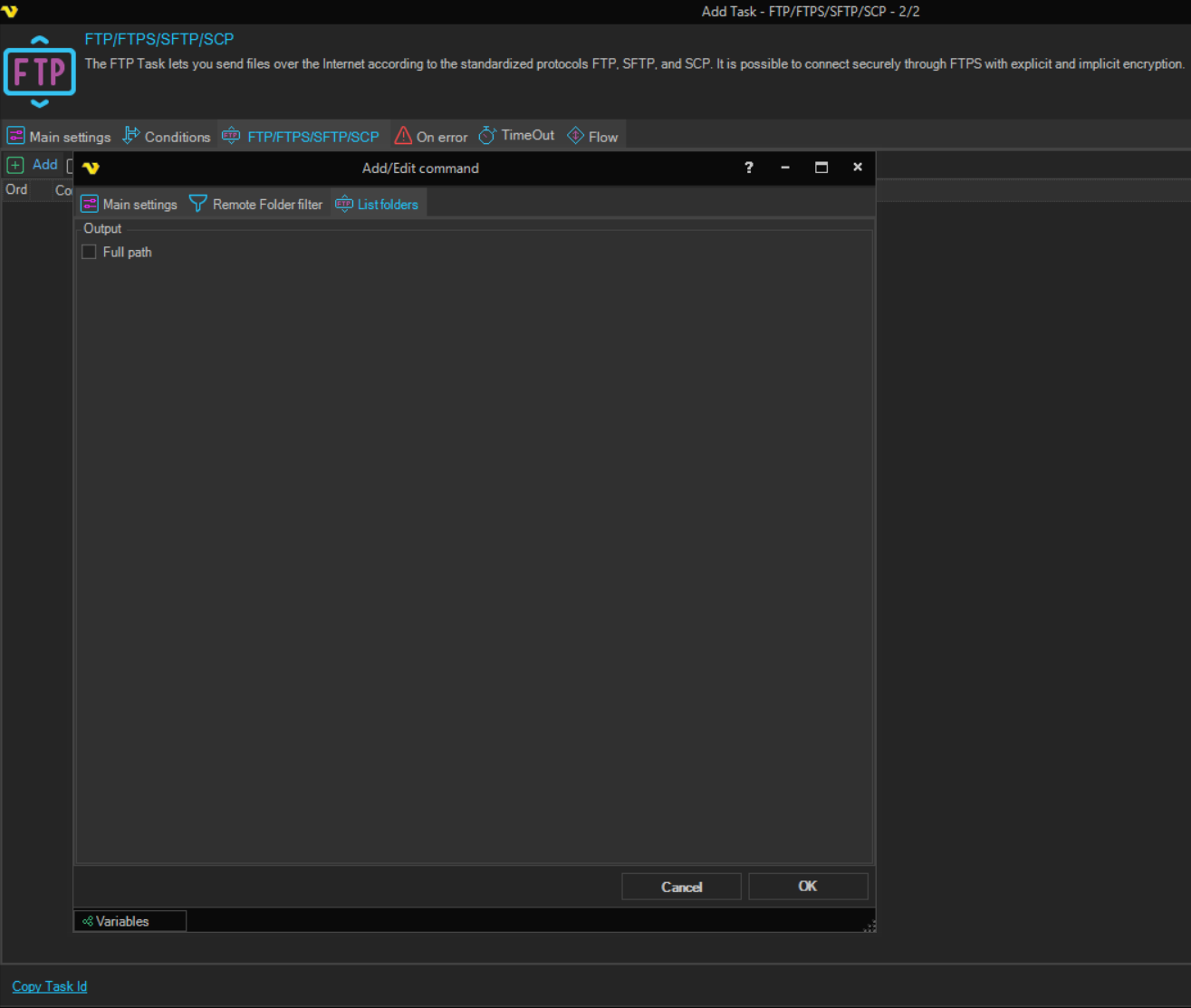
The "List folders(s)" command lists the folders on the remote server that match the Remote Folder filter tab and writes them to the Task output, one folder per line. See Remote File Filter. It works with FTP, FTPS, SFTP and SCP Connections.
-
Full path (Output group): each line holds the full path of the folder
When cleared, each line holds only the folder name. Cleared by default.
When no folder matches the filter, the command raises the "No file(s) found" error. Whether this error fails the Task is set on the On error tab; see Task - On Error.