Event Triggers
The event trigger is a complex and sensitive but also powerful way to monitor the system. Events in the system can trig your Job to run if that is the intention. An example is if your web server service dies and you want to know and act upon that.
Most events are based on the WMI (Windows Management Instrumentation) interface. WMI is a management technology allowing scripts to monitor and control managed resources throughout the network. Resources include hard drives, file systems, operating system settings, processes, services, shares, registry settings, networking components, event logs, users, and groups. WMI is built into clients with Windows 2000 or above, and can be installed on any other 32-bit Windows client.
Using a WMI based trigger, requires some common settings to control the behavior. These common settings are located in the Main Settings tab of the Event Trigger window.
Security:
Some Triggers require higher privileges than the default privileges of the LocalSystem account. You need to either change the user that runs the VisualCron service to an administrator or add LocalSystem user to the administrators group (requires a restart of the server). This is especially true when trying to monitor a remote event, like monitoring an event log on another server.
Warning:
Some event based triggers, like the File event type, can in some cases, trigger several times a second. This will run your Job several times a second.
There are several ways to keep this under control:
- Use Run delay on the Main settings tab so the Job only runs after the Trigger has fired a given number of times
- On the Job's Main settings tab, enable Do not start if Job is already running so overlapping fires do not stack up
- Make the Trigger itself more specific, for example by narrowing a file mask so fewer events match
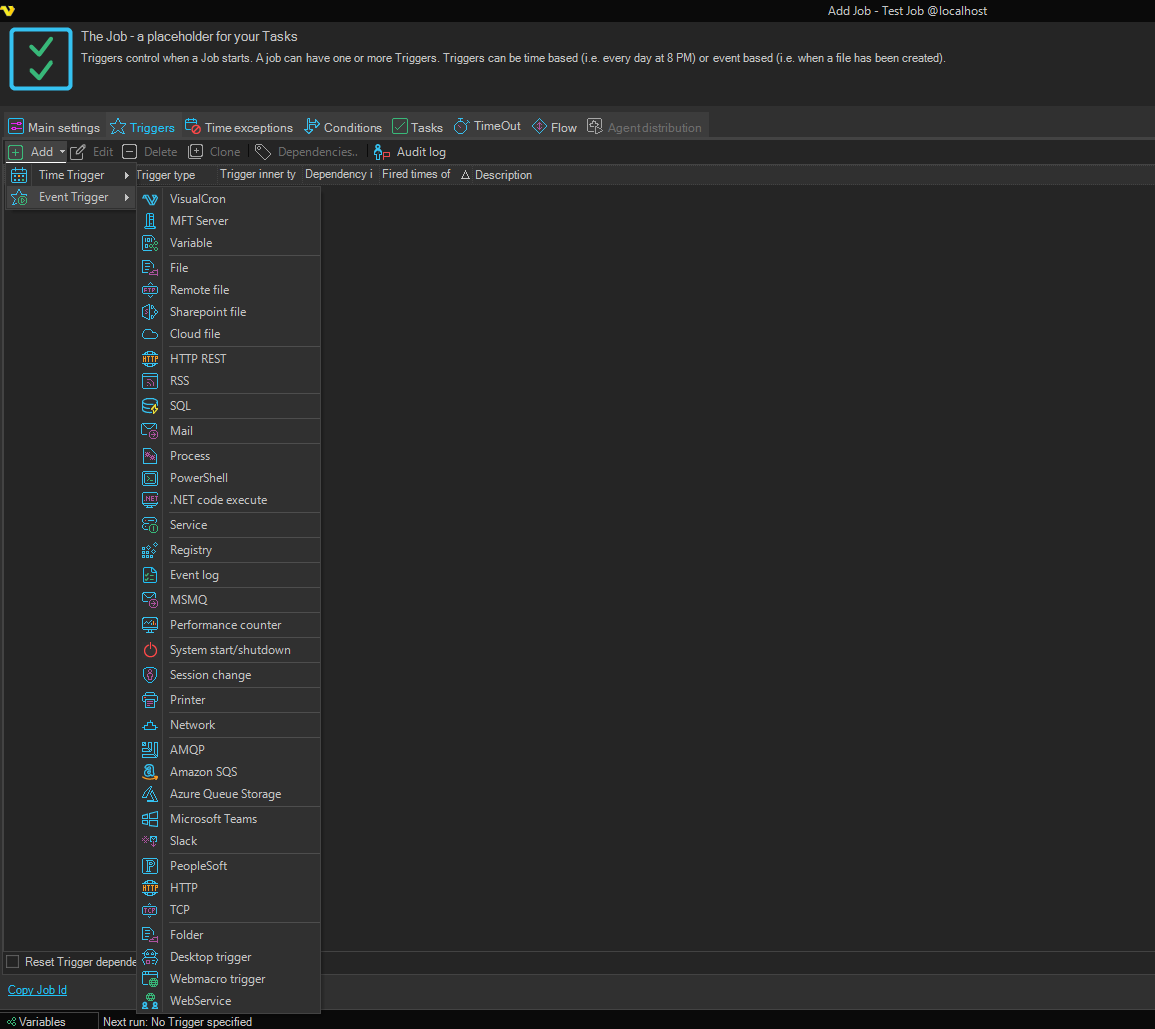
In the Triggers tab, clicking on Add > Event trigger, a selection window for the different event trigger types is opened.
Triggers > Add > Event Trigger > Main settings tab
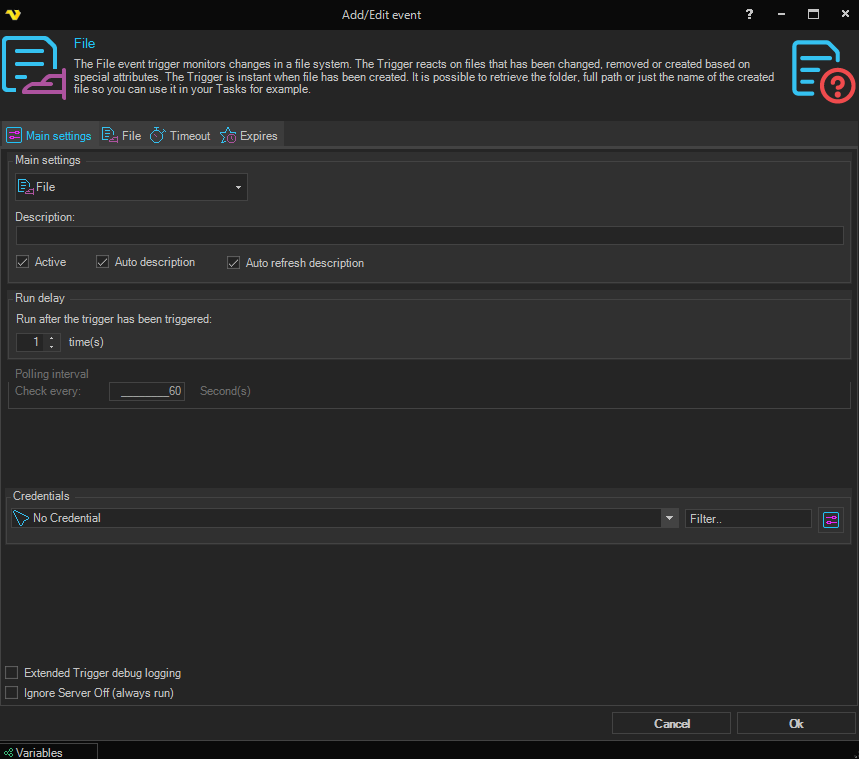
It is possible to change the event trigger type using the Choose Event type button at the top of the Main settings tab. Clicking the button opens a tree of available event types organized by category; selecting an entry swaps the trigger‑type tab with the controls for the chosen type.
Description
Enter a description which will distinguish several triggers from each other in a trigger list.
Auto description
When checked, the Description field is automatically generated based on the Trigger type and its current settings. This option is enabled by default.
Auto refresh description
When checked, the auto‑generated description is refreshed every time the Trigger settings change, even if the Description field already contains text. The option is only available when Auto description is checked.
Active
Determines if the current event is active from start. If not, it can be reactivated later. Default is active.
Run delay
Configures how many times the Trigger must fire before the Job is actually executed. The field is labelled Run after the trigger has been triggered and is followed by a numeric editor and a time(s) suffix. Default is 1 which means that the Job will run on the first trigger event.
For example, setting it to 5 on a File Trigger runs the Job once five matching files have arrived, rather than once per file. This is useful for batching, and for damping down Triggers that fire very frequently.
Run delay counts fires of this one Trigger. To require several different Triggers to fire before the Job runs, use a dependency instead. See Job Triggers.
Polling interval
This value is only used by certain WMI events, otherwise grayed out. The field is labelled Check every and is followed by a numeric editor and a second(s) suffix. The polling interval defines how often VisualCron should check for changes in the system. Default is every 60 second. Setting it to a lower value than 10 will increase the load on the server. What's good is that you won't miss any events even though you are not checking it every second. Changes are stored and if something has happened you will be notified at your polling interval. What is important to know is that if you are watching for state "stopped" at a service and the service has started then stopped, any change has not occurred since the service was stopped in the first place. The service has to be started before monitoring a "stopped" change. Also, if the the service has started before monitoring and it turns from started to stopped within the polling interval no change is observed and you won't be notified.
Remote event
This value is only used by certain WMI events, otherwise grayed out. The field is labelled Computer name. Can remotely monitor another computer in the network, specify the name or IP address of the remote computer. The computer has to be in the local network. Default is "." which means that VisualCron is monitoring the the local computer. A network credential must be specified when connecting to a remote computer. Also you must check so that the remote computer let's this computer or user access the WMI on the remote computer.
Credentials
To control a remote computer you may need to use a Credential. The Credential must match the user name and password of the user that you want to login for. Select a Credential in the combo box or click the Settings icon to open Manage credentials in order to add or edit Credentials.
Trigger debugging
When checked, additional diagnostic information is written to the log every time the Trigger evaluates an event. Use this when troubleshooting a Trigger that is not firing as expected. Leave it unchecked in production to reduce log noise.
Ignore Server Off (always run)
If checked, the Trigger will always run even though the Server status is Off.
Triggers > Add > Event Trigger > Timeout tab
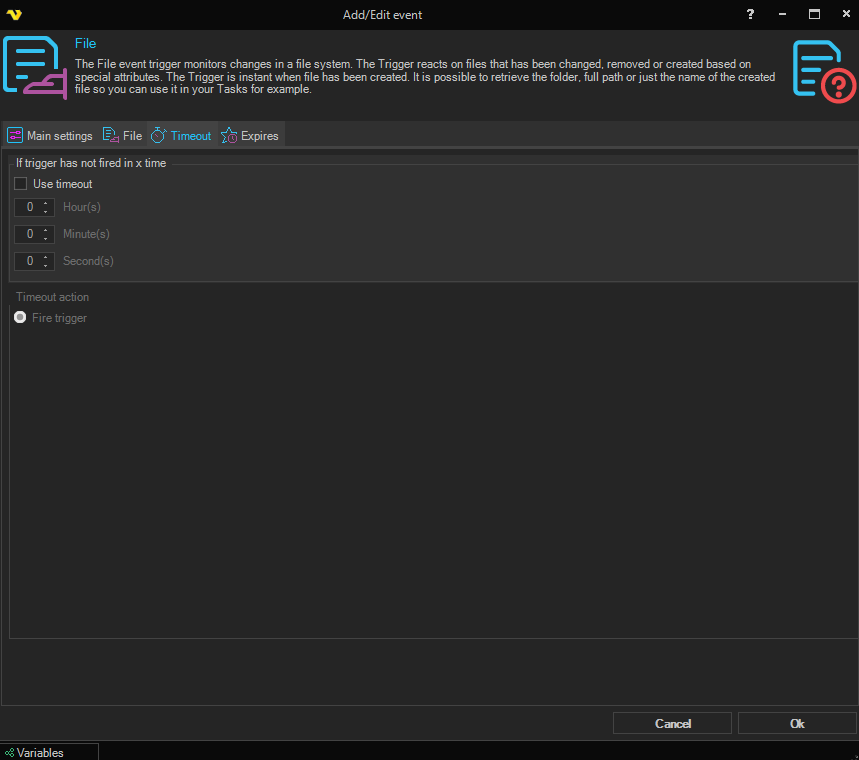
The Timeout tab is for acting on the absence of an event. Where the Trigger itself fires when something happens, a timeout fires when nothing has happened for too long.
Use timeout
A master checkbox that enables the timeout settings. When unchecked, the timeout fields and the timeout action below are disabled.
If trigger has not fired in x time
Specify the maximum time the Trigger can go without firing using three numeric editors for Hour(s), Minute(s) (0–59), and Second(s) (0–59).
Timeout action
The action that is performed when the timeout elapses without the Trigger having fired:
- Fire trigger — fire the Trigger as if its normal condition had been met
For example, a File Trigger watching for a nightly file from a supplier can be given a timeout of 8 hours. If the file arrives, the Trigger fires normally and the Job processes it. If the file never arrives, the timeout fires the Trigger anyway, and the Job can send an alert about the missing file.
The timer measures the gap since the Trigger last fired, so a Trigger that fires regularly never reaches its timeout.
Triggers > Add > Event Trigger > Expires tab
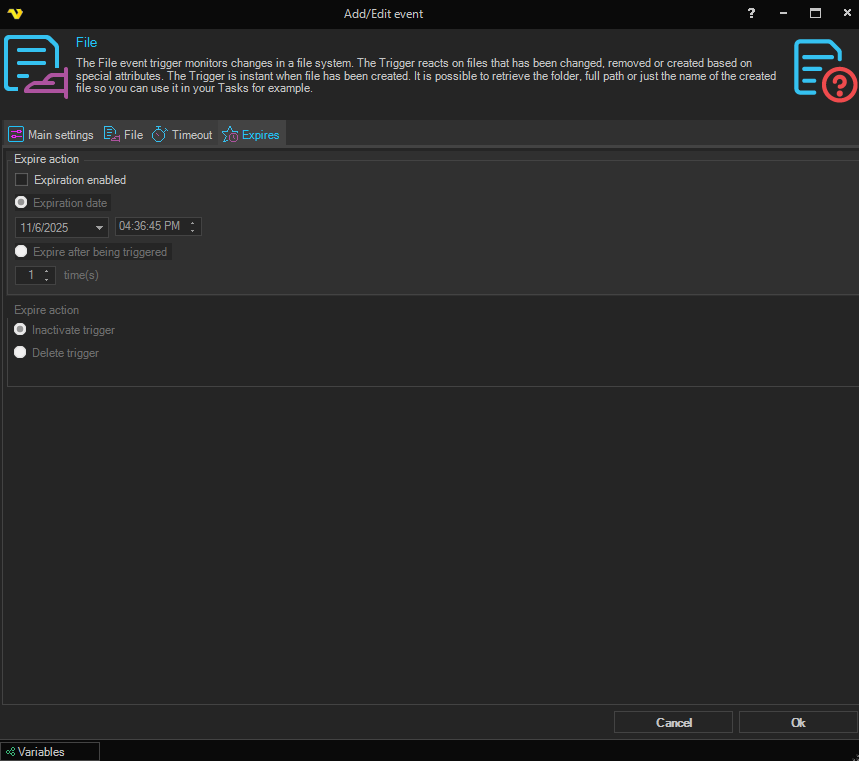
Expiration enabled
Check this option to enable an expiration type. When checked, the expiration mode controls and the Expire action group below become editable. You are able to set if a Trigger should be deleted or deactivated at a certain time or after a certain number of triggered times.
Select one of the two expiration modes using the radio buttons:
- Expire date — expire on a specific date and time. A date picker and a time picker become editable for entering the expiration moment
- Expire after being triggered x time(s) — expire after the Trigger has fired the specified number of times. A numeric editor (minimum
1) becomes editable for entering the fire count
Expire action
Select desired activity when a Trigger has expired using the two radio buttons:
- Deactivate trigger — keep the Trigger but mark it as inactive
- Delete trigger — remove the Trigger entirely (default)