Job Variables
Job Variables are values that belong to one Job. Compared with User Variables, the main differences are:
- Job Variables belong to one Job; User Variables are global
- Another Job or Task can read a Job's Variables by the Job ID (see Using a Job Variable below)
- The Job/Task Control Task can pass values when it starts the Job. They apply to that run only, unless Update Job Variables is selected in that Task (it is selected by default). On a remote Server, passed values are always saved to the Job
- Job Variables are edited on the Job's Main settings tab; User Variables in the Variables window
- In the Variables window, Job Variables are under VisualCron variables -> Jobs ->
<Job name>-> Job Variables (shown when the Job has at least one); User Variables are under User defined variables
Using a Job Variable
In the Job's own Tasks and Notifications, use {JOB(Active|Variable|<key>)}. From another Job, use the Job ID: {JOB(<jobId>|Variable|<key>)}. To get the exact key, select the Variable in the Variables window and copy Variable Key. If the key does not exist, the Variable returns the text Job Variable '<key>' not found.
When changes are kept
Whether changes made during a run are kept when it ends depends on how the run started:
- Started by a Trigger, by a Job/Task Control Task, or from Run Job - with options, without Update Job Variables selected: the Job's Variables are set back to the values they had when the run started. Only changes that a Set Job Variable Task in the Job makes to keys that already exist are kept. A key it adds is removed, unless the Job/Task Control Task passed values to the run
- Started in any other way, for example from the Client's Job list, or with Update Job Variables selected: all changes made during the run are kept
A Set Job Variable Task in another Job changes this Job at once. If this Job is running in a run of the first kind, the change is undone when that run ends.
While a run is in progress, later Tasks in it see the changed values.
Editing Job Variables
To edit a Job's Variables, on the Job's Main settings tab, click Job Variables.. in the lower right corner.
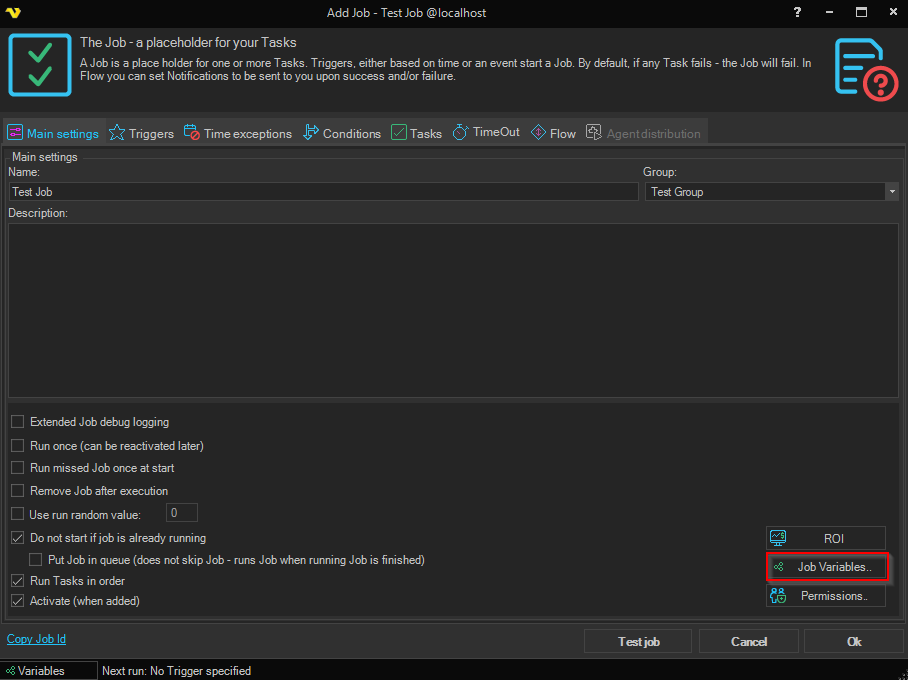
Job Variables
The Job Variables window lists the Job's Variables in the Key, Variable and Value columns. Use Add, Edit and Delete, or double-click a row to edit it. The changes are saved when you save the Job.
Add/Edit Job Variable
The Add/Edit Job Variable window has the Name/Unique key and Value fields, and a Variable field that shows the Variable to use, with a Copy to clipboard button.