Settings - Default Flows
Default flows are Flows that VisualCron adds to every new Job or every new Task. Use them for Flows you want everywhere, for example a Notification when a Job fails. A default flow is added when you create a Job or Task in the Client. It is not added to existing Jobs and Tasks unless you add it as described below.
Server -> Main settings -> Settings -> Default flows tab
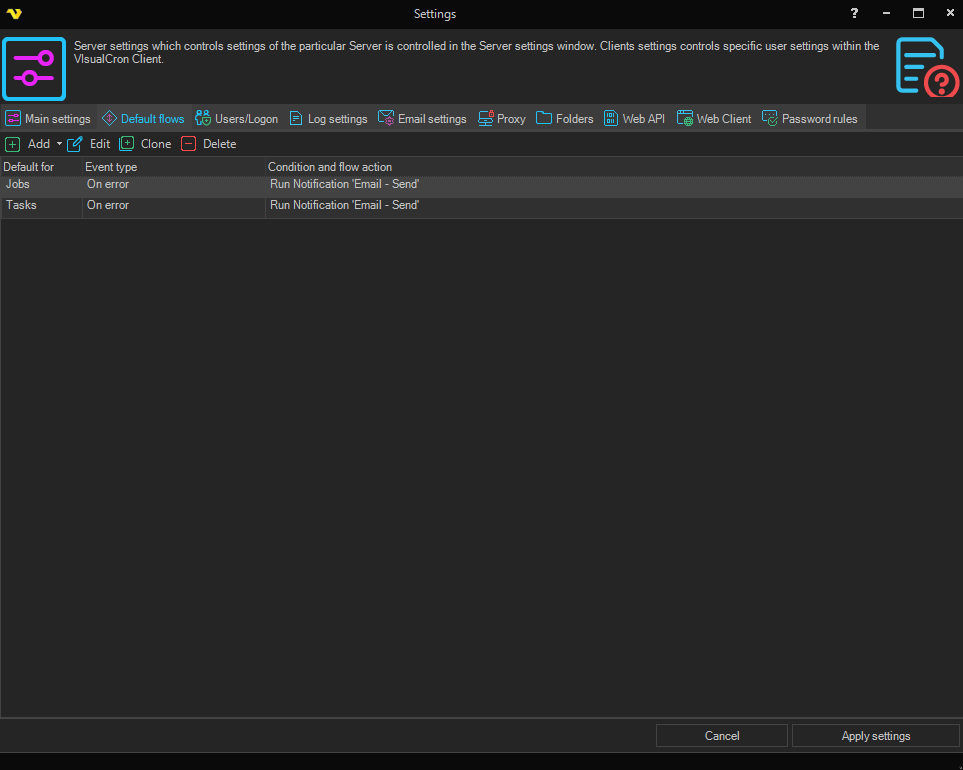
Add, edit, clone and delete default flows
- Add -> Job flow: adds a default flow for new Jobs
- Add -> Task flow: adds a default flow for new Tasks
- Edit: changes the selected default flow (you can also double-click it)
- Clone: copies the selected default flow
- Delete: removes the selected default flow (you can also press Delete)
The Default for column shows whether a flow is for "Jobs" or "Tasks". The Flow window is the same as on the Flow tab of a Job or Task (see Job - Flow and Task - Flow).
Server -> Main settings -> Settings -> Default flows -> Add -> Job flow
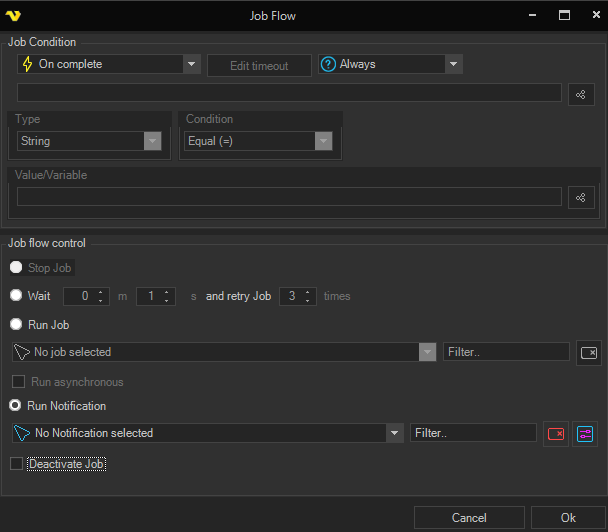
Click Apply settings to save your changes. New Jobs and Tasks get the default flows that were saved at the time you create them. Every new Task also gets two Flows of its own: On success with Continue with next Task, and On error with Stop Job.
Add a default flow to existing Jobs or Tasks
To add the default flows to one existing Job or Task, open its Flow tab and click Get default flows. VisualCron adds the default flows for Jobs, or for Tasks, that are missing, and updates the copies that are already there.
To add or remove one flow on all existing Jobs or Tasks of the Server:
- On the Default flows tab, right-click the flow.
- To add it, select Add to all existing -> Jobs for a Job flow, or Add to all existing -> Tasks for a Task flow. To remove it, select Delete from all existing -> Jobs or Tasks.
- Click Ok in the message. The Server updates and saves every Job in the background, including the built-in Jobs, which can take some time.
The same right-click menu is also available on the Flow tab of a Job or Task.
Server -> Main settings -> Settings -> Default flows -> right-click a flow
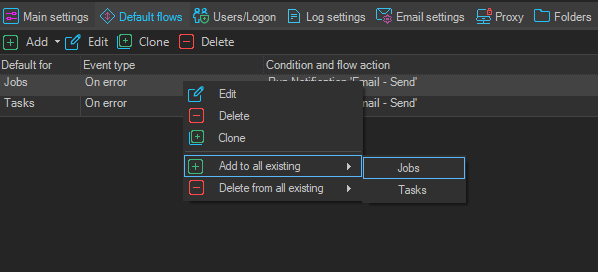
Add to all existing and Delete from all existing change the Jobs on the Server at once. They do not wait for Apply settings, and Cancel does not undo them. If a Job is open for editing while the update runs, close it with Cancel, not Ok. Otherwise its old Flows are saved over the update.
Choose the type that matches the Default for column. Add to all existing -> Jobs adds the flow to every Job, also when it is a Task flow, and Tasks adds it to every Task, also when it is a Job flow. The choice also changes the type of the default flow itself, and the changed type is saved when you click Apply settings.
VisualCron identifies each Flow by a hidden ID, not by what it does. Two Flows that do the same thing are still different Flows. If you change a default flow after you added it to all existing Jobs, select Add to all existing again: the copies with the same ID are updated. Delete from all existing removes only the copies with that ID.