Settings - Web Client
The Web Client tab installs and removes the VisualCron Web Client in IIS or IIS Express, and turns Windows authentication on or off for it. The tab works on the computer where the Client runs, whichever Server the Client is connected to. This tab is one of the tabs of the Server settings window (see Main - Settings). For the full installation steps and the requirements, see Installation of Web Client. To learn what the Web Client does, see VisualCron Web Client.
Server -> Main settings -> Settings -> Web Client tab
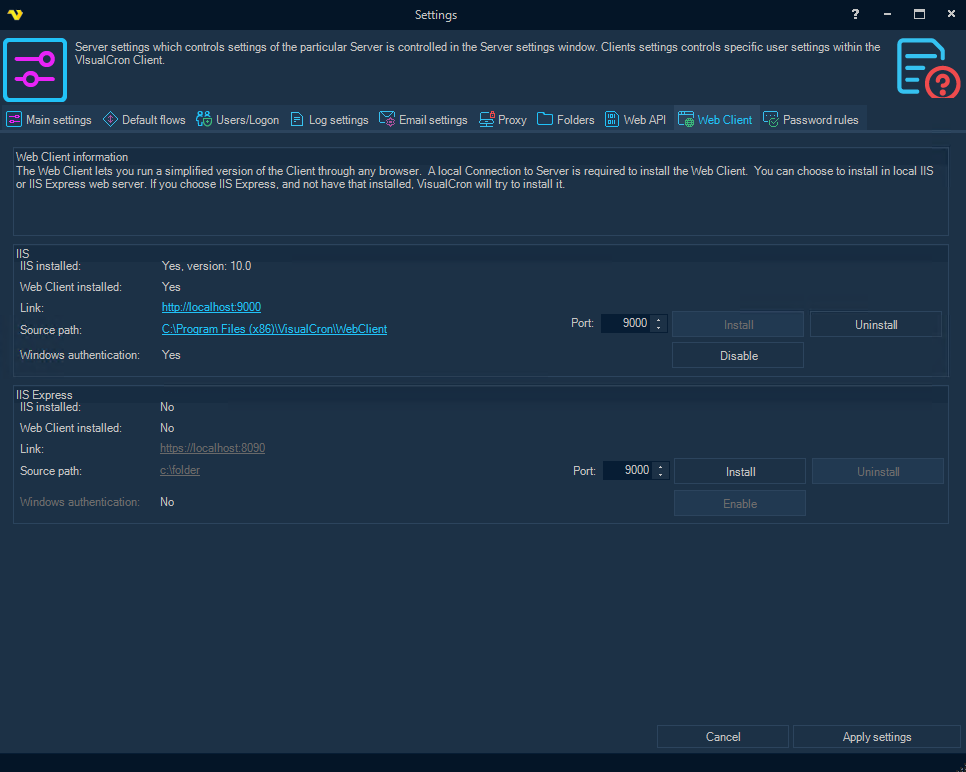
The IIS box and the IIS Express box each show IIS installed, Web Client installed, Port, Link, Source path and Windows authentication, with these buttons:
- Install: installs the Web Client in that web server on the Port you enter. The default port is "9000"; you can enter 5 to 65535. If the web server is not installed, VisualCron tries to install it; if it cannot, it shows a message, which in some cases offers to open a download page
- Uninstall: removes the Web Client website from that web server
- Enable or Disable: turns Windows authentication on or off for the Web Client website. The button shows Enable while it is off and Disable while it is on
To install the Web Client, run the Client as administrator on the Server computer and connect to the Server locally. See Fields and buttons on the Web Client tab.
These buttons act at once, without Apply settings, and Cancel does not undo them. Uninstall does not ask you to confirm.