Condition - Service
The Service condition checks the status of a Windows service, on the VisualCron Server computer or on another computer. Use it, for example, to run a Job only when a database service is running, or to skip a Task while a service is stopped for maintenance.
This page describes the Service tab of the Add/Edit condition window. For the Main settings tab of the window (Condition type, Description, Active), see Conditions - Conditions.
Server -> Global objects -> Conditions -> Add -> Conditions tab -> Add -> Condition type "Service" -> Service tab
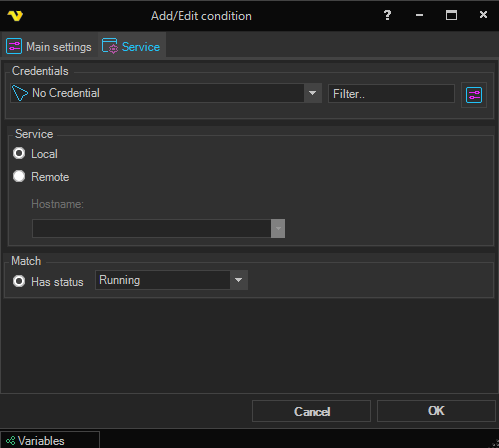
Credentials
Select a Credential when the Server needs another Windows account to read the service status, for example on a remote computer. See Global - Credentials. Leave "No Credential" to check the status with the account the VisualCron service runs under. The Credential is also used when the Server loads the list of services of a remote computer for this window, so the list shows what the Server computer can reach.
Use the Filter.. box to search the list. To manage Credentials, click the button to the right of the Filter.. box. If the selected Credential no longer exists, or the user who started the run is not allowed to read and use it, the check runs with the account the VisualCron service runs under.
Service
Select where the service runs:
- Local: the VisualCron Server computer (the default)
- Remote: the computer in Hostname
Hostname
Enabled when Remote is selected. Type the name of the computer, or select it from the list. The window lets you save Remote without a hostname, and the check then returns a Match Error.
Service name
The name of the service to check. Type it, or select it from the list:
- With Local selected, the list shows the services of the Server computer
- With Remote selected, click the refresh button to the right of the list to load the services of the computer in Hostname, using the selected Credential
The list shows service names, the short names Windows uses, such as "Spooler", not display names.
Enter a service name. The window lets you save the condition without one, and the check then returns a Match Error. Hostname and Service name are used exactly as entered: Variables are not replaced in these fields.
Match
Has status
Matches when the service has the status you select: "Stopped", "StartPending", "StopPending", "Running", "ContinuePending", "PausePending" or "Paused". The default is "Running". Any other status does not match. The status is read once, when the condition is evaluated. The check does not wait for a pending status to change.
If the service does not exist, the computer cannot be reached, or access is denied, the condition returns a Match Error and an error is logged.
To act when a service is not running, select "Running" and set the action you want on On Match None. See Conditions - Actions.