Custom Time Triggers
Time Trigger -> Custom tab
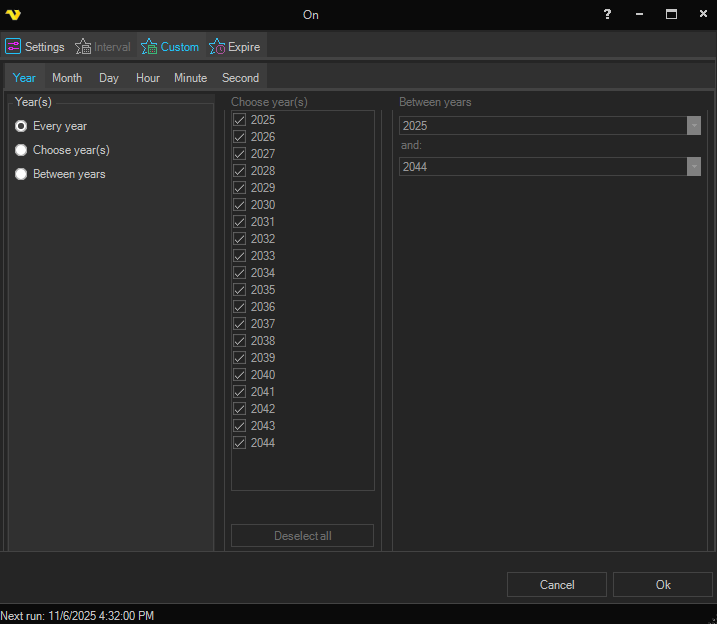
The Year, Month, Day, Hour, Minute and Second time parameters may be defined. Each time unit is configured on its own sub‑tab within the Custom tab.
For each time unit, Every, Between or Choose can be selected:
- Every – the Job is eligible to run on every value of the time unit
- Between – specifies a range of values for the time unit, defined by a From and To value joined by And
- Choose – pick one or more individual values from a list
The Between ... option specifies a range of values for the specific time unit. For example, Between weekdays "Friday" and "Tuesday" means that the Job will run on "Friday", "Saturday", "Sunday", "Monday" and "Tuesday".
How the time units combine
Every time unit must match for the Job to run. The units are combined, not treated as alternatives, so the schedule is the overlap of all of them.
This is what makes the Custom type more capable than the Interval type: because each unit is set separately, one schedule can restrict the hour, the minute and the weekday at the same time.
It is also the reason a unit left as Every places no restriction at all. A Trigger with Minute = Choose 0 and every other unit left as Every fires at the top of every hour, on every day, in every month.
Day sub‑tab
The Day sub‑tab offers additional options for weekday selection. In addition to choosing days of the month (1–31), you can:
- Choose weekdays – pick one or more specific weekdays (Monday through Sunday)
- Between weekdays – specify a range of weekdays using a From and To weekday
Examples
- Choosing for example day "31" results in that the Job will only execute on months with 31 days
- By default, Second = "0" is checked. In order to be able to set a correct time on a Job, a Job must have a least one second specified. Second "0" is the first second in a minute.
- Exemptions remain valid up to the top of the hour. For example, an exemption is considered active through 4:59. A time‑based exemption applies when the current time falls between 2 and 4 minutes past the hour.
Worked examples
Each of these leaves any unit not mentioned set to Every, and keeps the default Second = Choose 0.
- At the top of every hour — Minute = Choose 0
- Once a day at 23:45 — Hour = Choose 23, Minute = Choose 45
- Every 30 minutes during business hours on weekdays — Hour = Between 8 And 17, Minute = Choose 0 and 30, Day = Choose weekdays Monday through Friday
- Twice an hour, overnight only — Hour = Between 22 And 5, Minute = Choose 0 and 30. A Between range may wrap past midnight, in the same way a weekday range may wrap past Sunday
- The first day of each quarter — Month = Choose January, April, July, October, Day = Choose 1, Hour = Choose 6
If no Second is selected the Trigger cannot resolve a time to run, and Next run shows Never. Leave Second = 0 selected unless you specifically need the Job to run on other seconds within the minute.
Next run
The Next run value is displayed in the status bar at the bottom of the Custom Time Trigger window and is refreshed automatically. Next run is based on the values you enter in time settings using the time on the server. Note that next run is an indicative value, that is if you are about to add or edit a Job and you set that Job to run every minute it won't run every minute until you have finished the add/edit window and the Job has appeared in the Job list.
The Next run display can show the following states:
- A calculated date and time – the next scheduled execution that matches the current settings
- Never – the configured settings do not produce a future execution
- Server off – the server is unavailable and the next run cannot be calculated
Manual next run calculation
You can preview how the current settings would behave at a specific point in time without waiting for the server clock to reach it:
- Enable the Manual option to switch from server time to a user‑specified date and time
- Use the date and time pickers to choose the moment from which the next run should be evaluated
- Click Calculate next to recalculate the next run based on the manual values
When Manual is disabled, the next run is recalculated automatically based on the current server time.
Calculation of next run does not take any time exceptions into account.