Folder Filter
The folder filter is similar to the file filter but filters out folders only. It is used in various Tasks.
Folder filter > Location sub tab
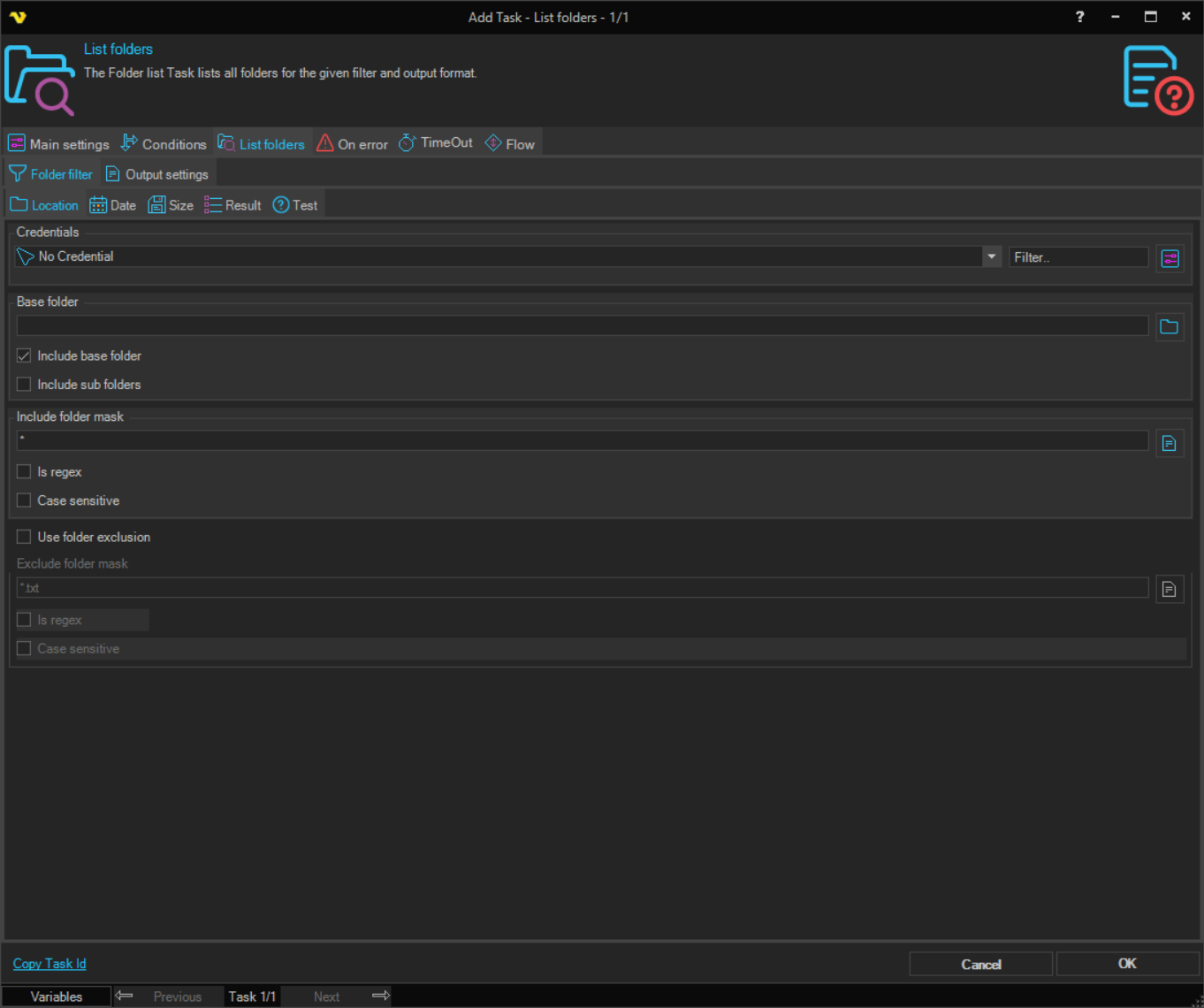
Credentials
To control a remote computer you may need to use a Credential. Normally that Credential is a remote or AD user with "Local logon" unchecked The Credential must match the user name and password of the user that you want to login for. Select a Credential in the combo box or click the Settings icon to open Manage credentials in order to add or edit Credentials.
Base folder
Where the search filter should start finding folders. Click the Folder icon to browse the folder tree.
Include base folder
If the base folder should be included in the result.
Include sub folders
If sub folders of the base folder should be included in the result.
Include folder mask
Wild card for filtering out folder names. Separate multiple folder names with semicolon ";" like this: C:\Temp;C:\test. Click the Folder icon to browse for files.
Is regex
If the include folder mask is a regular expression
Case sensitive
If case sensitive search should be done on the include folder mask.
Use folder exclusion
Check this to enable the exclude folder mask below. When unchecked, no exclusion mask is applied.
Exclude folder mask
Wild card for excluding folder names. Separate multiple folder names with semicolon ";". Click the Folder icon to browse the folder tree.
Is regex
If the exclude folder mask is a regular expression.
Case sensitive
If case sensitive search should be done on the exclude folder mask.
Folder filter > Date sub tab
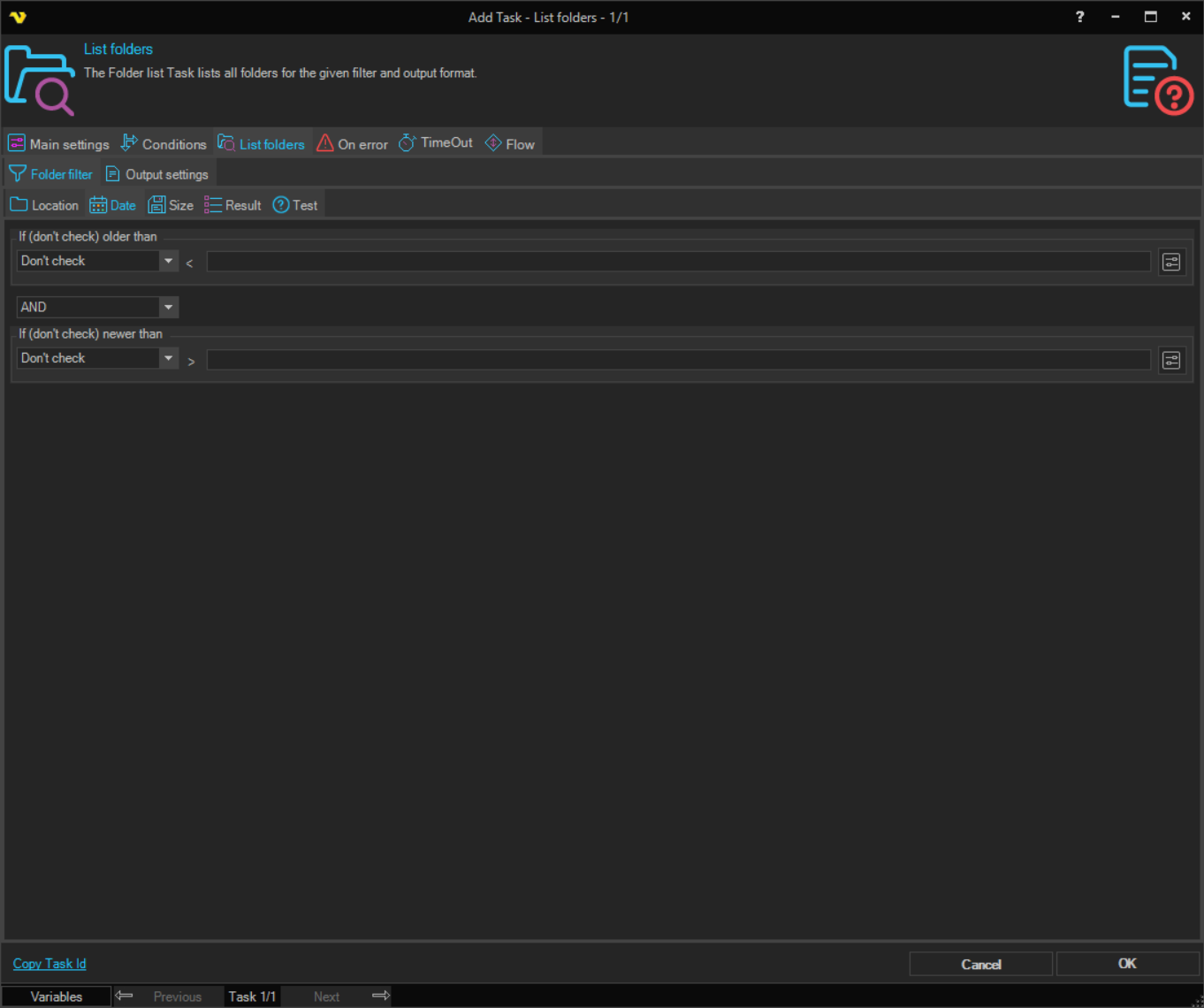
There are two types of checks Older than and Newer than. These can be combined with AND/OR or used separately. Only date variables can be used here. Once you have selected a Variable it can be previewed when hovering over text box (tool tip) or in the group caption.
Click on the Variables icons to view and select available Date Variables.
Folder filter > Size sub tab
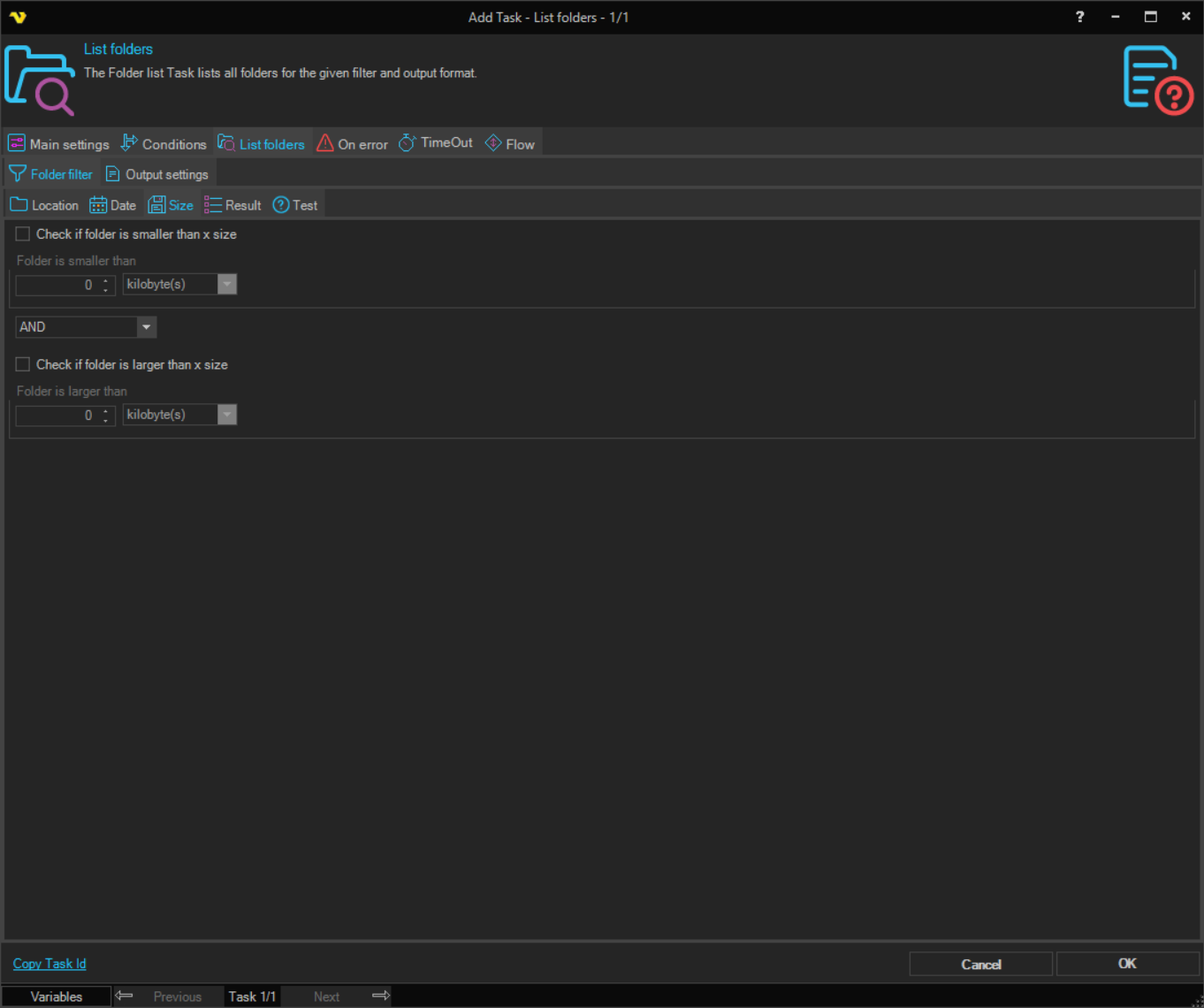
Check if folder is smaller than x size
Select this to enable size checking. Enter a value in the numeric text box and select the size unit to compare with. Default is kilobyte(s). If the size on the folder is smaller than the value you enter in the numeric box it will return true (=folder will be included).
Check if folder is larger than x size
Select this to enable size checking. Enter a value in the numeric text box and select the size unit to compare with. Default is kilobyte(s). If the size on the folder is larger than the value you enter in the numeric box it will return true (= folder will be included).
The two size checks can be combined with the AND/OR selector.
Folder filter > Result sub tab
The filtered folders can be sorted and the number of returned rows limited.
Sort
By checking Sort you can sort the found folders on values like name, modified date, created date and size, in Ascending or Descending direction. If sort is unchecked the folders are presented in the order they are discovered.
Limit
Check this if you want to limit the number of rows returned. It will be limited according to the number (which could be a Variable) and the current sorting.
Folder filter > Test sub tab
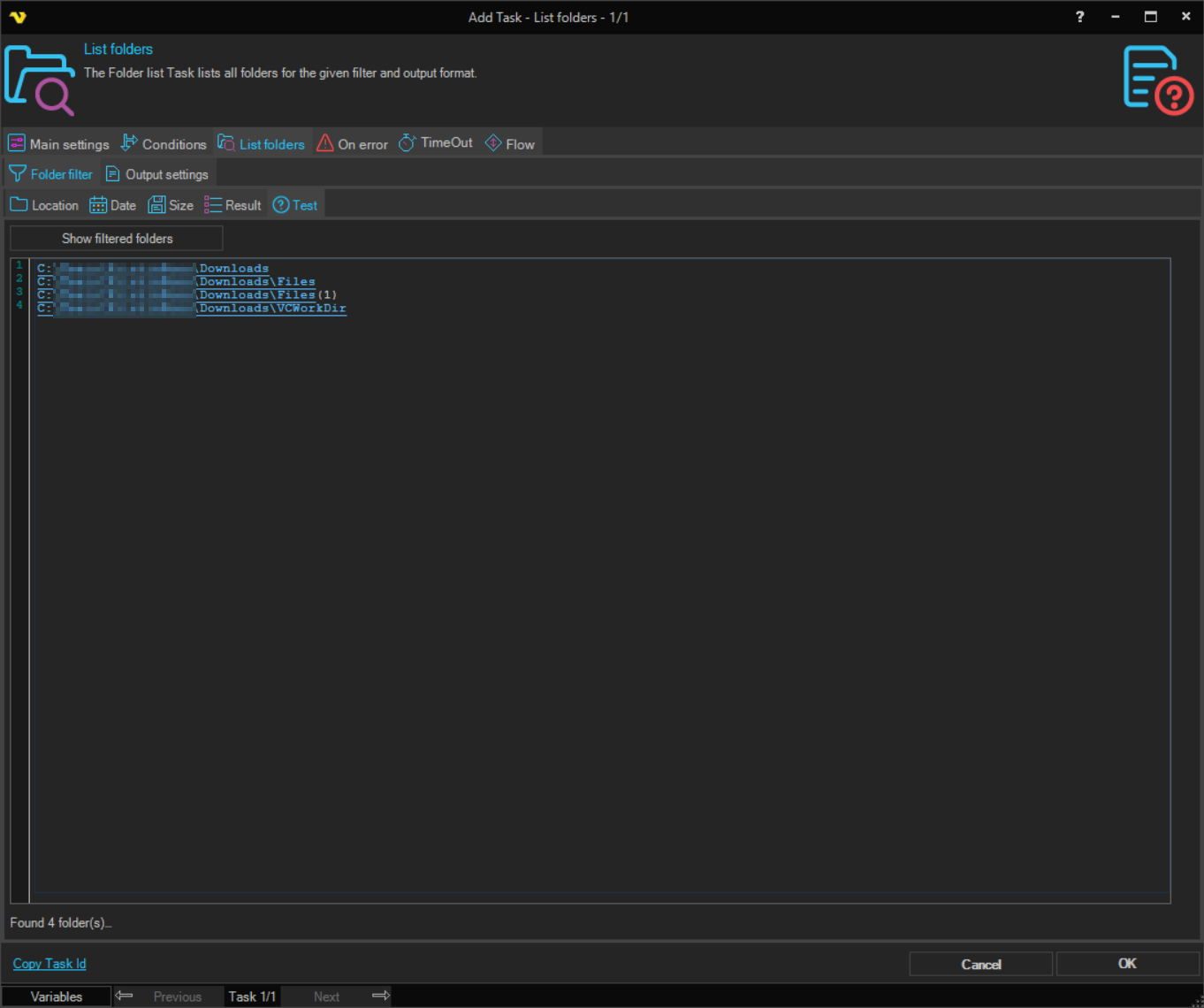
Show filtered folders
The test will use the selected Credential and lets you test your folder filter - what folders it returns based on the filter. The number of folders found and the elapsed time are shown.