Cloud Remote File Filter
In order to simplify and unify common parameters, the standard VisualCron Cloud remote filter is used in the below list of Cloud Tasks:
Location sub tab
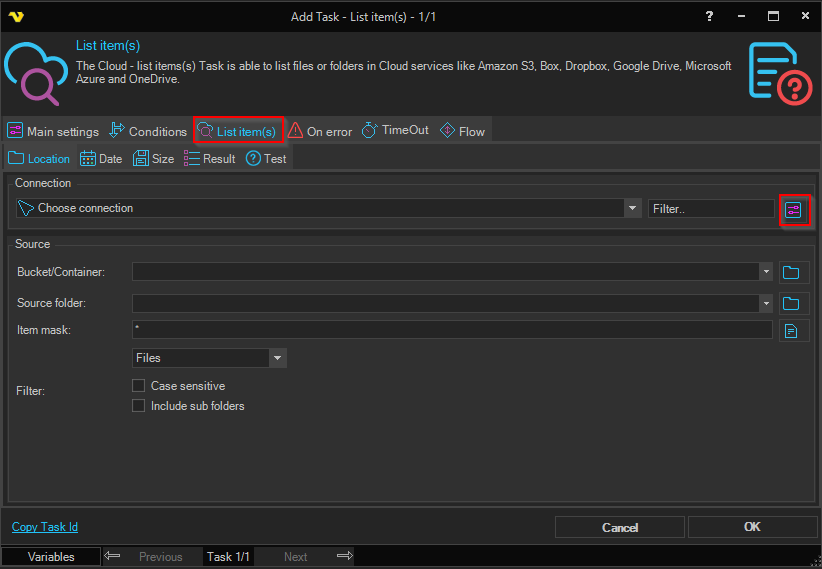
Connection
To use a specific cloud service you need to create a Connection first. Click the Settings icon to open the Manage Connections dialog.
Bucket/Container
The top-level container to look in. The label changes with the cloud provider - for example Bucket for Amazon S3, Container for Azure Blob, Share for Azure Fileshare and Drive for Google Drive.
Source folder
This is the remote source folder. Click the Folder icon to select the folder.
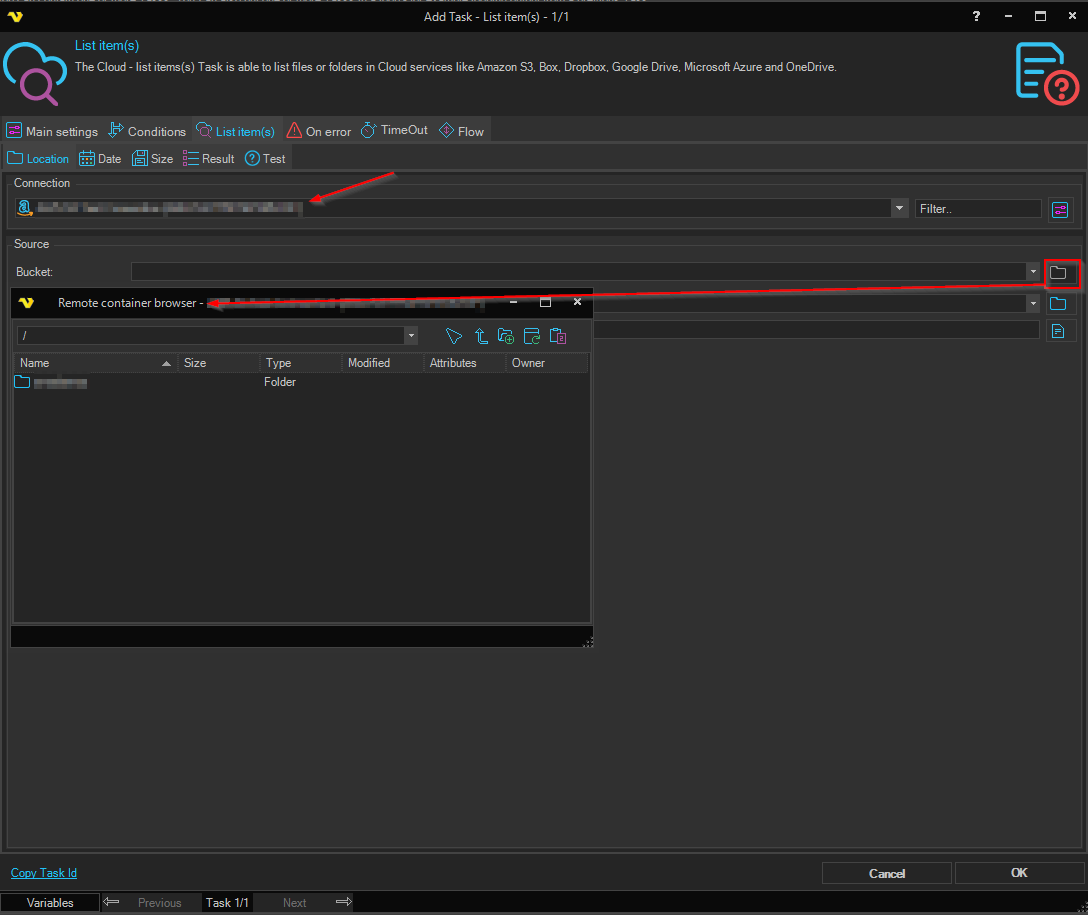
Item mask
The file/folder mask. Use wild cards like * and ?. Click the File icon to select the file.
Filter
Select whether you want to get Files, Folders or All.
Case sensitive
Check if you want a case sensitive match.
Include sub folders
Check if you want to include sub folders and not just the base Source folder.
Date sub tab
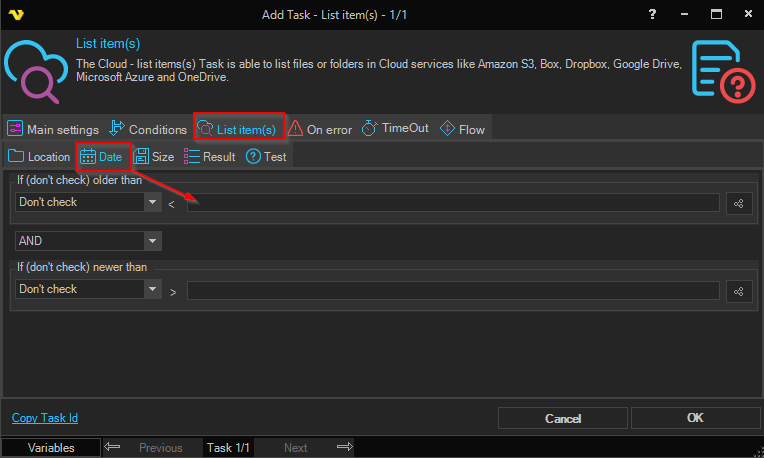
The Date tab filters items by date. It has two checks, Newer than and Older than, which can be combined with the AND/OR selector.
Newer than
Select which date to check (Don't check, Created date or Modified date) and enter a value or Variable. Items with that date later than the value match.
Older than
Select which date to check (Don't check, Created date or Modified date) and enter a value or Variable. Items with that date earlier than the value match.
Size sub tab
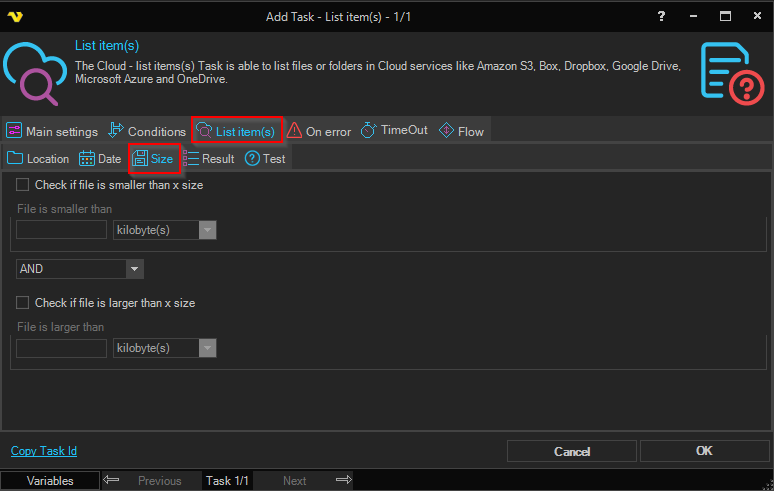
Check if file is smaller than x size
Filter files that are smaller than a value/Variable. Select the unit (byte(s), kilobyte(s), megabyte(s), gigabyte(s) or terabyte(s)).
Check if file is larger than x size
Filter files that are larger than a value/Variable. Select the unit (byte(s), kilobyte(s), megabyte(s), gigabyte(s) or terabyte(s)).
The two size checks can be combined with the AND/OR selector.
Result sub tab
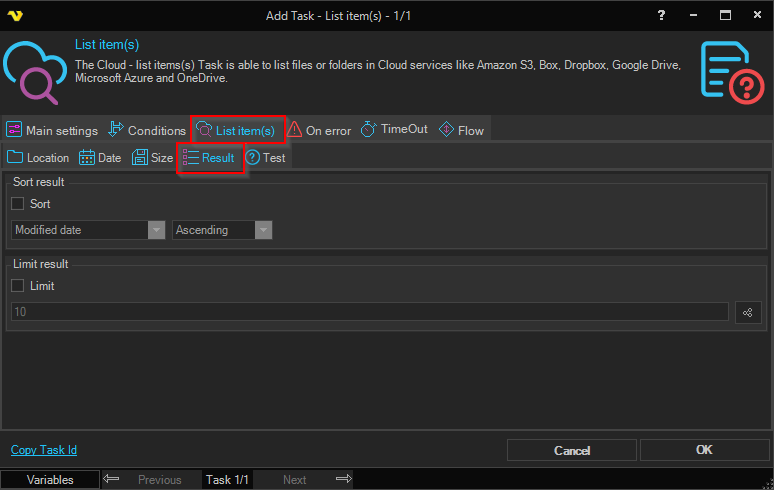
Sort
By checking Sort you can sort the found files according to your desired order. Select the column to sort by and the direction (Ascending or Descending). This is important if you later want to limit the result to, for example, the 10 newest files.
Limit
How many files you want to return. Enter a value or use a Variable.
Test sub tab
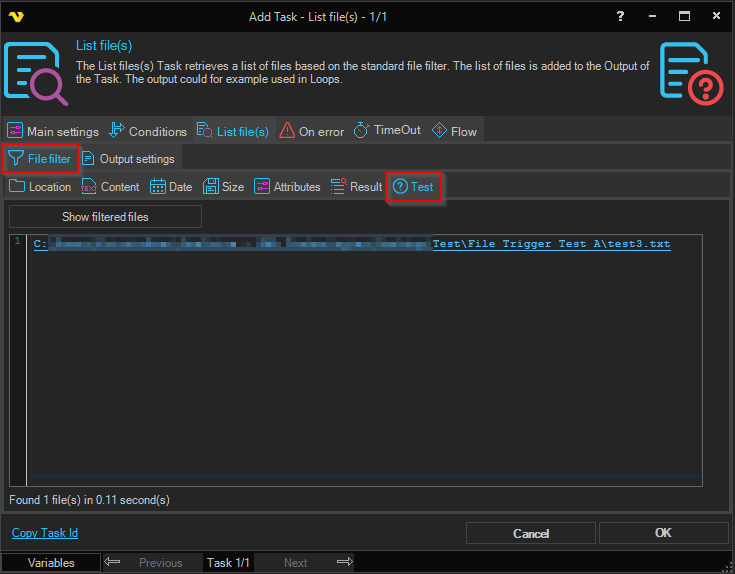
The Test tab lets you test the result of your set filters to see what is really returned. Click Show filtered files to run the test; the returned items are listed together with the number of files found and the elapsed time.