Task Image - Adjust
The Image adjust Task lets you change colors, brightness and contrast in an existing image.
Image adjust > File filter sub tab
In the File filter tab you define the image file to be adjusted. Read more about file filter here.
Image adjust > Adjust parameters sub tab
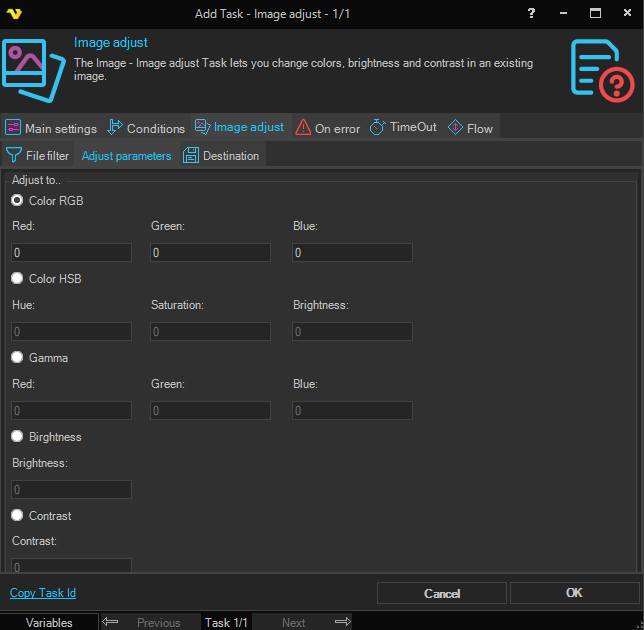
Adjust to
Select the type of adjustment to apply. Only one mode is active at a time:
- Color RGB — Adjust color by red, green, and blue channel values (Red, Green, Blue).
- Color HSB — Adjust color by hue, saturation, and brightness (Hue, Saturation, Brightness).
- Gamma — Adjust gamma correction per color channel (Red, Green, Blue).
- Brightness — Adjust the overall brightness of the image.
- Contrast — Adjust the overall contrast of the image.
Image adjust > Destination sub tab
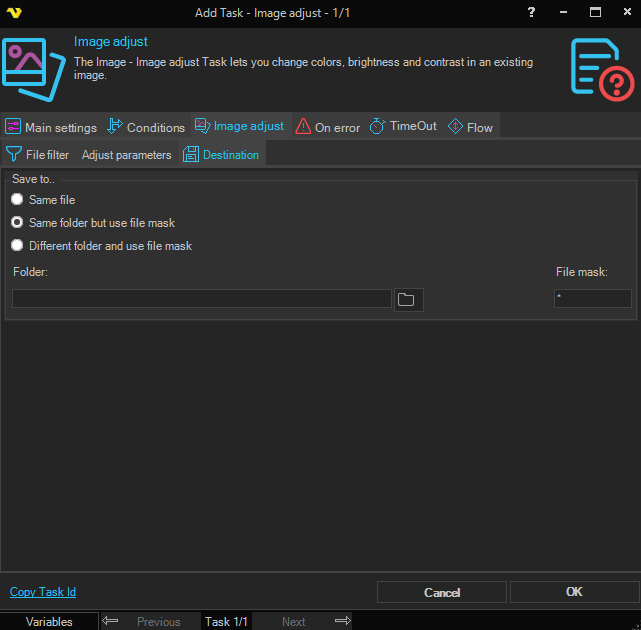
Save to
Select where to save the adjusted image:
- Same file — Overwrites the original source file.
- Same folder but use file mask — Saves to the same folder with a new file name specified in File mask.
- Different folder and use file mask — Saves to a different folder with a new file name.
Folder
The destination folder path. Only available when Different folder and use file mask is selected.
File mask
The file name to use for the saved image. Available when Same folder but use file mask or Different folder and use file mask is selected.