Task Office - Excel - Get Cell
The Excel - Get cell Task lets you extract data from certain worksheets, rows and colums.
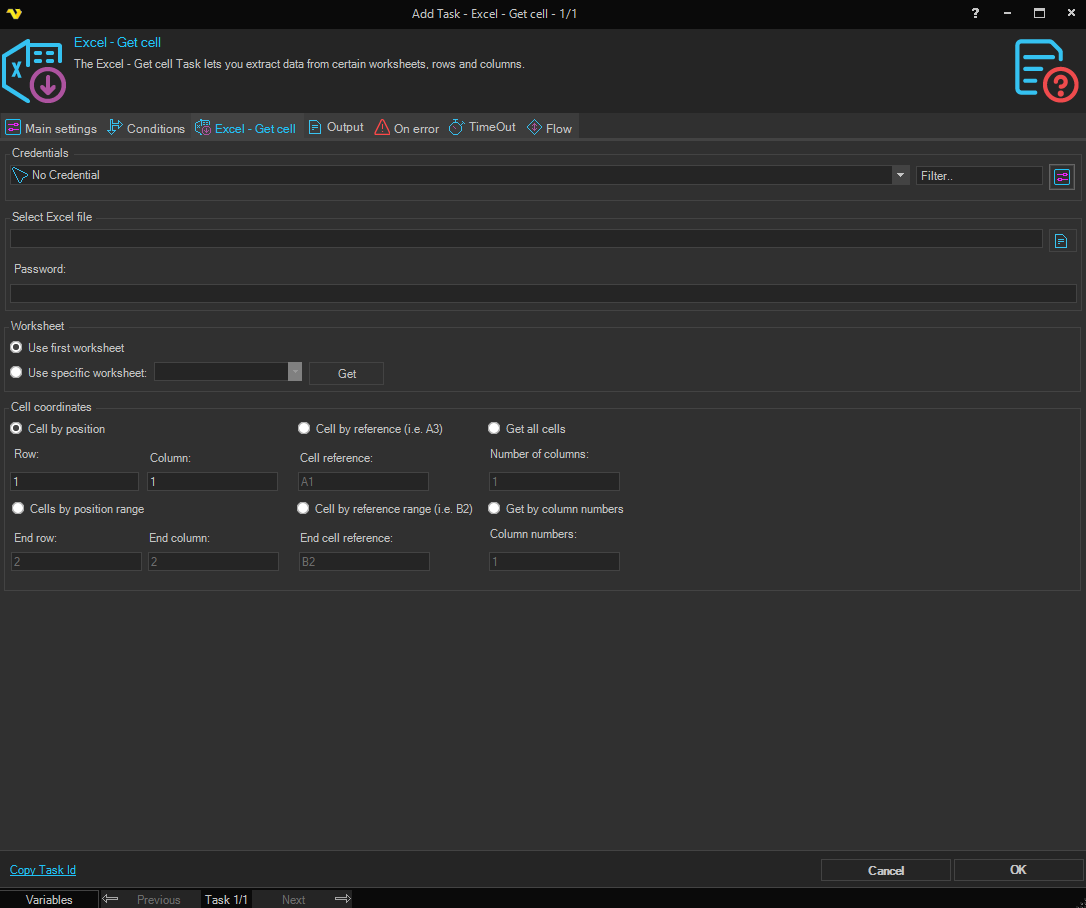
Credentials
To control a remote computer you may need to use a Credential. The Credential must match the user name and password of the user that you want to login for. Select a Credential in the combo box or click the Settings icon to open Manage credentials in order to add or edit Credentials.
Select Excel file
Select the full path to the Excel file.
Password
Enter the password for the Excel file, if it is password protected.
Worksheet
Use first worksheet / Use specific worksheet
Select Use first worksheet to use the first worksheet in the workbook. Select Use specific worksheet to choose a specific worksheet.
Worksheet
Select the worksheet to access. Only available when Use specific worksheet is selected. Click the Get button to populate the list with worksheets from the selected file.
Cell coordinates
Cell by position
Returns the value of a single cell identified by its row and column position.
- Row — The row number of the cell.
- Column — The column number of the cell.
Cell by reference (i.e. A3)
Returns the value of a single cell identified by its reference.
- Cell reference — The cell reference (for example, A3).
Cells by position range
Returns the values of a range of cells identified by row and column positions.
- Row — The starting row of the range.
- End row — The ending row of the range.
- Column — The starting column of the range.
- End column — The ending column of the range.
Cell by reference range (i.e. B2)
Returns the values of a range of cells identified by cell references.
- Cell reference — The starting cell reference of the range.
- End cell reference — The ending cell reference of the range.
Get all cells
Returns all cell values up to a specified number of columns.
- Number of columns — The number of columns to include in the result.
Get by column numbers
Returns cell values from specified column numbers.
- Column numbers — The column numbers to retrieve.