Task Encryption - PGP Encrypt
The PGP - Encrypt Task encrypts one or more files with the OpenPGP standard, using the public keys of the recipients, a password, or both, and can sign them with your private keys. For key rings, see PGP key rings.
The Main settings, Flow, On error, Conditions and TimeOut tabs are the same for every Task; see Job - Tasks.
The PGP - Encrypt tab has four sub tabs: File filter, Encrypt, Recipients and Signers.
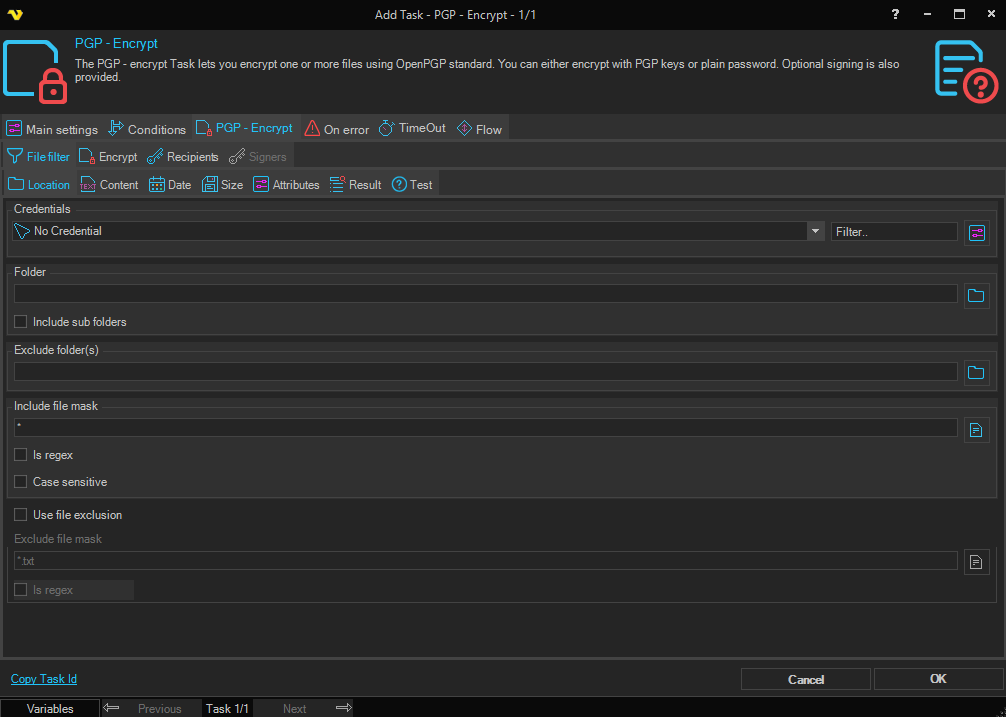
File filter tab
The File filter tab selects the files to encrypt or sign; see Task - File filter.
Encrypt tab
Check Encrypt source, Sign source or both. At least one is required.
Encryption
- Encrypt source: checked by default. Encrypts the files for the keys selected on the Recipients tab, or with a password
- Encryption algorithm: the cipher that encrypts the file content, "CAST5" by default: "AES128", "AES256", "CAST5", "3DES", "IDEA", "BLOWFISH" or "TWOFISH". "AES256" is the strongest. "RSA" is also listed, but it is a public-key algorithm, not a cipher for the file content
- Protection level: how the key is derived from the password:
- "Low" (default): from a hash of the password only
- "Normal": from a hash of the password and a salt
- "High": from a hash of the password and a salt, repeated several times
- Use conventional (password) encryption: encrypts with the password in Password below it. With recipients selected, a file can be decrypted with either a recipient key or the password; without recipients, only with the password
- Password: the password for conventional encryption
- Armor data: checked by default. Writes the result as ASCII text (base64) instead of binary data
- Armor boundary: the label of the armored block, "PGP MESSAGE" by default. Available when Armor data is checked
- Compress data before encryption: compresses the content before it is encrypted
- Use new features: checked by default. Uses newer and stronger PGP features. Clear it when the receiving software is an old version, such as PGP 2.6.x
Signing
- Sign source: signs the files with the keys selected on the Signers tab
- Treat input as text: treats the files as text. With Sign source checked and Encrypt source cleared, the Task writes a clear-text signed file
- Password: the passphrase of the private signing key
- Detached signature: writes the signature to its own file instead of into the signed file. Applies when only Sign source is checked
The Task has no setting for the signing hash.
Destination
- Use same folder as source: writes the result to the source folder of the file filter, keeping the sub folder structure
- Use custom destination folder (default): writes the result to the folder entered below it, keeping the sub folder structure of the source folder. A folder is required
- Destination file mask: the name of the result file,
*.pgpby default, which adds the extension "pgp" to the source name - Overwrite if existing: checked by default. Replaces a file of the same name in the destination folder. When cleared, a file of the same name is kept and the Task fails with the error "File with the same name already exists"
With Use same folder as source, the mask * and Overwrite if existing checked, each result file replaces its source file.
Recipients tab
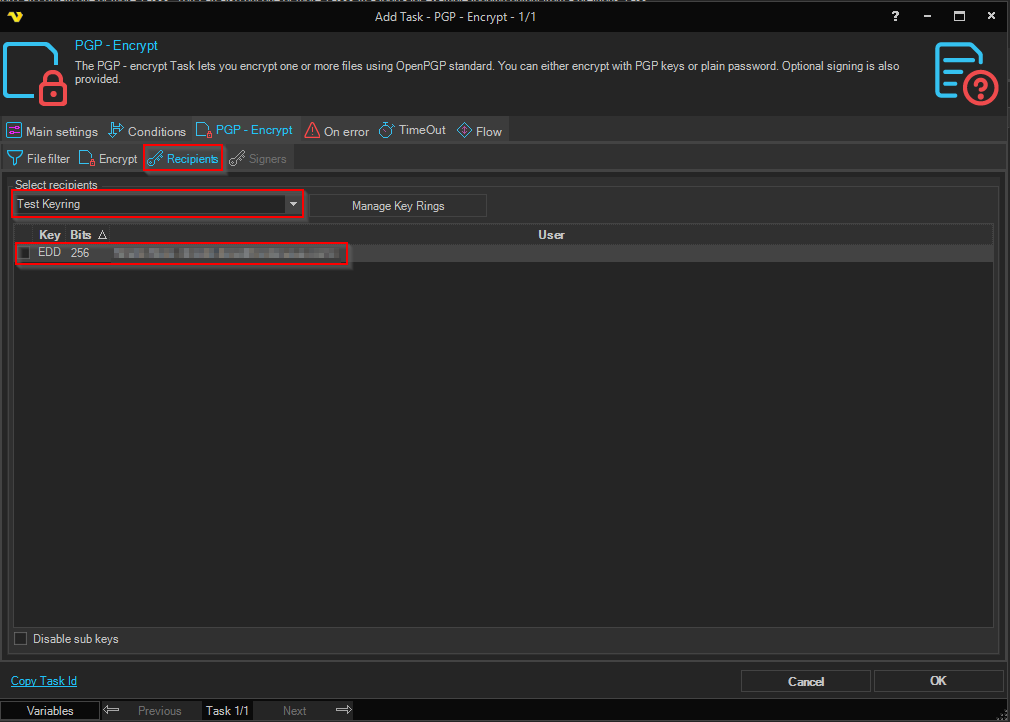
Available when Encrypt source is checked.
- Select recipients: the key ring with the public keys of the recipients. Check the keys to encrypt for; at least one is required unless Use conventional (password) encryption is checked. Click Manage Key Rings to add or change key rings
- Disable sub keys: encrypts with the primary keys only, not with their sub keys. A key that has several sub keys can otherwise produce a file encrypted for several keys, which some receiving software cannot read
Signers tab
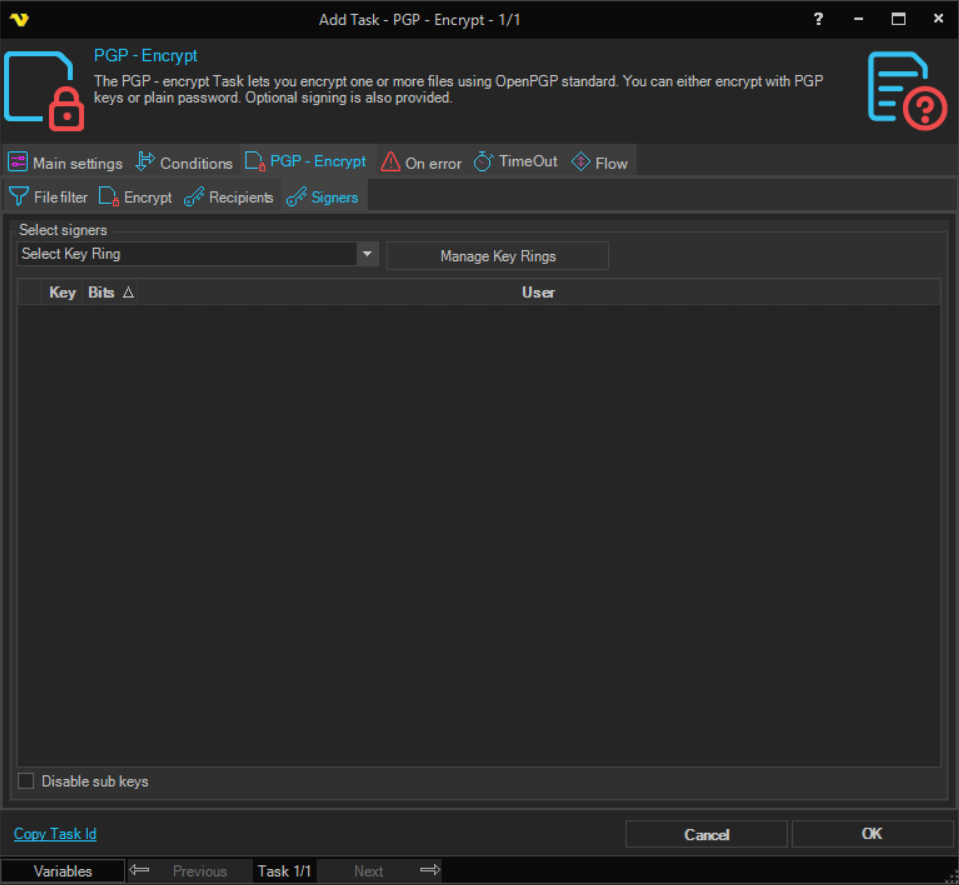
Available when Sign source is checked.
- Select signers: the key ring with your private keys. Check the keys to sign with; at least one is required. Click Manage Key Rings to add or change key rings
- Disable sub keys: signs with the primary keys only, not with their sub keys. A key that has several sub keys can otherwise sign a file more than once
Output and errors
The output has one line for each file: the path of the source file and the path of the result file, separated by a tab. The source files are not deleted.
If a file cannot be encrypted or signed, the Task fails and the remaining files in the same folder are not processed.
Troubleshooting
The encrypted file gets signed twice
Check Disable sub keys on the Signers tab.
No suitable OpenPGP public key for encryption found
Clear Disable sub keys on the Recipients tab.