Task Cloud Transfer - Sync
The Cloud - Sync file(s) Task synchronizes files between a source and a target location. Both source and target can be cloud services (Amazon S3, Box, Dropbox, Google Drive, Google Storage, Microsoft Azure, OneDrive), FTP / SFTP / WinSCP servers, or the local file system.
Sync > Connections sub tab
-92342adaefcd73b16b9ea80610dae36b.png)
Source connection
Select the connection to use for the source location. Only cloud (Amazon S3, Windows Azure, OneDrive, Google Drive, Google Storage, Dropbox, Box) and FTP / SFTP / WinSCP connections are shown.
Local files (source)
When checked, the local file system is used as the source instead of a connection. Checking this disables the Source connection selector and forces the target to use a connection (the target Local files checkbox is unchecked). Source and target cannot both be local at the same time.
Target connection
Select the connection to use for the target location. The same protocols as the source are listed.
Local files (target)
When checked, the local file system is used as the target instead of a connection. Checking this disables the Target connection selector and forces the source to use a connection.
Sync > Source file filter sub tab
Defines which files from the source are included in the sync. The filter shown depends on the source connection type:
- Cloud connection - the standard Cloud Remote file filter
- FTP / SFTP / WinSCP connection - the standard Remote file filter
- Local files - the standard File filter
Only the sub tab matching the current source type is visible; it switches automatically when the connection or Local files toggle changes.
Sync > Target file filter sub tab
Defines which files on the target are considered during the sync. Uses the same three filter types as the source, again based on the target connection type, and only the matching sub tab is shown.
Sync > Sync options sub tab
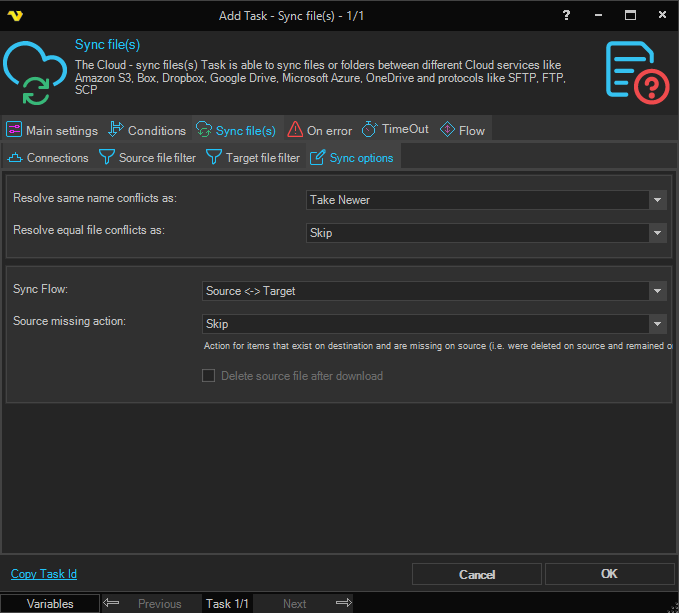
Resolve same name conflicts as
Select how to handle files that exist in both source and target with the same name but different content. Available options:
- Take Source - always use the source file
- Take Target - always use the target file
- Take Newer - use the file with the more recent modification date (default)
- Take Older - use the file with the older modification date
- Take Bigger - use the larger file
- Take Smaller - use the smaller file
- Skip - do not overwrite either file
Resolve equal file conflicts as
Select how to handle files that are considered equal under the same name rule (for example, same modification date when Take Newer is selected, or same size when Take Bigger is selected). Only enabled when the same name conflict resolution is set to Take Newer, Take Older, Take Bigger, or Take Smaller. Available options:
- Take source - use the source file
- Take Target - use the target file
- Skip - do not overwrite (default)
Sync flow
Select the direction of the synchronization. Available options:
- Source -> Target - copies files from source to target only
- Target ->Source - copies files from target to source only
- Source <-> Target - synchronizes in both directions (default); disables the Delete source file option
Delete source file after download
When checked, the source file is deleted after it has been successfully copied to the target. The label changes to reflect the active Sync flow direction (Delete file at Source after download or Delete file at Target after download). Only enabled for one-directional sync flows; disabled and unchecked when Source <-> Target is selected.
Source missing action
Select what to do with files that exist on the target but are missing on the source (for example, files that were deleted from the source but remain on the target after a previous sync). Available options:
- Delete - delete the file from the target
- Skip - leave the file on the target (default)
Credential
Select a Credential to use when source or target points to a network share that requires authentication. Used in addition to (not instead of) any credential set on a Local file filter. Leave empty to use the VisualCron service account.