Task Hyper-V - Start VM
The Hyper-V - Start VM Task starts a virtual machine on the VisualCron Server computer or on a remote Hyper-V host, by running Start-VM.
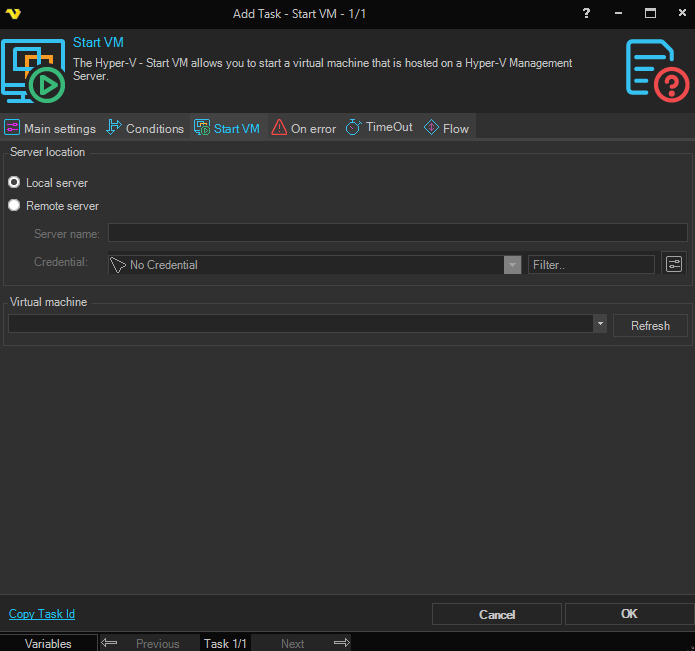
With Remote server, the Credential's user name and password are written as plain text into the PowerShell script that runs on the VisualCron Server computer; see Hyper-V Tasks overview. Errors that PowerShell reports while the command runs, such as an unknown virtual machine name or a failed remote sign-in, are not checked, and the Task reports success.
The Main settings, Flow, On error, Conditions and TimeOut tabs are the same for every Task; see Job - Tasks.
Start VM tab
- Local server: run the command on the VisualCron Server computer. Selected by default
- Remote server: run the command on another computer through PowerShell remoting
- Server name: the host name of the remote Hyper-V computer. Variables are not replaced in this field
- Credential: the Credential to sign in to the remote computer. Required with Remote server. The Credential's domain is not used, so enter the user name of a domain account as
DOMAIN\user. Click the Settings icon to add or edit Credentials - Virtual machine: the name of the virtual machine. With Local server, click Refresh to list the virtual machines on the VisualCron Server computer. With Remote server, Refresh fails in this version; type the name. Variables are replaced in this field
Use this Task also to start a virtual machine that the Suspend VM Task saved.
Output and errors
An error that stops the PowerShell script makes the Task fail. Other errors are not checked; see Hyper-V Tasks overview.