Task Hyper-V - Stop VM
The Hyper-V - Stop VM Task shuts down a virtual machine on the VisualCron Server computer or on a remote Hyper-V host, by running Stop-VM with -Force.
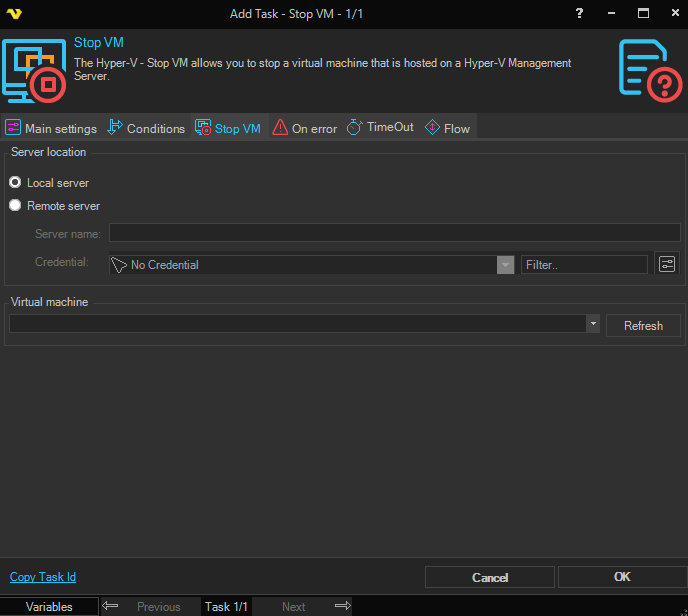
With Remote server, the Credential's user name and password are written as plain text into the PowerShell script that runs on the VisualCron Server computer; see Hyper-V Tasks overview. Errors that PowerShell reports while the command runs, such as an unknown virtual machine name or a failed remote sign-in, are not checked, and the Task reports success.
Stop-VM -Force shuts down the guest operating system without asking for confirmation, so unsaved work in the guest can be lost.
The Main settings, Flow, On error, Conditions and TimeOut tabs are the same for every Task; see Job - Tasks.
Stop VM tab
- Local server: run the command on the VisualCron Server computer. Selected by default
- Remote server: run the command on another computer through PowerShell remoting
- Server name: the host name of the remote Hyper-V computer. Variables are not replaced in this field
- Credential: the Credential to sign in to the remote computer. Required with Remote server. The Credential's domain is not used, so enter the user name of a domain account as
DOMAIN\user. Click the Settings icon to add or edit Credentials - Virtual machine: the name of the virtual machine. With Local server, click Refresh to list the virtual machines on the VisualCron Server computer. With Remote server, Refresh fails in this version; type the name. Variables are replaced in this field
Output and errors
An error that stops the PowerShell script makes the Task fail. Other errors are not checked; see Hyper-V Tasks overview.