Event Trigger - Desktop
The Desktop Trigger starts a Job when something happens on a Windows desktop: a process starts or exits, an application or window is opened, focused or clicked, a control changes, the session is locked or a key is pressed. A VisualCron Tray client on that desktop detects the events and reports them to the Server (see Connection tab). The Result Variables tell the Job what happened.
The Server starts the Job on every event the Tray client reports for this Trigger. It does not apply Run delay on the Main settings tab or Expire after being triggered on the Expires tab, and it does not use Computer name and Credentials. To keep runs from overlapping, keep Do not start if job is already running selected on the Job's Main settings tab. Expiration date and the Timeout tab work as described in Event Triggers.
Desktop tab
The settings are on the Desktop tab, which has two tabs, Events and Connection.
Events tab
Trigger events: lists the events the Trigger watches, with the Event type and the Watching value (the values the event matches). Use Add, Edit and Delete in the toolbar, or double-click a row to edit it. System events cannot be edited: delete the event and add it again.
Events are in six categories: Process, Application, Window, Control, System and Keyboard.
Process category
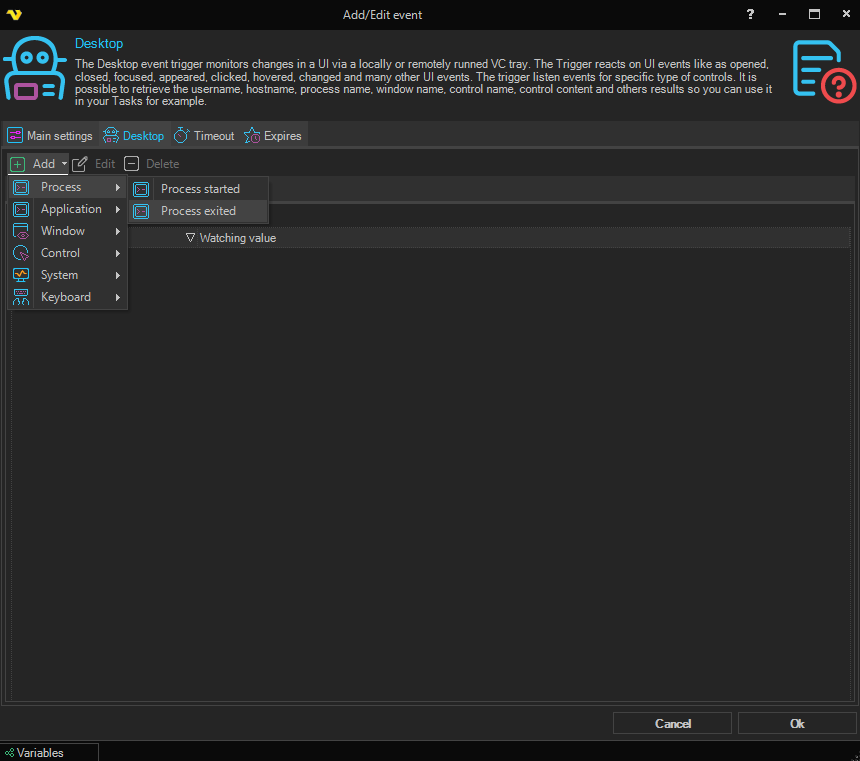
| Event | Fires when |
|---|---|
| Process started | A process with the name you enter starts |
| Process exited | A process with the name you enter ends |
The event from the Process category requires running the Tray client as administrator.
Application category
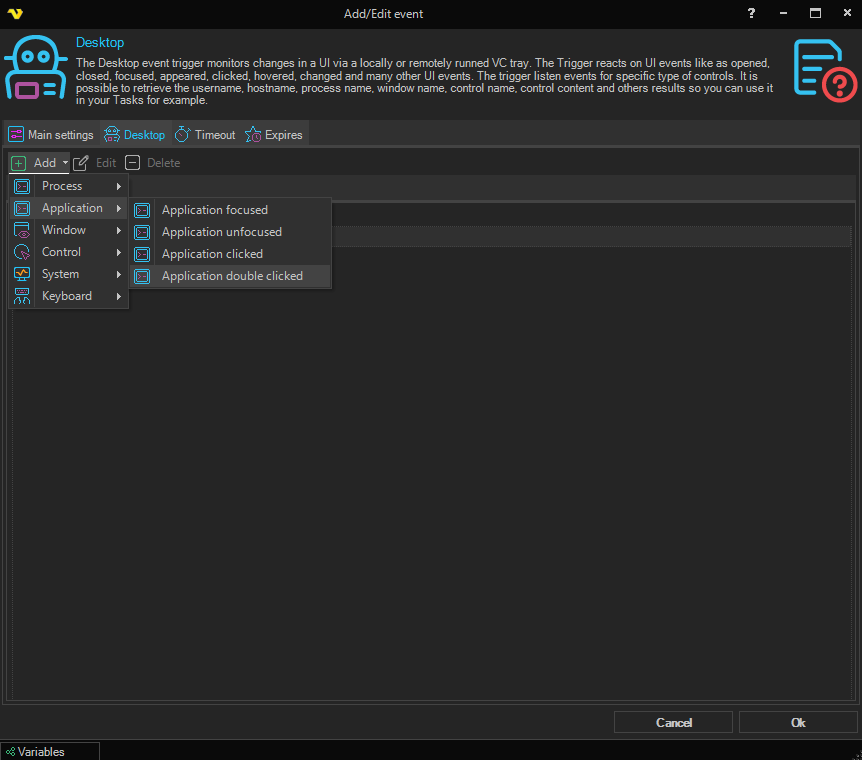
| Event | Fires when |
|---|---|
| Application focused | The application with the process name you enter gets the focus |
| Application unfocused | The focus leaves that application |
| Application clicked | That application is clicked |
| Application double clicked | That application is double-clicked |
Window category
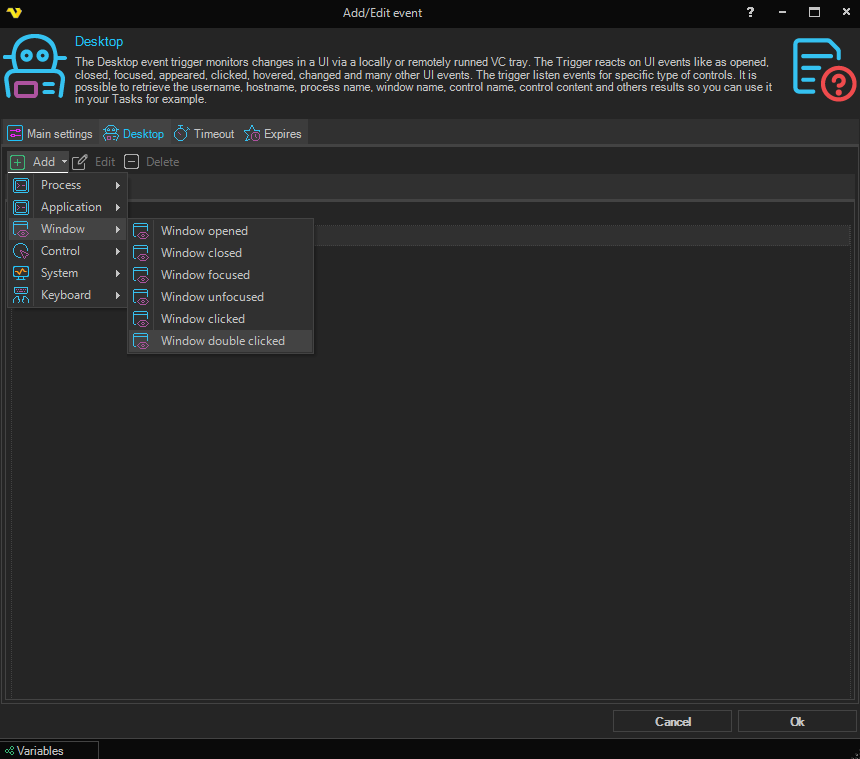
| Event | Fires when |
|---|---|
| Window opened | A window with the process and window name you enter opens |
| Window closed | That window closes |
| Window focused | That window gets the focus |
| Window unfocused | The focus leaves that window |
| Window clicked | That window is clicked |
| Window double clicked | That window is double-clicked |
Control category
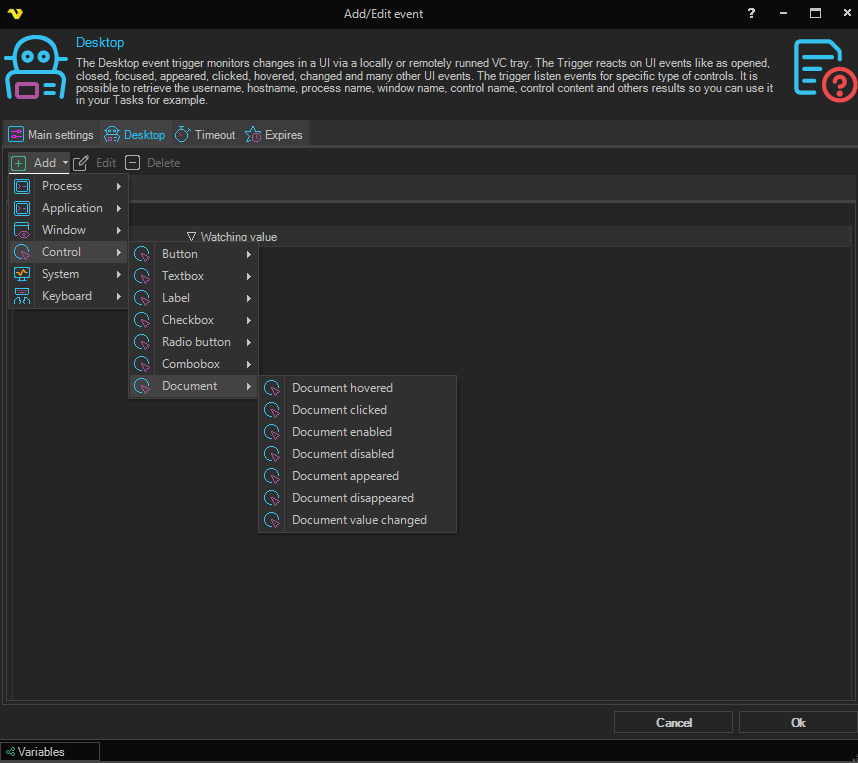
The Control category has seven control types: Button, Textbox, Label, Checkbox, Radio button, Combobox and Document. Each event watches a control with the process, window, control name and value you enter.
| Control type | Events |
|---|---|
| Button | Button hovered, Button clicked, Button enabled, Button disabled, Button appeared, Button disappeared |
| Label | Label hovered, Label clicked, Label enabled, Label disabled, Label appeared, Label disappeared |
| Textbox | The same six events, plus Textbox value changed |
| Document | The same six events, plus Document value changed |
| Checkbox | The same six events, plus Checkbox checked and Checkbox unchecked |
| Radio button | The same six events, plus Radio button checked and Radio button unchecked |
| Combobox | The same six events, plus Combobox opened, Combobox closed and Combobox value changed |
System category
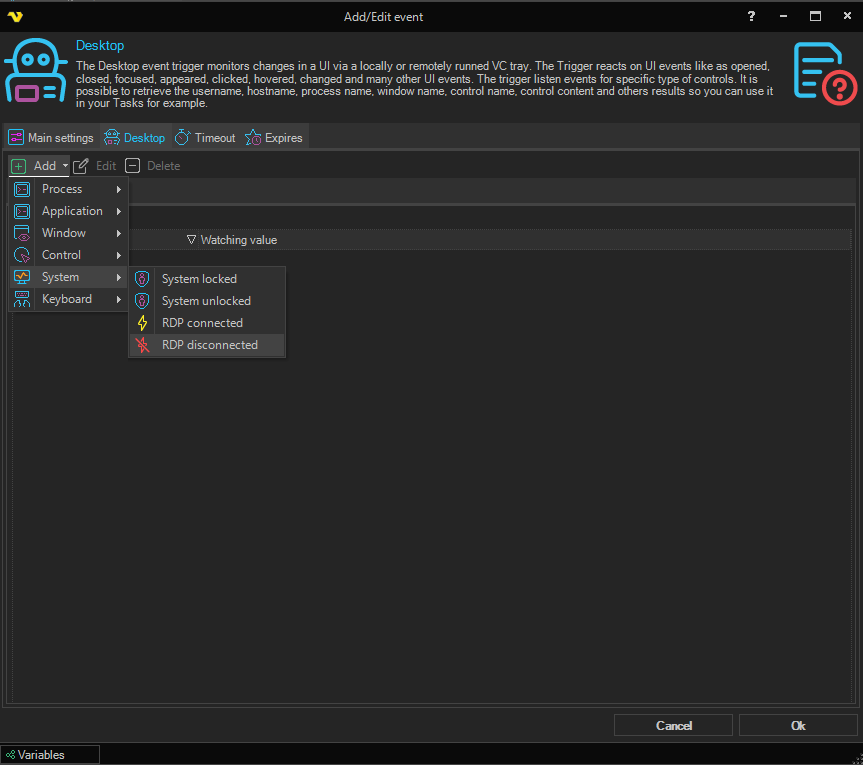
| Event | Fires when |
|---|---|
| System locked | The user locks the session |
| System unlocked | The user unlocks the session |
| RDP connected | A remote desktop connection is made |
| RDP disconnected | A remote desktop connection ends |
Keyboard category
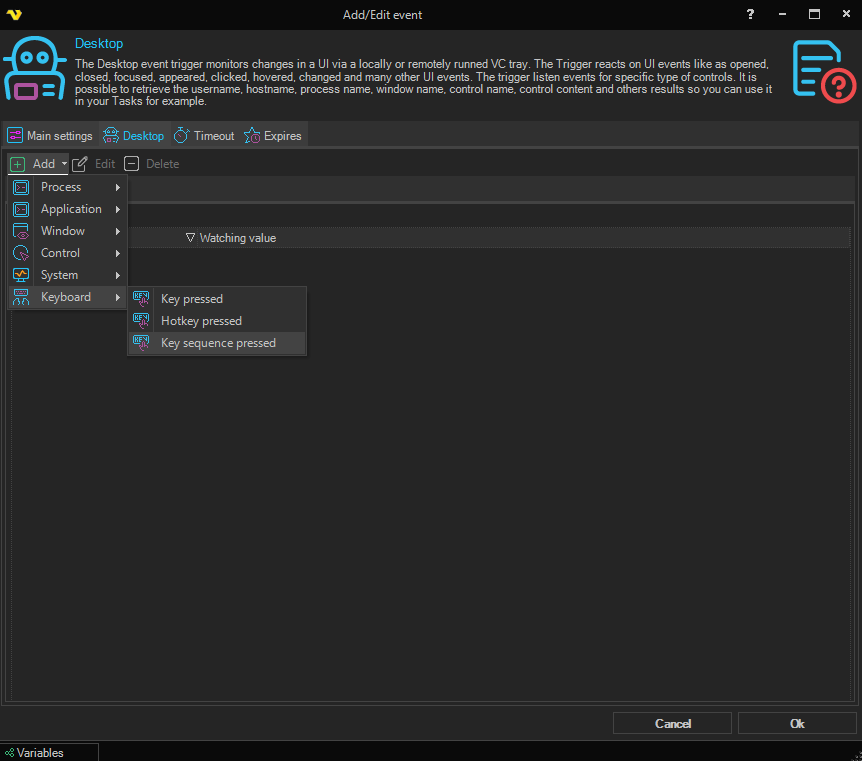
| Event | Fires when |
|---|---|
| Key pressed | The key you enter is pressed |
| Hotkey pressed | The key combination you enter is pressed |
| Key sequence pressed | The keys you enter are pressed one after the other |
Event settings
When you add or edit an event, a window opens with the fields for its category:
- Process and Application events: Process name
- Window events: Process name and Window name
- Control events: Process name, Window name, Control name and Control value or text
- Keyboard events: Key (see below)
System events have no fields: you are asked to confirm, and the event is added.
Process name, Window name, Control name and Control value or text support the wildcards "?" (any one
character) and "*" (any characters). For example, notep* in Process name matches every process whose name
begins with "notep".
Match case
When checked, the values in the fields are matched case-sensitively. When unchecked, matching is case-insensitive.
If you do not know the details of a window or control, click the select button next to its field, then hold down the Ctrl key and click the window or control. The fields are filled in. The button next to Process name opens the list of Active processes; double-click a process to select it.
When you select a process from the list, letters "e" and "x" at the end of the process name are removed together with ".exe": for example, "chrome.exe" becomes "chrom". Check Process name after you select a process, and correct it.
Keyboard event configuration
For the Key pressed, Hotkey pressed, and Key sequence pressed events, the Add Key event window includes a key capture field that listens for keystrokes as you press them. Captured keys are stored as a comma-separated list (for example, ControlKey,L). Click the clear icon next to Key to start again.
Connection tab
In VisualCron Server location, select where the Tray client runs:
- Local VisualCron Server (default): the Trigger uses a Tray client connected to this Server
- Remote VisualCron Server: the Trigger connects to another VisualCron Server through the VisualCron Connection you select, and uses a Tray client connected to that Server
With Local VisualCron Server, the Trigger uses the first Tray client it finds connected to the Server, whichever user runs it, so it watches one desktop session. Until a Tray client is connected, the Trigger tries again every second. This applies only until the first Tray client is found: if that Tray client later ends, for example when the user logs off, the Trigger stays active but receives no events. When the Tray client runs again, save the Job or restart the Server. If a Tray client reports an error, every active Desktop Trigger on this Server that uses Local VisualCron Server is deactivated, and the error is written to the Server log. Correct the cause and activate the Triggers again.
With Remote VisualCron Server, the Trigger is deactivated if the remote Server cannot be reached when the Trigger starts. If the selected Connection has been deleted, the Trigger tries again every second without writing to the log: select an existing Connection.
Start the Tray client on the desktop you want to watch, and connect it to the Server, before you activate the Trigger. If several users run a Tray client connected to the Server, you cannot choose which session is watched.
Result Variables
When the Trigger fires, these result Variables describe the event. In the Job, write them in the Last trigger form,
for example {TRIGGER(Active|LastTrigger|DesktopTrigger.Result.WindowName)}, with the last part as listed below
(see Result Variables and Variables).
| Last part | Value |
|---|---|
DesktopTrigger.Result.EventType | The event, for example ProcessStarted or WindowOpened |
DesktopTrigger.Result.UserName | User name |
DesktopTrigger.Result.ComputerName | Computer name |
DesktopTrigger.Result.ProcessName | Process name |
DesktopTrigger.Result.ProcessId | Process ID |
DesktopTrigger.Result.WindowName | Window name |
DesktopTrigger.Result.ControlType | Control type |
DesktopTrigger.Result.ControlName | Control name |
DesktopTrigger.Result.ControlText | Control text |
DesktopTrigger.Result.ControlValue | Control value |
The Variables window does not list Event type, Process Id, Control type, Control text and Control value; type them as shown. It lists Application name and Control content, which return an error text for this Trigger: use Process name and Control value or Control text instead. The pressed key is not available as a Variable.