Event Trigger - File
The File Trigger watches a folder and fires when files in it are created, changed, deleted or renamed. Each time it fires, result Variables give the folder, the full path and the name of the file, so that the Job's Tasks can work with exactly that file.
The File Trigger does not use WMI. To watch a folder on another computer, enter a UNC path, for example \\server\share\folder, in Folder path, and select a Credential with access to the folder under Credentials on Main settings.
Many files can fire the Trigger in a short time. Fire, the menu command that starts the Job for the files already in the folder (see Trigger on existing files below), fires it once for each existing file. If a run is skipped because the Job is already running, the file of that firing is not processed; see Event Triggers.
The settings are on the File tab.
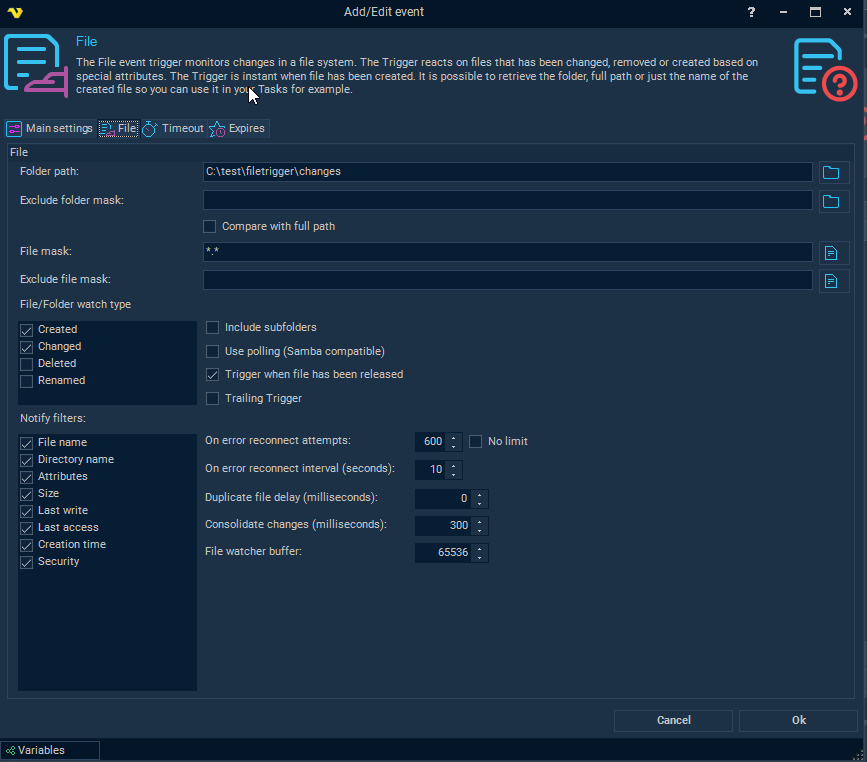
Folder path
The folder to watch. Click the folder icon to browse. The path can contain Variables.
Folder path must be a local path that starts with a drive letter, for example C:\Data\In, or a UNC path that starts with \\. When the Trigger starts, VisualCron checks that it can read the folder. If it cannot, it retries with the settings On error reconnect attempts and On error reconnect interval (seconds). If the folder is still not available after these attempts, the Trigger is deactivated.
File mask
A file name, or a mask with the wildcards * (any number of characters) and ? (one character). The default *.* watches all files; *.txt watches all text files. The mask can contain Variables.
To use several masks, separate them with a semicolon and no spaces, for example *.txt;*.xml. With several masks, VisualCron compares each mask with the file name, without regard to case:
- A space after a semicolon becomes part of the next mask, so
*.txt; *.xmldoes not match XML files *.*matches only names that contain a dot#matches one digit; to match a#character, write[#]
Exclude folder mask
Files in folders that match this mask do not fire the Trigger. The mask is compared with the name of the folder that directly contains the file, not with the folders above it. Separate several masks with a semicolon and no spaces. The field can contain Variables.
A mask with a wildcard (*, ? or #) is compared without regard to case. A mask without a wildcard must match the folder name exactly, including case.
If you click the folder icon to browse, the field gets the full path of the folder. In that case, also check Compare with full path, and end the mask with * to exclude the subfolders of that folder too, for example C:\Data\In\Archive*.
Compare with full path
When checked, Exclude folder mask is compared with the full path of the folder that contains the file, for example C:\Data\In\Archive, instead of its name only. Use a wildcard, for example *\Archive*, to match part of the path.
Exclude file mask
Files whose names match this mask do not fire the Trigger. Separate several masks with a semicolon and no spaces, for example *.tmp;*.bak. The mask is compared with the file name without regard to case. # matches one digit; to exclude names that contain a # character, write [#], for example [#]*.txt. The field can contain Variables.
File/Folder watch type
The changes that fire the Trigger. A new Trigger has Created checked.
- Created: a file or folder is created
- Changed: a file or folder changes, as selected in Notify filters
- Deleted: a file or folder is deleted
- Renamed: a file or folder is renamed
Renamed cannot be used with Use polling (Samba compatible). The Client does not save the Trigger with both selected.
Include subfolders
When checked, the Trigger also watches the subfolders of Folder path.
Use polling (Samba compatible)
Use this option when the folder is on a share that does not send file change notifications, for example a Samba share. VisualCron then checks the folder at the interval in Polling interval (Check every) on Main settings, by default every 60 seconds. File watcher buffer is not used with polling.
Trigger when file has been released
Checked by default. Before the Trigger fires, it waits until the file can be opened for reading, so that the file is completely written before the Job uses it. It does not wait for deleted files.
The wait has no time limit. While the Trigger waits for one file, it handles no other file. If the file disappears or access to it is denied during the wait, the Trigger fires anyway. If a program keeps a file open, clear this option or make sure the program closes the file.
Trailing Trigger
When checked, the Trigger reads the text that was added to a file since its previous change. It returns that text in the result Variable {TRIGGER(Active|LastTrigger|File.Result.NewText)}. For the first change the Trigger sees in a file, and when the file has become shorter, the Variable returns the whole file. VisualCron compares the length of the file in characters, so a change that does not change the length does not fire the Trigger. Checking Trailing Trigger clears the other watch types, checks Changed and checks Last write in Notify filters.
Notify filters
The kinds of change that Windows reports to the Trigger. They work together with File/Folder watch type. Changed fires only for a change that a checked filter covers. File name must be checked for Created, Deleted and Renamed events of files, and Directory name for folders. A new Trigger has File name checked.
- File name: a file is created, deleted or renamed
- Directory name: a folder is created, deleted or renamed
- Attributes: the attributes of a file or folder change
- Size: the size of a file changes
- Last write: the last write time changes
- Last access: the last access time changes
- Creation time: the creation time changes
- Security: the security settings change
On error reconnect attempts
The number of attempts to reach the folder again when it becomes unavailable, for example when the network or the remote computer is down (1 to 1000; default 600). After that the Trigger is deactivated. For each outage, VisualCron makes two attempts fewer than this number. When the folder is not available as the Trigger starts, VisualCron makes this number of attempts.
No limit
When checked, On error reconnect attempts is not available, and the Trigger is not deactivated when the folder stays unavailable. VisualCron still stops trying after as many attempts as the value last saved in On error reconnect attempts. After that the Trigger can still show as active but no longer watches the folder. If the Trigger stops firing, check the log, then deactivate and activate the Trigger.
When the Trigger starts and the folder is not available, VisualCron makes 100 attempts. After that the Trigger is deactivated.
On error reconnect interval (seconds)
The number of seconds to wait between attempts (1 to 500; default 10).
Duplicate file delay (milliseconds)
Some programs cause several Created or Changed events for one file. After an event for a file, further Created and Changed events for the same file are ignored for this many milliseconds, so the first event fires the Trigger (0 to 600000; default 0, which turns the delay off).
Consolidate changes (milliseconds)
Used only when Changed is checked in File/Folder watch type. Created and Changed events for the same file are collected until no new event has arrived for this many milliseconds. The Trigger then fires once, with the type of the first event. For example, a new file that is written in several steps fires the Trigger once, as Created (0 to 600000; default 300; 0 turns it off).
File watcher buffer
The size, in bytes, of the buffer that holds file change notifications from Windows until VisualCron processes them (4096 to 65536; default 65536). Not used with Use polling (Samba compatible).
If many files change at the same time and the buffer overflows, VisualCron logs an error and reconnects to the folder. Changes during that time are lost, and the reconnect counts as one of the On error reconnect attempts.
Trigger on existing files
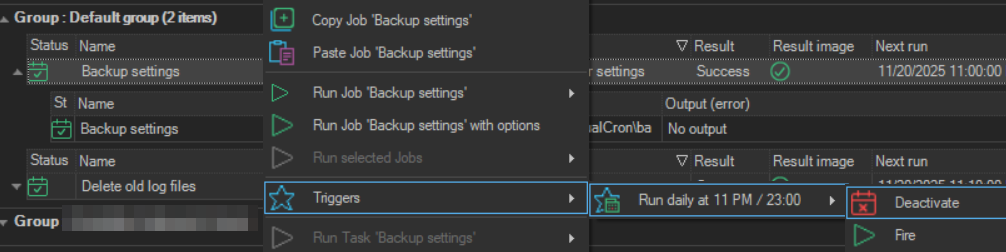
To start the Job for files that are already in the folder, right-click the Job in the Grid and click Triggers -> the File Trigger -> Fire. Fire is available only when the Trigger is active. The Trigger then fires once for each file in Folder path that matches File mask, as a Created event. It does not search subfolders and does not use the exclude masks or Run delay. It starts the Job even during a time exception. Each file is one firing; see Event Triggers for what happens when a run is skipped.
Job right-click -> Triggers (the example shows a Time Trigger)
Result Variables
When the Trigger fires, it sets result Variables for the file that fired it. Use them in the Job's Tasks and Notifications instead of a wildcard or a fixed file name, so that each run works with the file that fired the Trigger. With Last trigger (Active|LastTrigger), a Variable reads the result of the firing that started the run. For example, in a Task with a source folder and an include file mask:
- Source folder:
{TRIGGER(Active|LastTrigger|File.Result.TriggerFolder)}, the folder that contains the file - Include file mask:
{TRIGGER(Active|LastTrigger|File.Result.Name)}, the name of the file
All File Trigger result Variables are described in Variables.