Event Trigger - Azure Queue Storage
The Azure Queue Storage Trigger receives messages from a queue in an Azure Storage account, through a Microsoft Azure Connection. Each message fires the Trigger once.
The Trigger reads up to 31 messages at a time; other readers of the queue do not see these messages for 5 minutes. It fires once per message and deletes the message from the queue right after the Trigger fires. While the queue reports waiting messages, the Trigger reads the next batch at once; when the queue is empty, it waits the Polling interval from the Main settings tab (default 5 seconds) before it checks again.
This Trigger fires once per message and deletes the message. If the run of the Job is skipped, for example because Do not start if job is already running is selected (the default), that message is lost. With up to 31 messages read at once, most messages of a batch can be lost this way. See Triggers that fire once per item in Event Triggers.
A message is also deleted when the Job does not start because of a time exception of the Job, or because Run after the trigger has been triggered in the Run delay group on the Main settings tab is above 1 and the message does not complete the count. Do not use a time exception or a run delay above 1 with this Trigger when every message must be processed.
With Expire after being triggered on the Expires tab, the message that makes the Trigger expire starts the Job but is not deleted. It becomes visible in the queue again after 5 minutes and can be received again.
If the queue does not exist, the Trigger creates it. A mistyped queue name creates a new, empty queue, and the Trigger then waits on it without an error.
The settings are on the Azure Queue Storage tab.
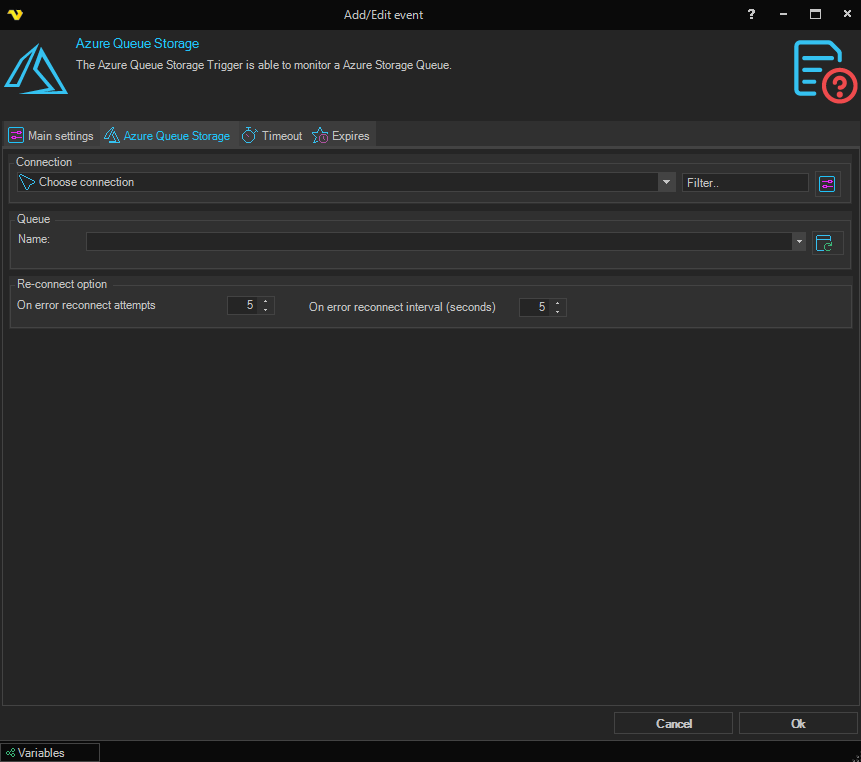
Connection
Select the Microsoft Azure Connection. The Trigger signs in with the storage account name and key of the Connection (Authentication type "Password", with Storage Account and Key); the other authentication types are not supported by this Trigger. It always connects over HTTPS to the storage account in the Azure public cloud (core.windows.net); the Use SSL and proxy settings of the Connection are not used. A Connection is required.
Queue
Name
The name of the queue. Click the refresh button to list the queues of the storage account and select one, or type the name. Azure queue names are lowercase. A name that Azure rejects makes the Trigger stop without an error in the log, while it still shows as active. You can use Variables. A queue name is required.
Re-connect option
On error reconnect attempts
Failed connection attempts in a row, when the Trigger starts and after an error while it reads the queue (1 to 500; default 5). Each attempt writes "Azure Queue Storage Trigger reconnect.." to the log. After that the Trigger stops.
- After an error while reading the queue, the Trigger is deactivated and the error is written to the log
- When the attempts fail at start, the error itself is not written to the log and the Trigger still shows as active; check the Connection and the queue name, then deactivate and activate the Trigger
On error reconnect interval (seconds)
The number of seconds to wait after a failed attempt before the next one (1 to 500; default 5).
Result Variables
In the Variables window, the result Variables are under the Job's Trigger, Result. In a run that this Trigger started, {TRIGGER(Active|LastTrigger|AzureQueueStorage.Result.AsString)} returns the content of the message that started the run. See Variables.
When the Trigger fires, it sets these result Variables:
AzureQueueStorage.Result.AsString: the message content as textAzureQueueStorage.Result.AsBytes: the message content as Base64AzureQueueStorage.Result.Id: the message IDAzureQueueStorage.Result.DequeueCount: how many times the message has been read from the queueAzureQueueStorage.Result.PopReceipt: the pop receipt of this readAzureQueueStorage.Result.InsertionTime|<date format>,AzureQueueStorage.Result.ExpirationTime|<date format>,AzureQueueStorage.Result.NextVisibleTime|<date format>: when the message was added, when it expires, and when it becomes visible again
The date format is optional, for example {TRIGGER(Active|LastTrigger|AzureQueueStorage.Result.InsertionTime|yyyy-MM-dd HH:mm:ss)}.