Event Trigger - RSS
The RSS event trigger is able to watch a remote RSS feed for changes. Based on content on certain parts of the feed item you can Trigger the Job.
Triggers > Add > Event Trigger > RSS > Main settings tab
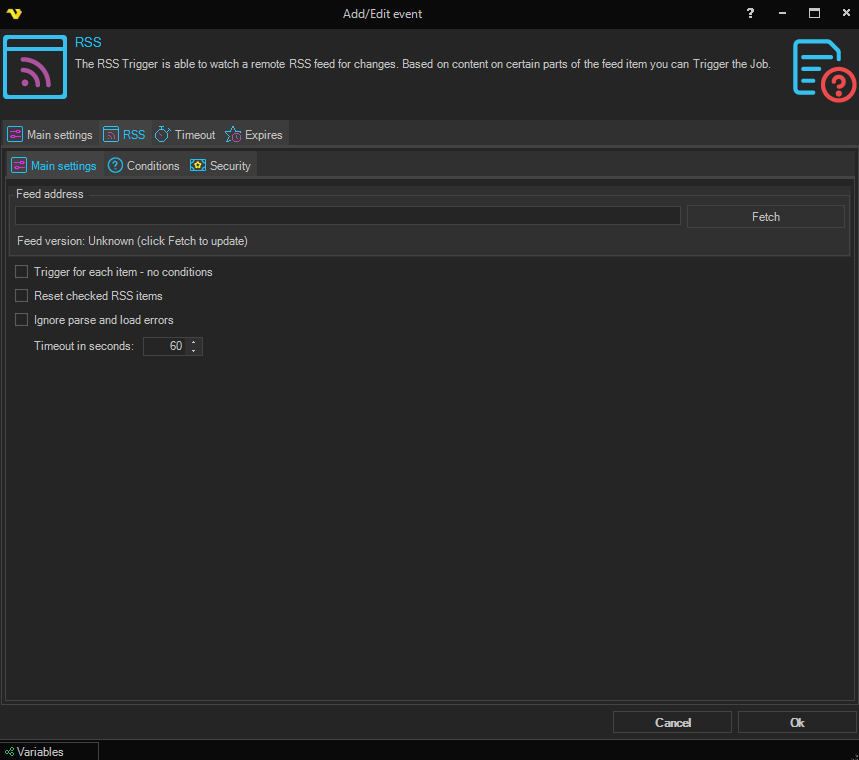
Feed address
The URL of the RSS or Atom feed to monitor. Click the Fetch button to connect to the feed and detect its version. The detected feed version (e.g. RSS 2.0, ATOM) is displayed below the field.
Trigger for each item - no conditions
When checked, the trigger fires for each new feed item without applying any conditions. The Conditions tab is disabled when this option is enabled.
Reset checked RSS items
When checked, all previously seen RSS item IDs are cleared, causing all current items to be treated as new on the next check.
Ignore parse and load errors
When checked, errors encountered while fetching or parsing the RSS feed are silently ignored rather than reported as failures.
Timeout in seconds
The number of seconds to wait when fetching the feed before timing out. Minimum is 1, maximum is 10000.
As for all event triggers, we recommend that you set "Put Job in queue" in the man settings of the Job. This will force VisualCron to process one item at a time. For example, if you let your RSS Trigger check every 60 seconds and two new items has been added since last check - then VisualCron will Trigger twice. In order to be able to use Variables from the Trigger correctly, "Put Job in queue" needs to be set otherwise a mixup of Variables is possible.
Triggers > Add > Event Trigger > RSS > Conditions tab
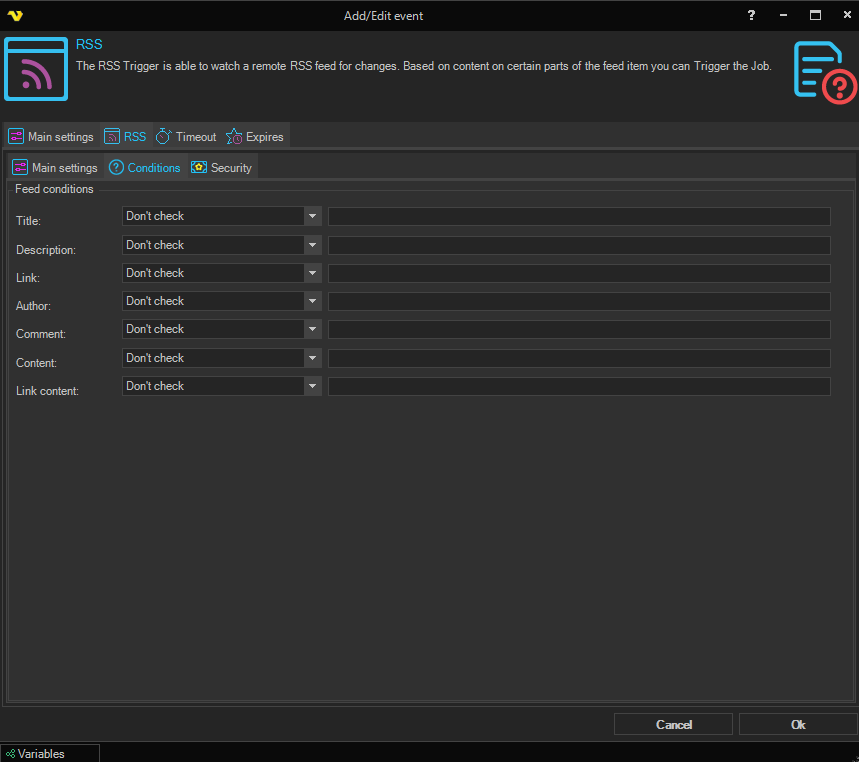
Each condition field has a dropdown to select the match type and a text box to enter the value to match against. Available match types are: Contains, Equal, Not check, Not contains, Not equal, RegEx match, RegEx no match. The entire Conditions tab is disabled when Trigger for each item - no conditions is checked.
Title
Filter by the title of the feed item.
Description
Filter by the description of the feed item.
Link
Filter by the link URL of the feed item.
Author
Filter by the author of the feed item.
Comment
Filter by the comments field of the feed item.
Content
Filter by the full content of the feed item.
Link content
Filter by the content of the page at the feed item's link URL.
Triggers > Add > Event Trigger > RSS > Security tab
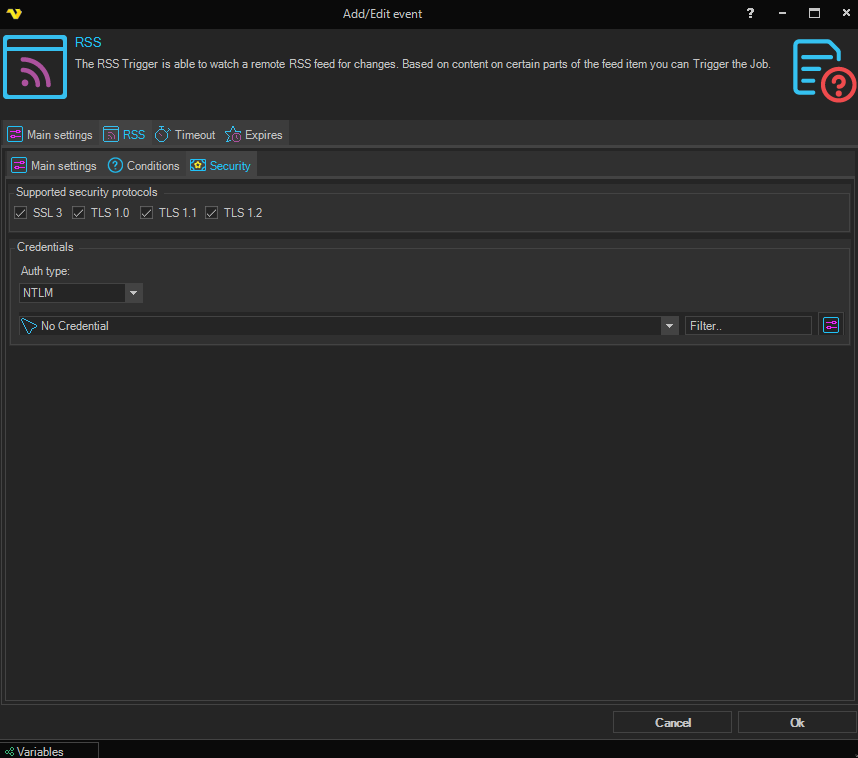
Supported security protocols
Checkboxes to select which SSL/TLS protocol versions are allowed when connecting to the feed URL.
- SSL 3
- TLS 1.0
- TLS 1.1
- TLS 1.2
Credentials
Auth type
The HTTP authentication method to use when fetching the feed. Options are populated from the available HTTP authentication types (e.g. None, Basic, NTLM, etc.).
Credential
Select a Credential suitable for the selected authentication type. Click the Settings icon to populate the drop-down list with available credentials.
RSS Event Trigger Variables
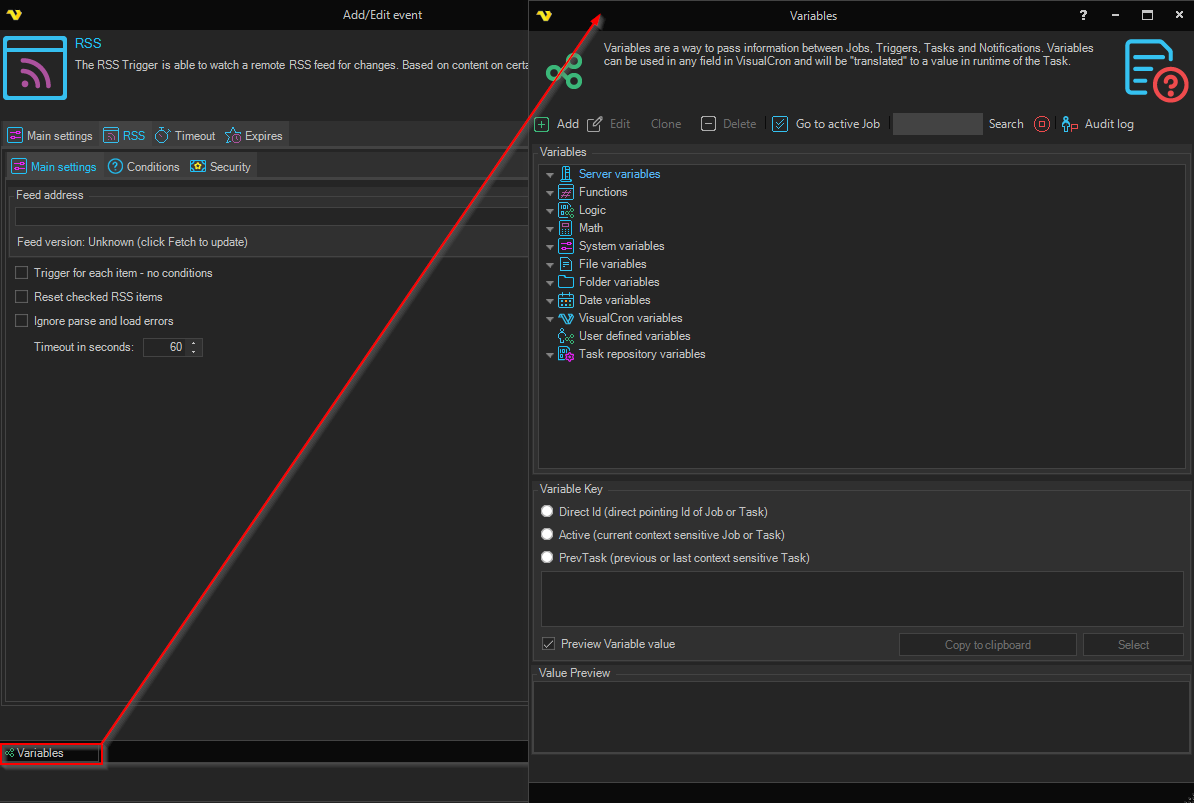
In the Variables window you can find related Variables from the Trigger.