Event Trigger - SQL
The SQL event trigger is able to monitor and Trigger upon a result value from a text or stored procedure query. The SQL Trigger supports all kind of database Connections.
Triggers > Add > Event Trigger > SQL > Connection sub tab
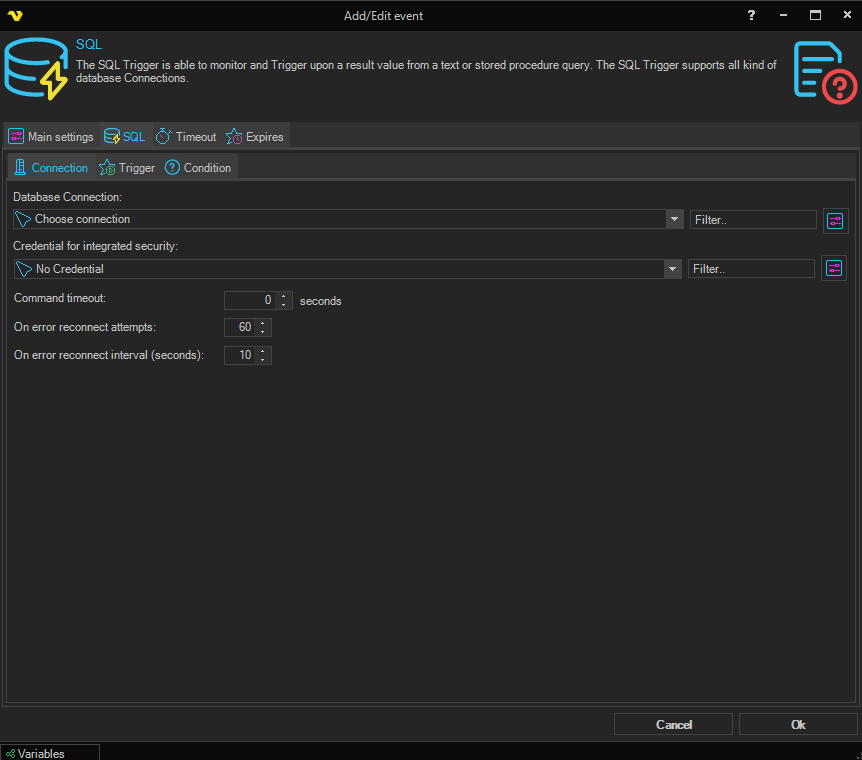
Database Connection
Select an existing database Connection, if not existing you need to create one first. Click the Settings icon to open the Manage Connections dialog. Once a connection is added you can select it in the combo box.
Credential for integrated security
If your Credential requires integrated security you should select a Windows user that has access to database. Click the Settings icon to populate the drop-down list with available Credentials.
Command timeout
How long time before the query times out.
On error reconnect attempts
The number of times VisualCron tries to reconnect to the database when a connection error occurs. Value 1 to 500 is available. Default value is 5 times.
On error reconnect interval (seconds)
The number of seconds to wait between reconnect attempts. Value 1 to 500 is available. Default is 10 seconds.
Triggers > Add > Event Trigger > SQL > Trigger > Text sub tab
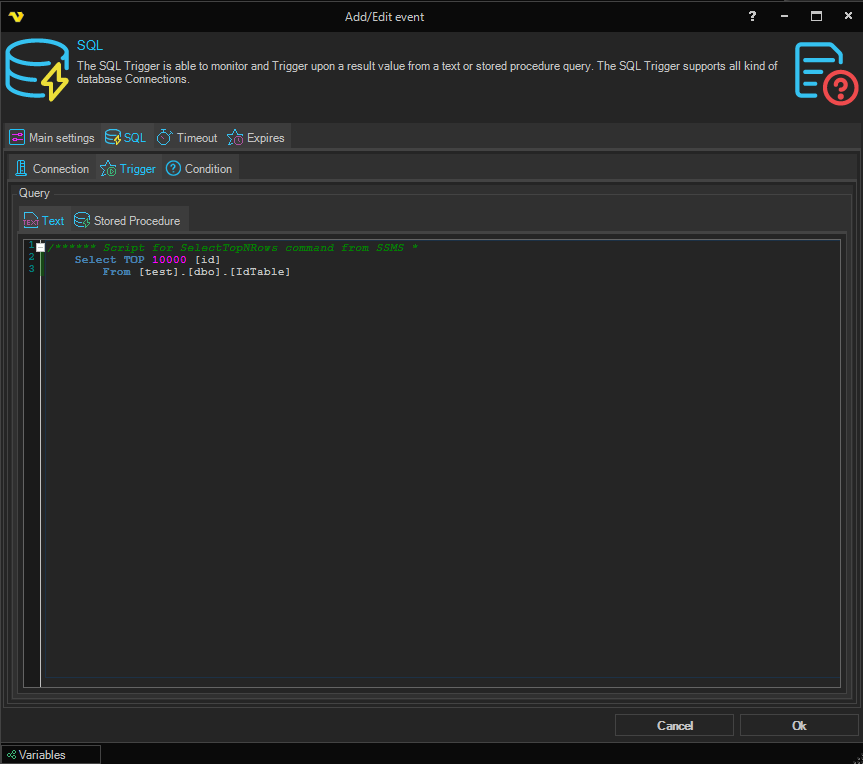
Enter the query in the text field. If you have a stored procedure - select the stored procedure tab.
Triggers > Add > Event Trigger > SQL > Trigger > Stored procedure sub tab
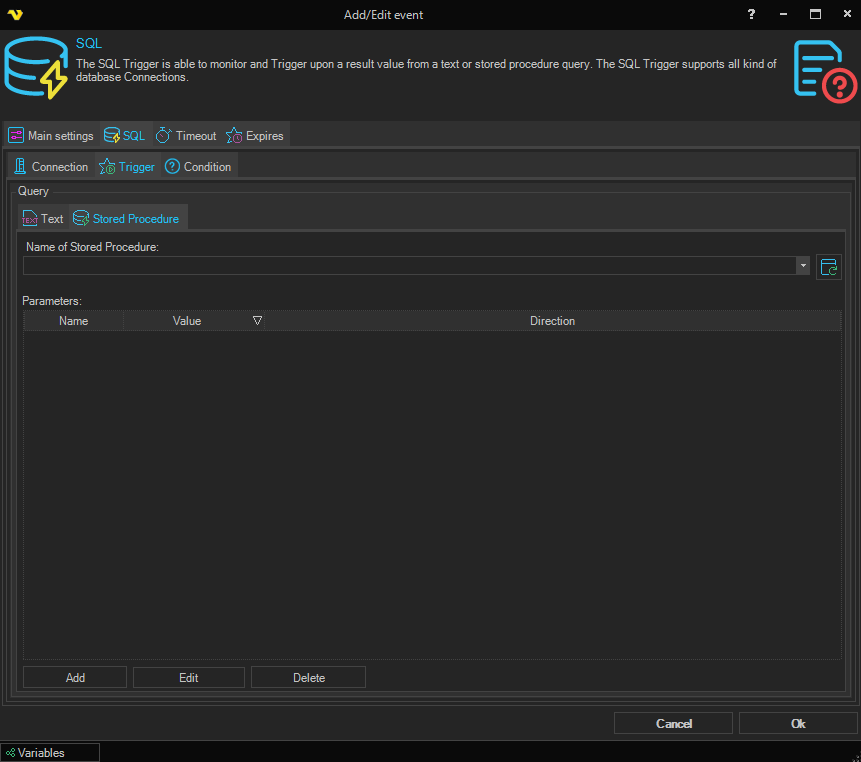
Enter the Name of Stored Procedure to execute. The field is an editable dropdown — click the refresh button next to it to populate the dropdown with stored procedures from the selected database Connection, or type a stored procedure name directly.
The Parameters grid below shows all parameters for the stored procedure. Use the Add, Edit, and Delete buttons (also available from the grid's context menu) to manage parameters. When clicking on the Add button, a parameter window will open. Enter parameter values for Name, Value, Data type and Parameter direction.
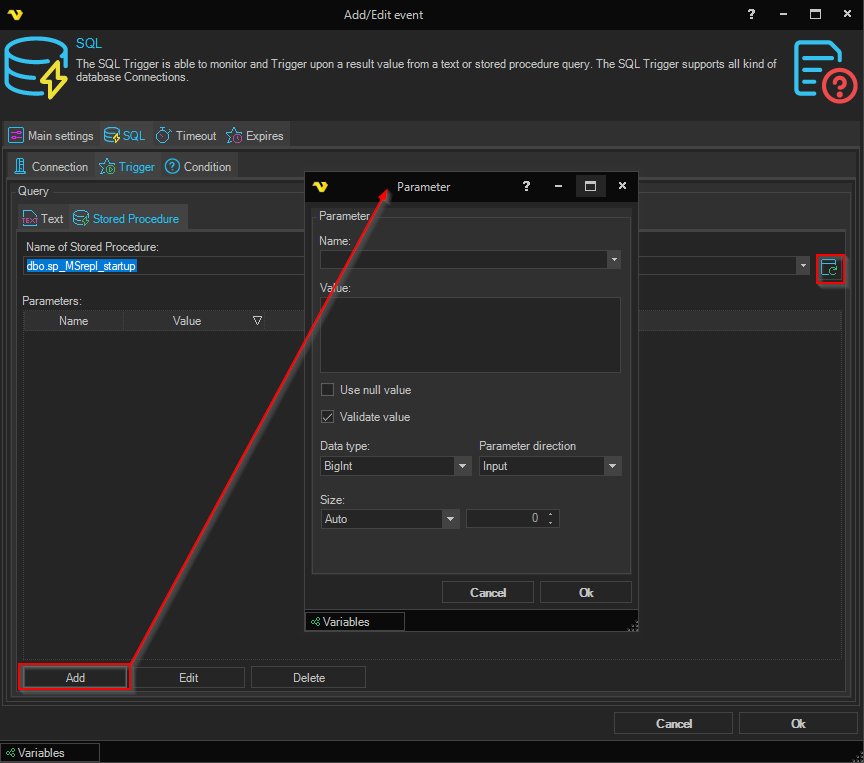
Validate value
If this value is checked VisualCron will validate the value against the value type. Unselect this if you are using a Variable as value and this Variable is not yet set.
Test your SQL Task before closing the VisualCron client. Errors will be reported in the log window.
Triggers > Add > Event Trigger > SQL > Trigger > Condition sub tab
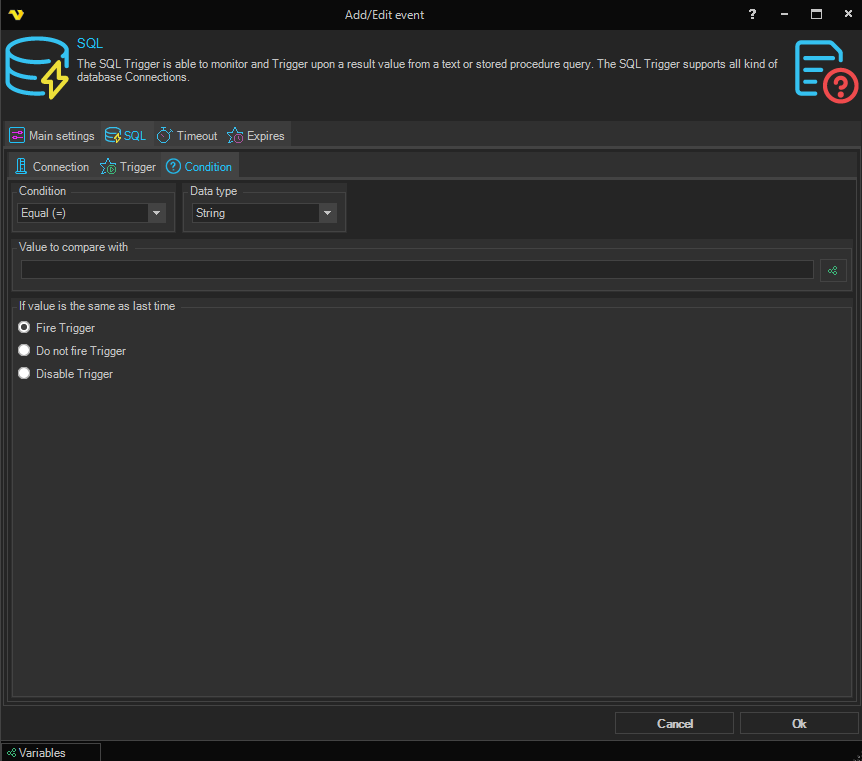
Data type
Select the data type that the SQL query result should be interpreted as. The available comparison methods in the Condition dropdown change depending on the selected data type:
- String
- Boolean
- Int32
- Int64
- Decimal
- Double
Condition
Select the comparison method that should be applied between the result and the Value to compare with. The list of available methods depends on the selected Data type:
- Boolean — Equal, Not equal
- String — Equal, Not equal, Contains, Not contains, RegEx match, RegEx no match
- Int32 / Int64 / Decimal / Double — Equal, Not equal, Larger, Larger or equal, Smaller, Smaller or equal, Contains
Value to compare with
Enter a value/Variable to compare the result with. Click the Variables icon to open the the Variables list.
If value is the same as last time
Choose how the Trigger should behave when the new result matches the previous result:
- Fire Trigger — fire the Trigger every time the Condition is met (default)
- Do not fire Trigger — skip firing when the result is the same as last time
- Disable Trigger — disable the Trigger after a repeated identical match