Event Trigger - Remote File
The Remote File event trigger is able to monitor file events on remote computers using the protocols FTP, SFTP and SCP.
Triggers > Add > Event Trigger > Remote file > Main settings tab
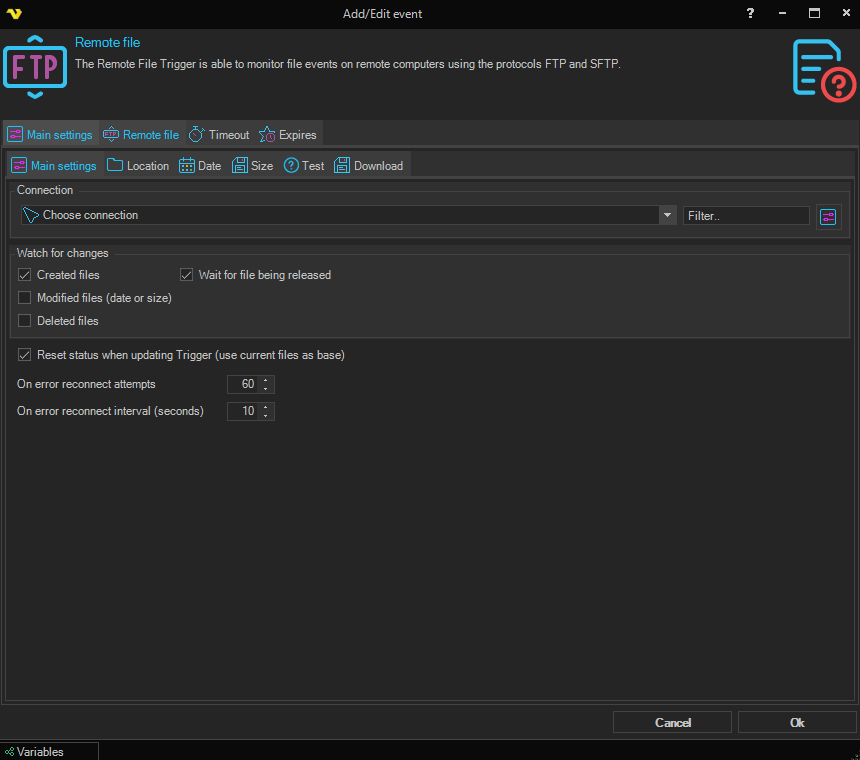
Connection
This Trigger uses the centrally stored Connections. Available protocol types are listed here. Click on Manage Connections to add a new one.
Changes to watch
Select which file events the Trigger should fire for:
- Created files — fire when a new file appears on the remote server
- Modified files (date or size) — fire when a file's modified date or size changes
- Deleted files — fire when a file is removed from the remote server
Wait for file being released
Located inside the Changes to watch group. The Trigger will monitor a new file for modify date. If modify date has not changed since last check the Trigger will fire 'Created' event.
Reset status when updating Trigger (use current files as base)
This reloads the internal list of files. You should check this if you for some reason change the Connection.
On error reconnect attempts
Let say the remote server you watch gets disconnected for some reason, perhaps the network or computer is down. The reconnect attempts value controls how many times VisualCron tries to reconnect. Value 1 to 500 is available. Default value is 5 times.
On error reconnect interval (seconds)
Let say the remote server you watch gets disconnected for some reason, perhaps the network or computer is down. The reconnect interval which you can specify is the number of seconds it will wait between each reconnect attempt, in seconds. Value 1 to 500 is available. Default is 5 seconds which may be a long time when the network is down and a short time if the remote computer is down.
Triggers > Add > Event Trigger > Remote file > Location tab
This Task is using the standard VisualCron Folder filter to find one or more folders.
Triggers > Add > Event Trigger > Remote file > Date tab
This Task is using the standard VisualCron Folder filter to filter for created/modified date.
Triggers > Add > Event Trigger > Remote file > Size tab
This Task is using the standard VisualCron Folder filter to filter out files based on size.
Triggers > Add > Event Trigger > Remote file > Test tab
This Task is using the standard VisualCron Folder filter to test your current file filter - if it matches any existing files.
Triggers > Add > Event Trigger > Remote file > Download tab
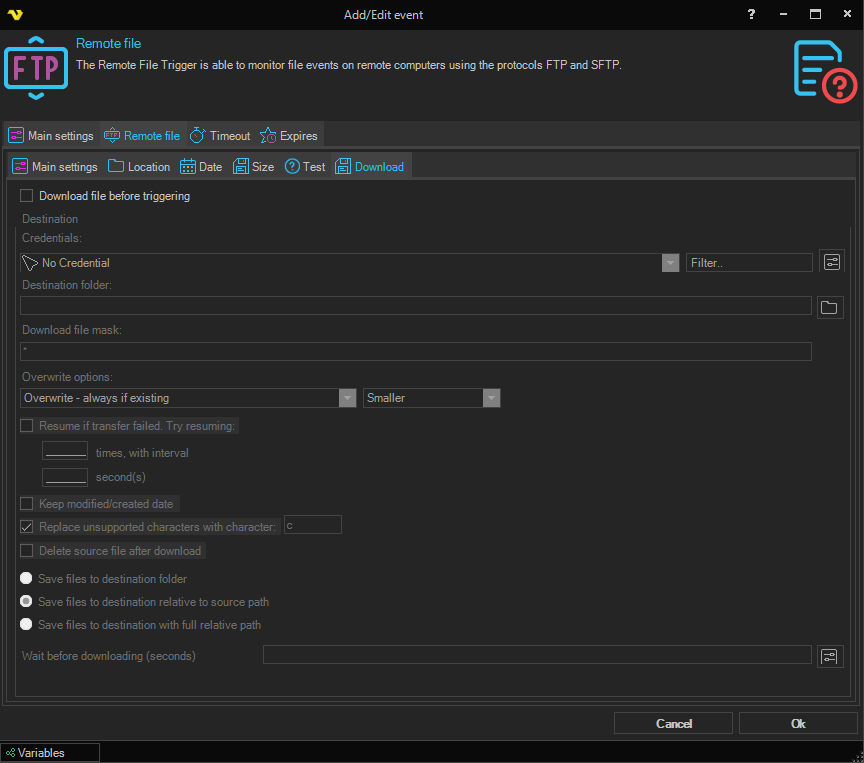
Download file before triggering
Optionally, you can set the Remote file Trigger to download the file that was just Triggered. When enabled, the Destination group below becomes editable.
Destination
Credentials
Select a Credential if you are going to save to a network drive. Click the Settings icon to populate the drop-down list with available credentials.
Destination folder
The local folder where the file should be saved. Click the browse button to pick a folder.
Download file mask
A file mask used to limit which files are downloaded. The default is *, which downloads any file that triggered the event.
Overwrite options
If the file exists you can choose different overwrite options. The first dropdown selects the overwrite mode (such as overwrite, overwrite if newer, append, or skip) and the second dropdown selects which size comparison applies (same / smaller / larger / different).
Resume if transfer failed
If an error occurs while downloading the file you can choose to retry X times and wait Y seconds between each retry.
Keep modified/created date
This option will set the same modified and creation date as the on the ftp.
Keep modified/created date
Sets the modified/created date on locally downloaded files to the same dates as the remote files.
Create relative folder structure
Creates relative folders if checked. If not checked all files (in sub folders) will be saved to destination folder.
Replace unsupported characters with character
If checked, VisualCron will replace any character that is not supported in Windows file system with the character entered in the adjacent textbox.
Wait before downloading (seconds)
The number of seconds to wait between detecting a file and starting the download. This can help when the remote file is still being written when the event fires. Click the variables button to insert a VisualCron variable.
Delete source file after download
Optionally delete the remote file after download.
Save path mode
Choose how the local folder structure should be built from the remote path:
- Save to destination folder — all files are saved directly into the destination folder
- Save with relative current folder — saves files into the destination folder while preserving sub-folder paths relative to the current matched folder
- Save with relative full path — saves files into the destination folder while preserving the full remote folder path
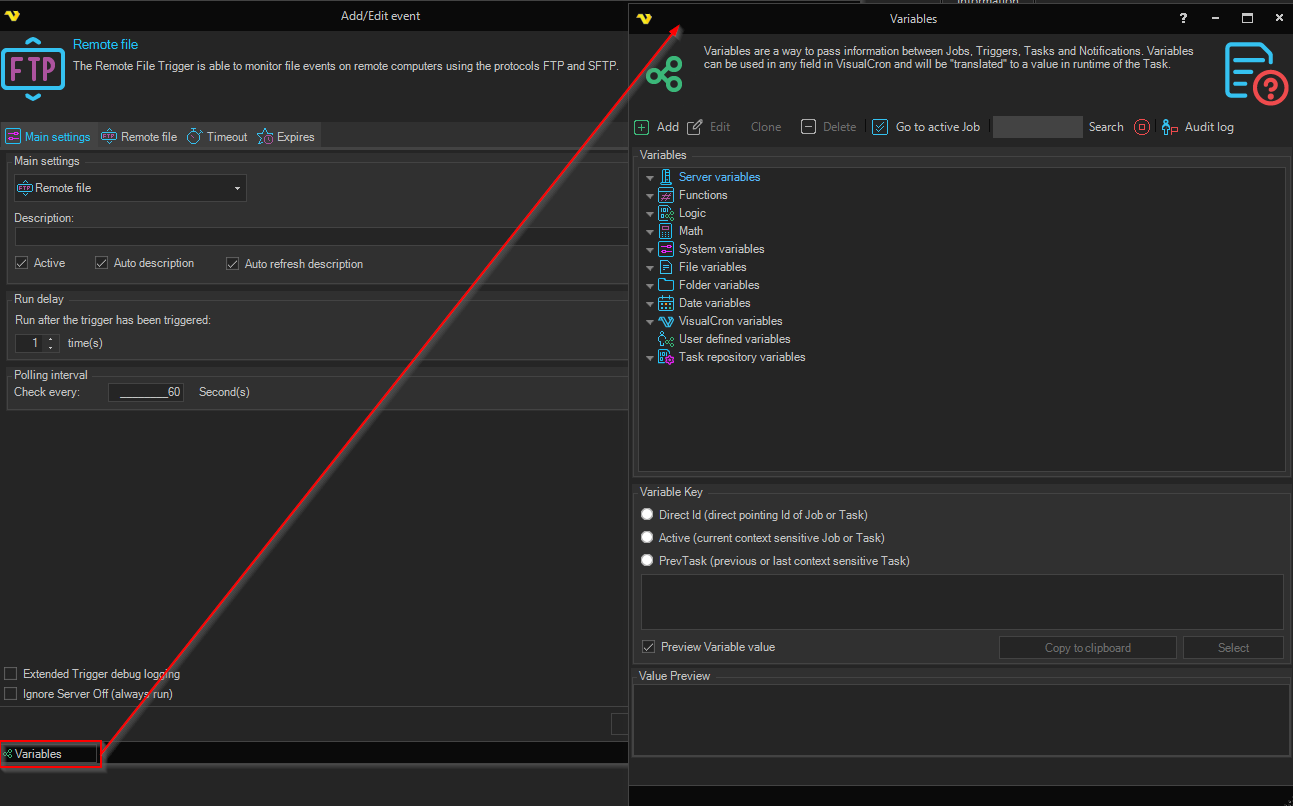
Triggers > Add > Event Trigger > Remote file > Variables
Last run
When the Trigger was last run.
Name
The name of the file that was created/modified/deleted.
Folder
The folder of the file that was created/modified/deleted.
Path
The full path to the file that was created/modified/deleted.
Size
The size of the file that was created/modified/deleted.
Last modified
The last modified date of the file that was created/modified/deleted.