Event Trigger - HTTP REST
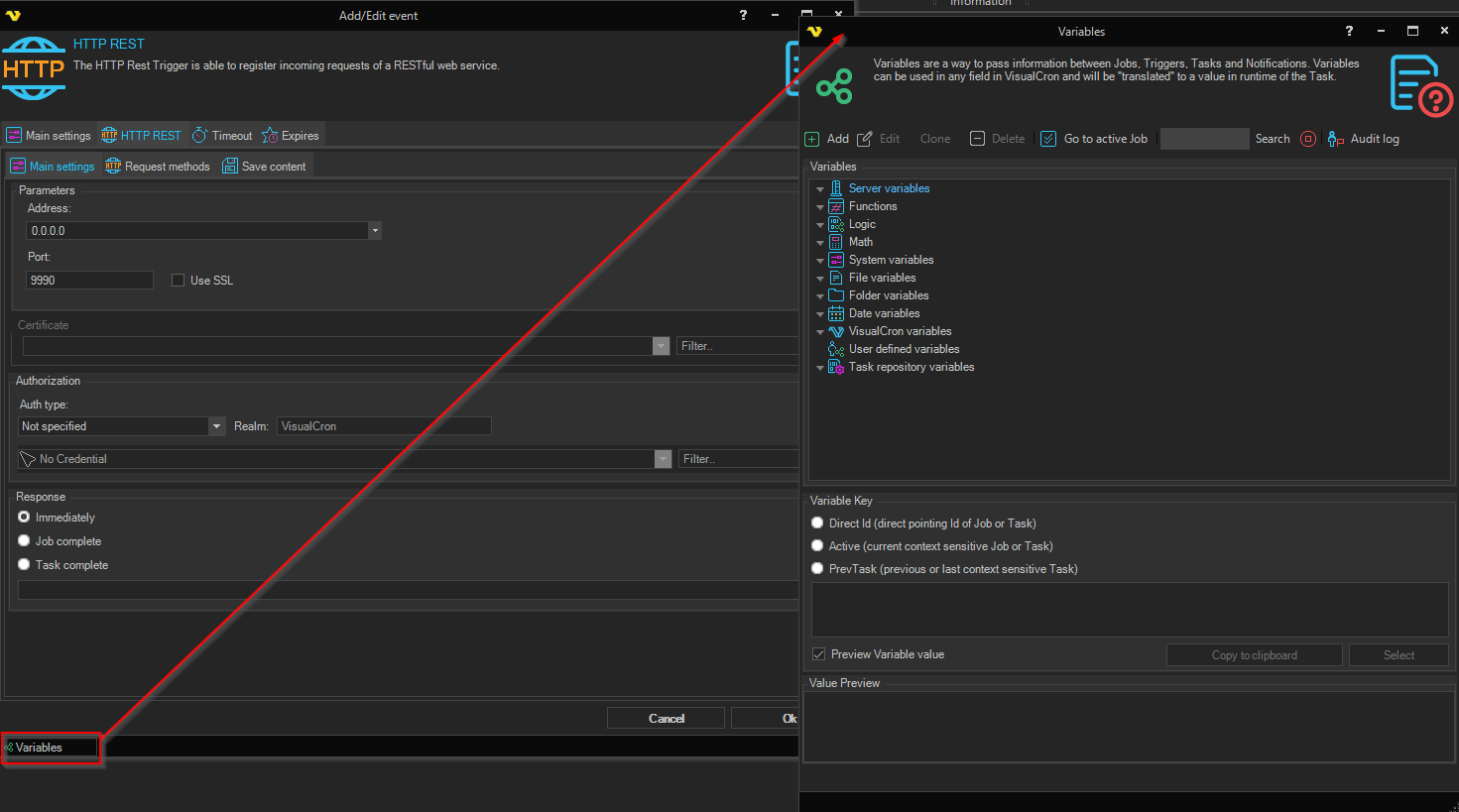
The HTTP REST Trigger is able to host a local HTTP server, on a certain path and be able to receive requests through GET and POST through that path. The Trigger will capture all details about the request including parameters received. These parameter values, among other information about the request, can be accessed as Variables for the Trigger.
Main settings
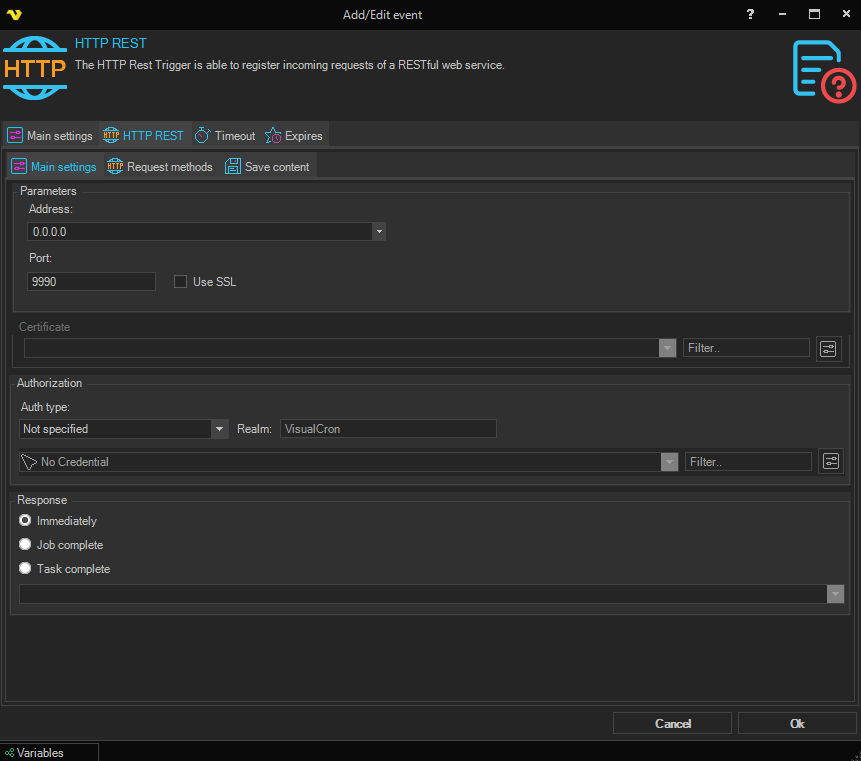
Parameters
Address
The local host or IP address that the HTTP server should listen on. Use 0.0.0.0 (the default) to listen on all available network interfaces.
Port
The TCP port that the HTTP server should listen on. The default value is 9990.
Use SSL
When checked, the HTTP server listens over HTTPS and the Certificate group below is enabled so you can select the server certificate to present to clients.
Certificate
Select the certificate that will be used to secure incoming connections. This group is only enabled when Use SSL is checked.
Authorization
Auth type
The authentication scheme(s) the server requires for incoming requests. Choose one or more of Basic and Digest, or leave the field empty (Not specified) to allow anonymous requests.
Realm
Use this property to set the authentication realm. All pages in the same realm share authentication credentials. The Realm parameter refers to Digest authorization and is enabled when Digest authentication is selected. The default value is VisualCron.
Credentials
Select the Credential that incoming requests must authenticate against. Enabled when an authentication type is selected.
Response
Choose when the HTTP server should send a response back to the caller:
- Immediately — respond as soon as the request is received (default)
- Job complete — respond when the Job that this Trigger fires has finished
- Task complete — respond when a specific Task in the Job has finished. When selected, choose the Task from the dropdown
Request methods tab
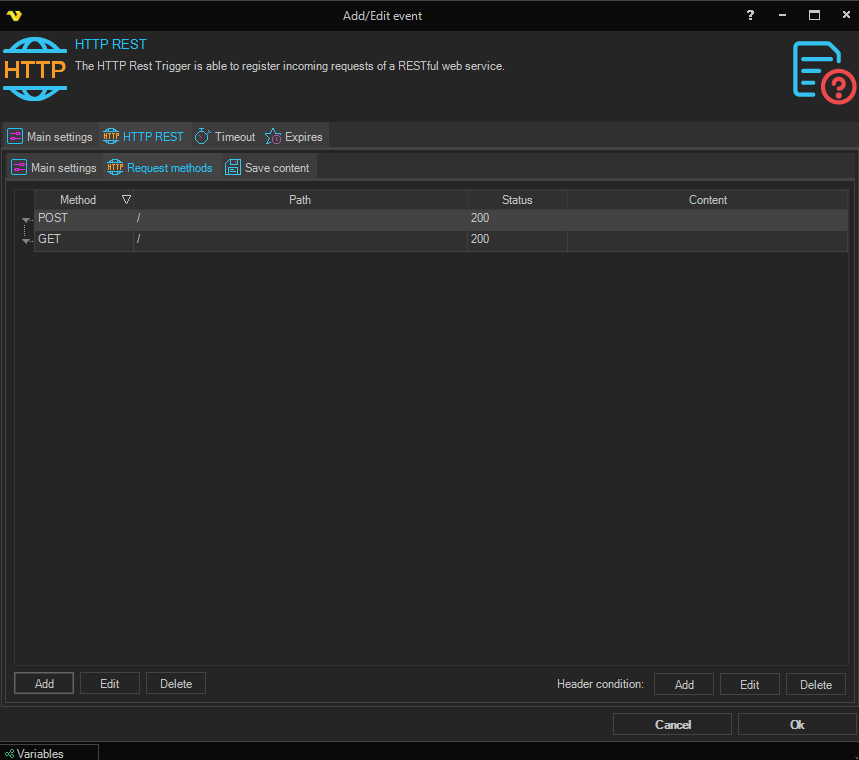
In this tab you specify the paths and methods supported. Above you can access http://localhost:9991/go2 with POST and [http://localhost:9991/go3?name=John(http://localhost:9991/go3?name=John) with GET. To get the parameter value you can use this Variable in follow up Tasks: {TRIGGER(Active|LastTrigger|HTTPREST.Result.QueryParameters.Value|name)}
Each request is configured in a grid with the following columns:
- Method — the HTTP method to accept (
GET,POST,PUT,DELETE,HEAD,CONNECT,OPTIONS,TRACE) - Path — the URL path the server should listen on (for example
/webhook) - Status — the HTTP status code to return when the request matches (default
200) - Content — the response body text to return to the caller
Use the toolbar buttons to Add, Edit, or Delete requests.
Header conditions
Each request can optionally require one or more HTTP header conditions that must match for the request to be accepted. Header conditions appear in a nested grid under the request and have the following columns:
- Header — the HTTP header to inspect (for example
Content-Type,Authorization, or a custom header) - Condition — the comparison to apply (
Equals,NotEquals,Contains,NotContains,Smaller,Larger, etc.) - Value — the value the header is compared against
- CaseSensitive — when checked, the value comparison is case‑sensitive
Use the Add / Edit / Delete buttons next to the Header condition label to manage header conditions for the selected request.
Save content tab

Save content to file
When checked, the body of every incoming request is written to a file on disk. The remaining fields in this group become editable.
Credentials
Select a Credential to use when writing to a network folder. Click the Settings icon to populate the drop‑down list with available credentials.
Folder
The destination folder where the content should be saved. Click the browse button to pick a folder, or drag a path into the field.
Auto name file
When checked, VisualCron automatically generates a file name for each saved request and the File name field below is disabled.
File name
The file name (or file name template) to use when saving the request content. Click the browse button to pick a file. The field is disabled when Auto name file is checked.
Overwrite options
Choose how to handle an existing file with the same name:
- OverwriteIfNewer — overwrite the existing file only when the incoming content is newer
- AppendIfSmallerOrOverwriteIfNewer — append the new content if it is smaller than the existing file, otherwise overwrite if newer
Variables
As other Triggers, this Trigger produces Variables that contain various information about the request.