Task Dynamics CRM - Upload Attachments
The Dynamics CRM - Upload attachment Task uploads the files that match a file filter to Dynamics CRM, as note attachments of a record, using a Dynamics CRM Connection.
The Main settings, Flow, On error, Conditions and TimeOut tabs are the same for every Task; see Job - Tasks.
Upload attachment: Main settings tab
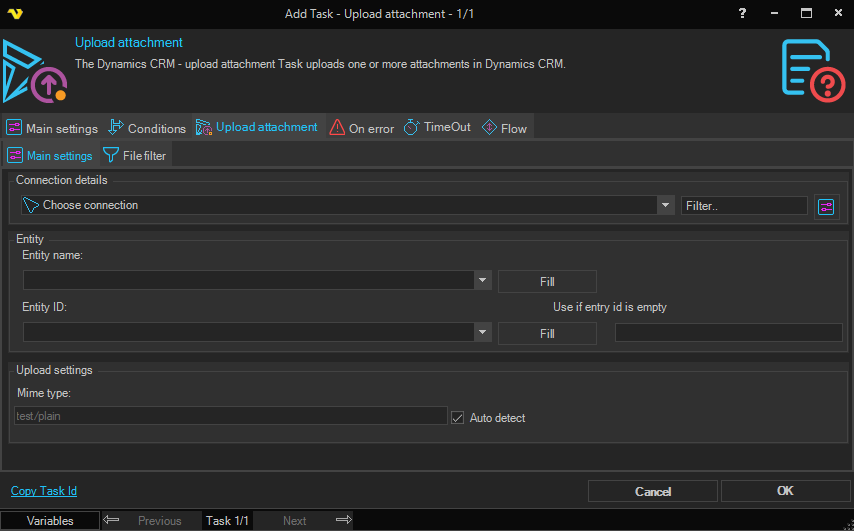
- Connection: in the Connection details group, the Dynamics CRM Connection to use; see Connection - Dynamics CRM. Click the Settings icon to open Manage Connections
- Entity name: the logical name of the entity (the record type), for example
accountorcontact. Click Fill to list the entities of the Dynamics CRM instance - Entity ID: the ID of the record. Select an Entity name first, then click Fill to list the records of that entity
- Use if entry id is empty: the record ID to use when Entity ID is empty. Variables are resolved in this field
In the Upload settings group:
- Auto detect: selected by default. The MIME type of each file is detected from the file
- Mime type: the MIME type of the files, used when Auto detect is cleared, for example "application/pdf". The default value, "test/plain", is not a valid MIME type, so change it when you clear Auto detect
Variables are not resolved in Entity name and Entity ID.
Upload attachment: File filter tab
The files to upload are set with the standard VisualCron file filter; see File Filter.
Output and errors
Each file is added to the record as a note with the subject "File attachment" and the file's name. The output has the ID of each note created, one per line. When no file matches the filter, the output is empty and the Task succeeds. When a file cannot be uploaded, the Task fails. The other files are still uploaded, and uploaded files stay in Dynamics CRM.