Task Interactivity - Robot Task
Overview
The Robot Task is a powerful Robotic Process Automation (RPA) feature that enables you to automate repetitive interactions with desktop applications, websites, and system processes. It allows you to record user actions—such as mouse clicks, keyboard input, form entries, and application navigation—and replay them automatically as part of your scheduled jobs.
Using the Robot Task, you can:
- Automate repetitive desktop workflows
- Interact with web applications and browser-based systems
- Extract data from various sources
- Perform data entry and manipulation
- Handle legacy applications without APIs
- Combine multiple applications into unified workflows
Key Features
- Desktop Macro Recording: Capture mouse movements, clicks, and keyboard input
- Web Automation: Interact with web browsers and web-based applications
- Activity-Based Workflow: Build sequences of well-defined actions and activities
- Variable Support: Use job variables within your Robot Task steps
- Data Extraction: Capture data from screens and store in variables
- Error Handling: Implement conditional logic and error handling in sequences
- Performance Optimized: Improved memory allocation and reduced recording lag for smooth execution
Interface Components
Control
This section contains the primary toolbar and operation buttons for managing your Robot Task. Here you can:
- Start/stop recording interactions
- Play back recorded sequences
- Edit existing activities
- Clear recorded steps
- Configure task settings and properties
Desktop macro
The Desktop macro section displays and manages the recorded interactions with your desktop and applications. This is where you can:
- View all recorded mouse and keyboard events
- Inspect the sequence of actions captured during recording
- Edit individual macro steps
- Delete or modify specific actions
- Set delays and timing between actions for better reliability
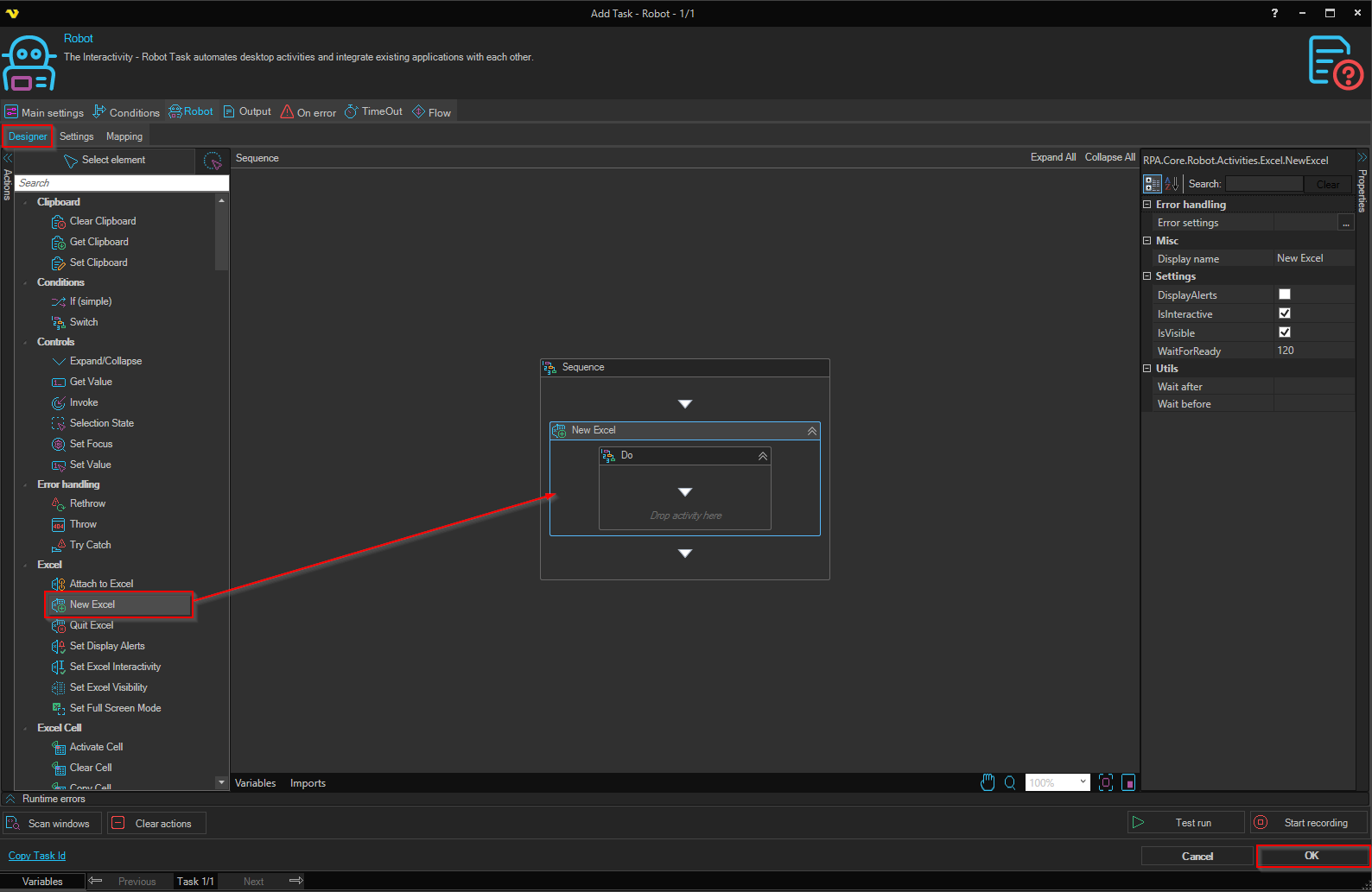
Drop activity here
This area represents the workflow canvas where you can build your automation sequence. You can:
- Drag and drop pre-built activities into the sequence
- Organize multiple activities in a logical flow
- Connect activities to create complex workflows
- Parallelize or branch logic as needed
System.Activities.Statements.Sequence
The Sequence container is the foundation of your Robot Task workflow. It:
- Acts as the main container holding all activities in order
- Executes activities sequentially, one after another
- Maintains state and variables throughout execution
- Supports nested sequences for complex logic structures
- Allows conditional branching and loops
Activity list
The Activity list provides access to available activities and actions you can add to your workflow. Common categories include:
- UI Interaction: Mouse clicks, keyboard input, window management
- Web Activities: Web form filling, navigation, data extraction
- System Activities: File operations, command execution
- Data Manipulation: String operations, Excel interaction, variable assignment
- User Input: Dialog boxes, text entry prompts
- Outlook Integration: Email sending and message retrieval
- Control Flow: If/else conditions, loops, branching
Common Use Cases
- Web Data Entry: Automatically fill out web forms and submit data
- Legacy Application Integration: Automate interactions with systems that lack modern APIs
- Repetitive Document Processing: Extract data from PDFs or scanned documents
- Excel Automation: Manipulate Excel workbooks and perform calculations
- Email Automation: Send emails with data from various sources and handle incoming messages
- Cross-Application Workflows: Move data between different applications automatically
Best Practices
- Keep Sequences Simple: Break complex workflows into smaller, manageable sequences
- Use Variables: Store reusable data in variables rather than hardcoding values
- Add Delays: Include appropriate delays between actions to ensure applications respond
- Test Thoroughly: Run tasks in a controlled environment before scheduling production jobs
- Document Steps: Add comments to complex sequences for future maintenance
- Monitor Execution: Review job logs to ensure tasks execute reliably
- Handle Errors: Implement error handling for critical steps that might fail
Tips for Recording
- Ensure the target application is stable and responsive before recording
- Move slowly and deliberately during recording to capture actions accurately
- Minimize window switching during recording to ensure proper element detection
- Close unnecessary applications to reduce system load and improve capture accuracy
- Use clear, recognizable screen positions for consistent playback
- Test recordings in the same environment where they will run