Task Interactivity - Desktop Macro
The Desktop macro Task records mouse moves and keystrokes on a desktop and plays them back when the Task runs.
note
The Desktop macro Task is obsolete. Use the Robot Task for new automation.
Typical uses are:
- web automation
- testing
- automating manual work
- working with Excel
The Task needs a desktop to play back onto. The VisualCron Server runs as a service, so playback runs in the VisualCron Tray Client on a logged-on desktop, and the Task must run in the foreground; see Task Main Settings - Execution Context. If the Server finds no Tray Client connection for the Task, the Task fails with "Could not find the specified Connection for execution."
The Main settings, Flow, On error, Conditions and TimeOut tabs are the same for every Task; see Job - Tasks.
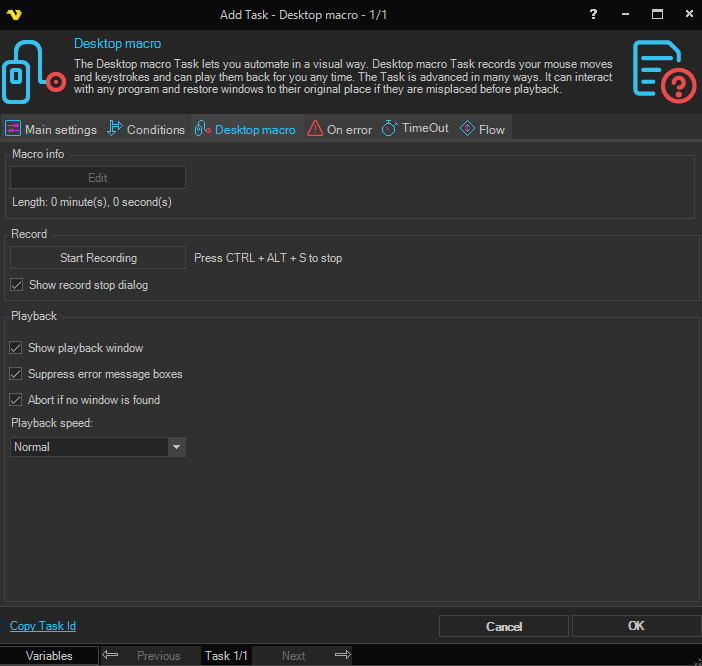
Desktop macro tab
Macro info
- Edit: Opens Desktop macro - steps, the list of recorded steps, where you can open a keyboard or mouse step and change it. Available when the macro has steps
- Length: The playback length of the macro at "Normal" speed
Record
- Start Recording: Minimizes the VisualCron windows and starts recording. Perform the steps you want the Task to repeat. Press CTRL + ALT + S, or click the stop button in the record stop window, to stop recording. Work slowly: the time a program or window takes to open can vary from run to run
- Show record stop dialog: When cleared, the record stop window is not shown, and CTRL + ALT + S is the only way to stop recording
Playback
- Show playback window: When selected, the Tray Client shows a notification that the macro is playing and that holding ESC stops it
- Suppress error message boxes: When selected, a playback error is not shown in a message box on the desktop. The error is written to standard error in either case
- Abort if no window is found: Saved with the Task, but playback does not use it: when a window from the recording is not found, playback continues with the next step
- Playback speed: How fast the macro plays back:
- "Normal": the pauses between steps are the recorded pauses
- "High": the pauses are half the recorded pauses
- "Ultra": the pauses are a quarter of the recorded pauses
Output and errors
- When a playback error occurs, the Task fails, and the error is written to standard error
- Holding ESC during playback stops the macro, and the Task reports success