Task Interactivity - Send Keys
The Send keys Task brings a window of a running application to the front and sends keystrokes to it, for example to use the application's keyboard shortcuts. Keystrokes can be combined, for example CTRL + SHIFT + A.
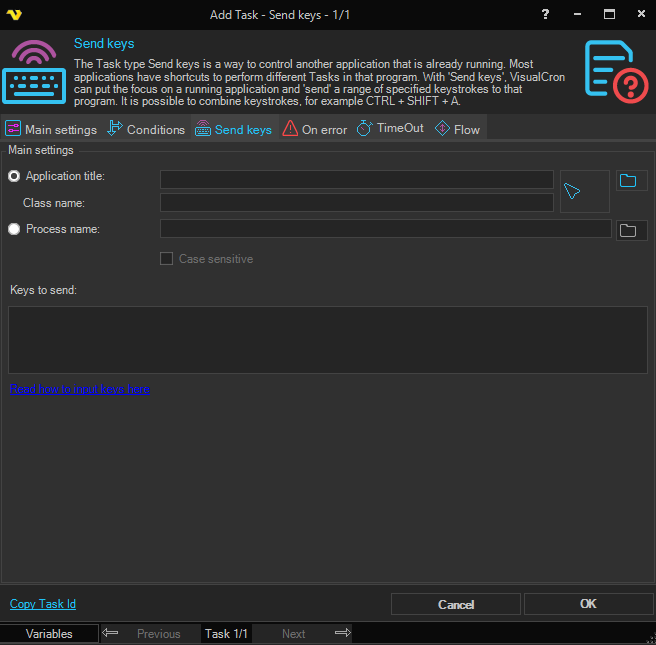
The Task sends the keys to every visible window whose title matches Application title (and Class name, if set), or to the main window of every process whose name matches Process name. Make the title or name specific enough to match only the window you mean.
The Task looks for the window in the session where it runs. To reach windows on a user's desktop, run the Task in the foreground, through the VisualCron Tray Client; see Task Main Settings - Execution Context.
The Main settings, Flow, On error, Conditions and TimeOut tabs are the same for every Task; see Job - Tasks.
Send keys tab
- Application title: Find the window by its title. Enter the whole title, or a pattern with
*for any characters and?for one character. Click the folder icon to choose from the window titles on the Server computer, or drag the arrow button onto a window and release it there, to fill in its title and class name. Child windows are not searched - Class name: Optional, with Application title; the window class the window must have, matched exactly
- Process name: Find the window by the process that owns it, for applications whose title changes. Enter the process's file name, for example
notepad.exe, or click the folder icon to choose from the processes on the Server computer. The keys go to the process's main window - Case sensitive: When selected, the name or title must match in case. You can change it only with Process name selected; the setting also applies to Application title
- Keys to send: The keystrokes to send; see Keys to send. Variables are resolved
Keys to send
Most characters are sent by typing them. For example, to send the letter x, enter x; to send the keystrokes a, b and c, enter abc. To send a space, enter a space.
The characters +, ^, %, ~, parentheses, brackets and braces have special meanings. To send one of them as a character, enclose it in braces: for example {+} sends a plus sign. Brackets have no special meaning, but enclose them in braces too, for applications that give them one: {[} and {]} send brackets, and {{} and {}} send braces.
Keys that do not produce a character, such as ENTER and TAB, and keys that are actions, such as BACKSPACE and BREAK, are sent with these codes:
| Key | Code |
|---|---|
| BACKSPACE | {BACKSPACE}, {BS} or {BKSP} |
| BREAK | {BREAK} |
| CAPS LOCK | {CAPSLOCK} |
| DEL or DELETE | {DELETE} or {DEL} |
| DOWN ARROW | {DOWN} |
| END | {END} |
| ENTER | {ENTER} or ~ |
| ESC | {ESC} |
| HELP | {HELP} |
| HOME | {HOME} |
| INS or INSERT | {INSERT} or {INS} |
| LEFT ARROW | {LEFT} |
| NUM LOCK | {NUMLOCK} |
| PAGE DOWN | {PGDN} |
| PAGE UP | {PGUP} |
| PRINT SCREEN | {PRTSC} |
| RIGHT ARROW | {RIGHT} |
| SCROLL LOCK | {SCROLLLOCK} |
| TAB | {TAB} |
| UP ARROW | {UP} |
| F1 to F16 | {F1} to {F16} |
To press a key together with SHIFT, CTRL or ALT, put one or more of these characters, without braces, in front of it:
| Key | Character |
|---|---|
| SHIFT | + |
| CTRL | ^ |
| ALT | % |
To hold SHIFT, CTRL or ALT down while several keys are pressed, put those keys in parentheses. For example, +(ec) holds SHIFT while e and c are pressed, and +ec holds SHIFT for e only.
To press one key several times, put the key and the number of times in braces, with a space between them: {x 10} sends x ten times. This works for a single key only; a combination such as CTRL + X cannot be repeated this way.
PRINT SCREEN, {PRTSC}, cannot be sent to an application.
Output and errors
- If no window is found, the Task fails with "Found no window. Please check Application Title." or "Found no window. Please check Process Name."
- In the foreground, if the Server finds no Tray Client connection for the Task, the Task fails with "Could not find the specified Connection for execution."