Task Interactivity - Robot Task
The Robot Task automates desktop applications, web browsers, Excel workbooks, files and folders by running a sequence of activities that you build or record.
The Main settings, Flow, On error, Conditions and TimeOut tabs are the same for every Task; see Job - Tasks.
The Robot Task is available in the Pro edition.
With the Robot Task, you can:
- Automate repetitive desktop workflows
- Work with web applications and browser-based systems
- Read data from applications, web pages, files and Excel workbooks
- Enter and change data
- Work with older applications that have no API
- Combine several applications into one workflow
How the Robot Task runs
The Robot Task always runs in the foreground. The VisualCron Server hands it to a connected VisualCron Tray Client, chosen by the Task's execution context: by default the Tray Client of the user set there, and with any foreground user, the first Tray Client connected. The activities run in that desktop session, as the user logged on to it. That user's permissions apply to every file, folder, application and Excel workbook the activities use.
If no matching Tray Client is connected to the Server, the Task fails.
Robot tab
The Robot tab has three tabs: Designer, Settings and Mapping.
Designer tab
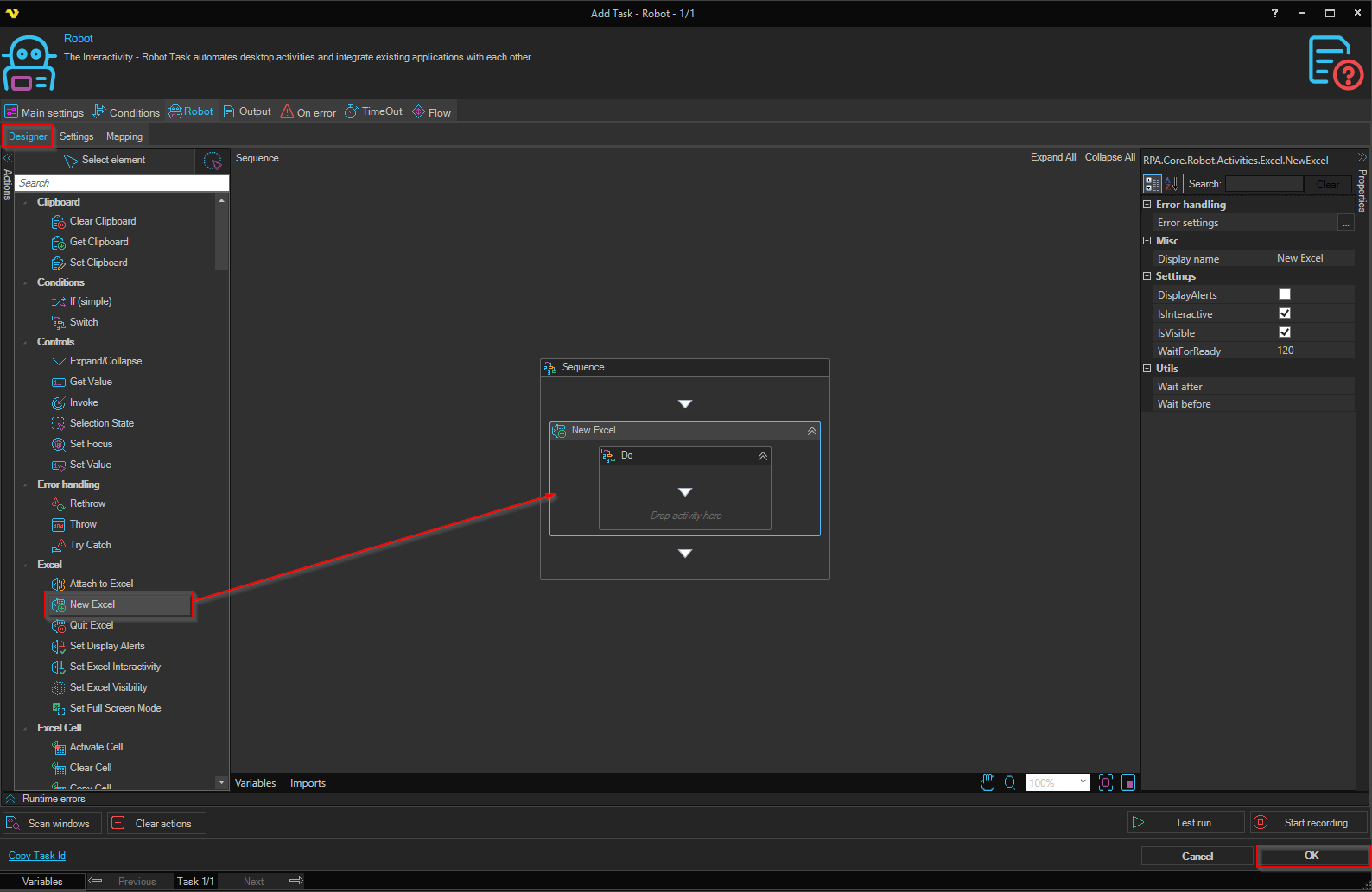
The Designer tab is where you build the sequence.
- Activity list: on the left, the activities grouped by category, with a Search box. Drag an activity into the sequence to add it. See Robot Task Activities for the categories and activities
- Select element: pick a control on the screen, and get a list of activities that suit it
- Sequence: the workflow in the middle. Activities in a sequence run in order, one after another, and a sequence can contain other activities that have their own bodies, such as conditions, loops and Excel containers. Expand All and Collapse All open or close every activity in the view
- Properties pane: on the right, the properties of the selected activity, such as Display name, Error settings, Wait before and Wait after, and the activity's own settings
- Variables and Imports: below the sequence, the workflow variables and the imported namespaces
- Runtime errors: the errors from the last test run
- Scan windows: scans the open windows for controls and lists them on the Mapping tab
- Clear actions: removes all activities from the sequence, or all controls from the Mapping tab when that tab is open, after you confirm
- Test run: runs the sequence from the Client, so that you can check it
- Start recording: records your mouse and keyboard actions as activities
Settings tab
Record settings
- Use cache request to search UI elements: checked by default; also used when the Task runs
- Auto move recorder panel if it blocks interaction: checked by default
- Draw rectangles and Draw interval: draw a rectangle around each element as it is found, every 300 milliseconds by default
Activities settings
- Set wait for all: sets the wait time of all activities at once
- Activities repository: opens the repository of additional activities
Playback settings
- Playback speed: how fast the activities are played back
- Execution mode: "StepMode" (default) runs the sequence on the Designer tab; "MapMode" runs the controls on the Mapping tab instead
- Show progress during playback: shows a progress panel during a test run
- Sequence transparency level: how transparent the playback panel is
Web browser settings
- Settings: the browser settings used by the web activities
When the Task runs in a Job, no rectangles and no progress panel are shown.
Mapping tab
The Mapping tab lists the controls found with Scan windows, with the value to set or read for each. It is used when Execution mode is "MapMode".
Output tab
The Output tab can record what happens on the screen while the Task runs.
- Output type: "None", "Images", "GIF" (default) or "Video"; a new Robot Task records a GIF of every run unless you set "None"
- Frame rate and Quality: the recording frame rate and quality
- Image format: the file format for "Images"
- Open settings: the video compression settings for "Video"
- Save output to file: also save the recording to a file
- Output folder and File name: where the recording is saved
- Credentials: the Credential used to write the file
Output and errors
The Task fails, with exit code 77777, when an activity raises an error that no Try Catch activity or Error settings rule handles, or when anything is written to the Task's error output. The errors are in the Task's error output.
An error that a Try Catch activity catches, or that an Error settings rule ignores, is written only to the Task output, and the Task reports success. The same applies to a Wait For File or Wait For Folder that times out with Throw exception cleared, to a Set Focus that cannot set the focus, and to a Search Text and Click or Search Text and Hover that does not find its text. Test the result of steps that must succeed, and log what was skipped.
Key features
- Desktop recording: capture mouse clicks and keyboard input as activities
- Web automation: work with web browsers and web-based applications
- Activity-based workflow: build sequences of well-defined activities
- Variable support: use Job and User Variables in the activities
- Data extraction: read data from screens, controls, web pages and files into variables
- Error handling: add conditions and error handling to sequences
Common use cases
- Web data entry: fill out and submit web forms
- Older application integration: automate applications that have no modern API
- Document processing: read text from the screen with OCR
- Excel automation: create, change and save Excel workbooks
- E-mail automation: send e-mail with Outlook, with data from other sources, and handle incoming messages
- Cross-application workflows: move data between applications
Best practices
- Keep sequences simple: break complex workflows into smaller, manageable sequences
- Use Variables: store reusable data in Variables rather than typing values into each activity
- Add waits: add suitable waits between actions so that applications have time to respond
- Test thoroughly: test with Test run in a controlled environment before you schedule production Jobs
- Document steps: describe complex parts of the sequence for later maintenance
- Monitor runs: check the Task output and the Job log to make sure the Task runs reliably
- Handle errors: add error handling for critical steps that might fail
- Name every activity: set the Display name property of each activity so that the sequence is readable at a glance; you should be able to tell what an activity does from its name
- Avoid collisions: Robot Tasks, Web Macro Tasks and every other foreground Task share the desktop session they run in, and interfere with each other if they run at the same time; schedule such Jobs so that they do not overlap, or run them in separate sessions or on separate machines
Error handling notes
The Try Catch activity does not work with Web Macro activities. When a Web Macro activity raises an error, the sequence is stopped before Try Catch can catch it. Two workarounds are available:
- Allow to ignore the element: in the Web Macro activity's settings, check Allow to ignore the element, so that the sequence is not stopped when the element is not found
- Error settings on the activity: the other activities have an Error settings property in the Properties pane, where you can choose to ignore an error rather than stop the sequence
See Error Handling.
Tips for recording
- Make sure the target application is stable and responsive before you record
- Move slowly and deliberately during recording, so that actions are captured accurately
- Switch between windows as little as possible during recording, so that elements are detected properly
- Close applications you do not need, to reduce the load and improve capture accuracy
- Use clear, recognizable screen positions for consistent playback
- Test recordings in the same environment where they will run